Inhalt dieses Topics
You can assign icons to the respective metadata in plusmeta to recognize them more quickly.
Configure icons
Here you will find a large selection of icons that you can use in plusmeta.
- Select an icon from the Pictogrammers libary and copy the name of the icon to the clipboard.
- Open the Properties view.
- Click the Add button and then click the button.
The Create property dialogue opens. - In the Class field, select the Icon class from the drop-down list and select the List value data type in the Data type field.
- In the namespace field select the value Icon namespace.
- Insert the name of the icon in the Identifier/URI field (mdi:icon-name).
- Assign a suitable label.
- Click the CREATE button.
The new property is saved and the dialogue is closed.
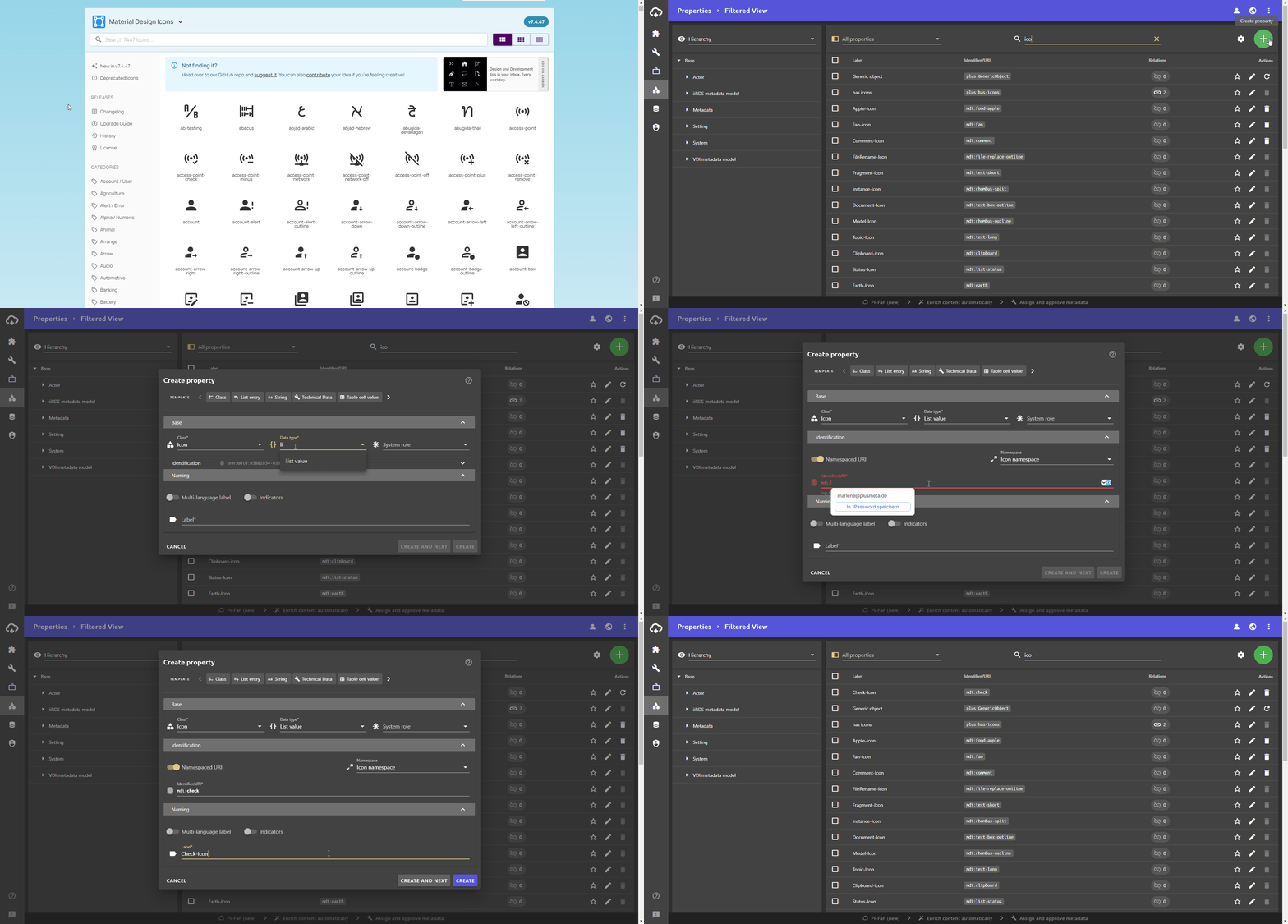
Assign icons to metadata
In order to see the new icon in the workflow step Assign and approve metadata, it has to be assigned to metadata first.
- Open the Properties view .
- Select the metadata to which you want to assign the icon.
- Click on the button to open the Edit properties dialogue.
The Edit properties dialogue opens. - Open the Relations tab.
Note: The system roles Metadata and Mappable property already have predefined dependencies on specific relations. If you have selected the system role Metadata for the property, some fields appear in the Relations tab that only need to be filled, icluding the relation has icons. You can add more relations using the Add button.
- Click in the has icons field and select the desired icon from the drop-down menu. If the has icons relationship is not yet displayed in the Relations tab, use the Add button to add the has icons relation and select the desired icon in the relation target field.
The icon is displayed later in the workflow step Assign and approve metadata. - Close the Edit properties dialogue.
All your changes will be saved automatically.
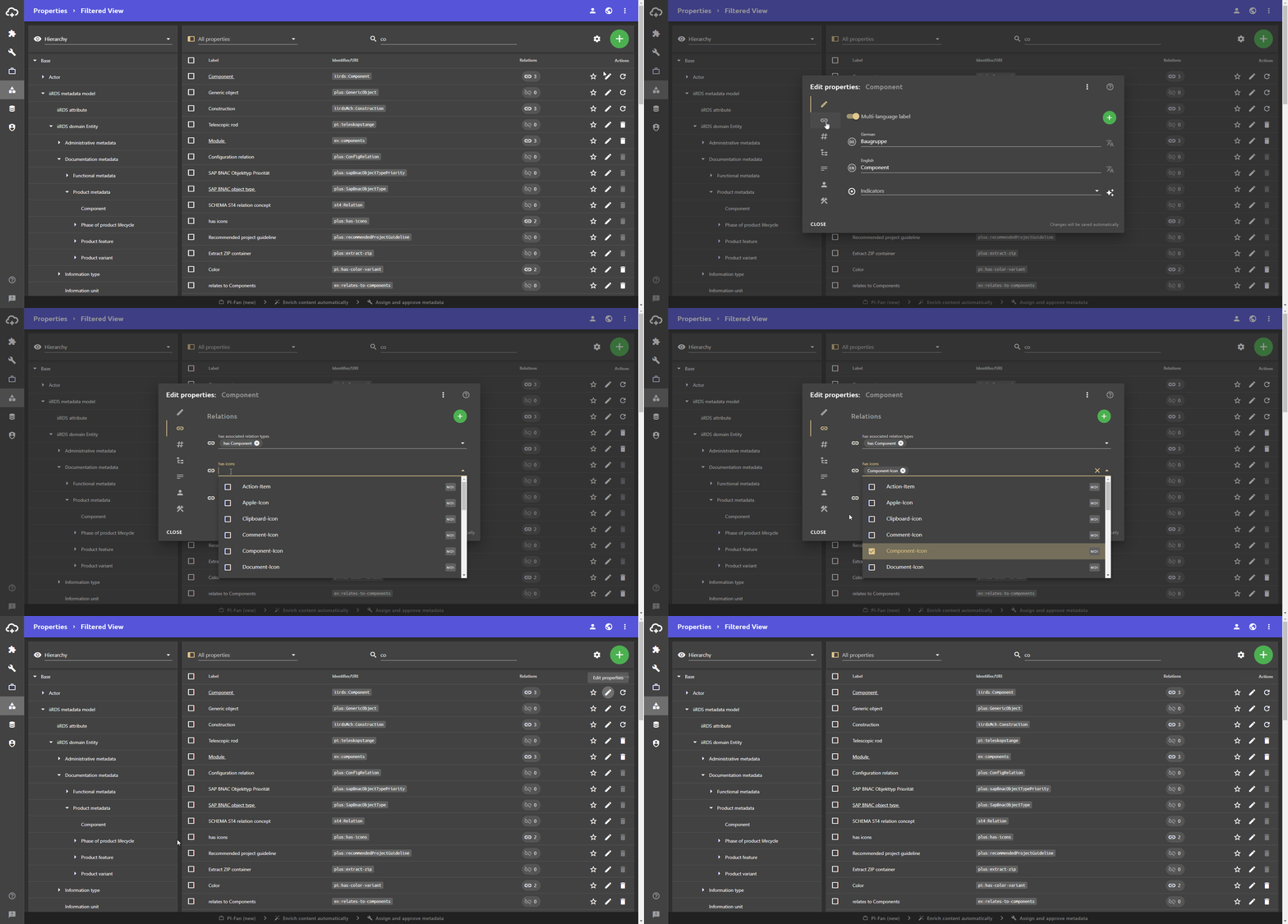
Edit icons
- Open the Properties view .
- Search for the icon using the filter or the search function.
- Click on the button in the row of the icon.
The Edit properties dialogue opens. - Edit the icon and close the Edit properties dialogue.
All your changes will be saved automatically.
Delete icons
- Open the Properties view .
- Search for the icon using the filter or the search function.
- Delete the icon using the button in the row of the icon.
Note: Only manually created icons can be deleted. Standard icons in plusmeta cannot be deleted.
