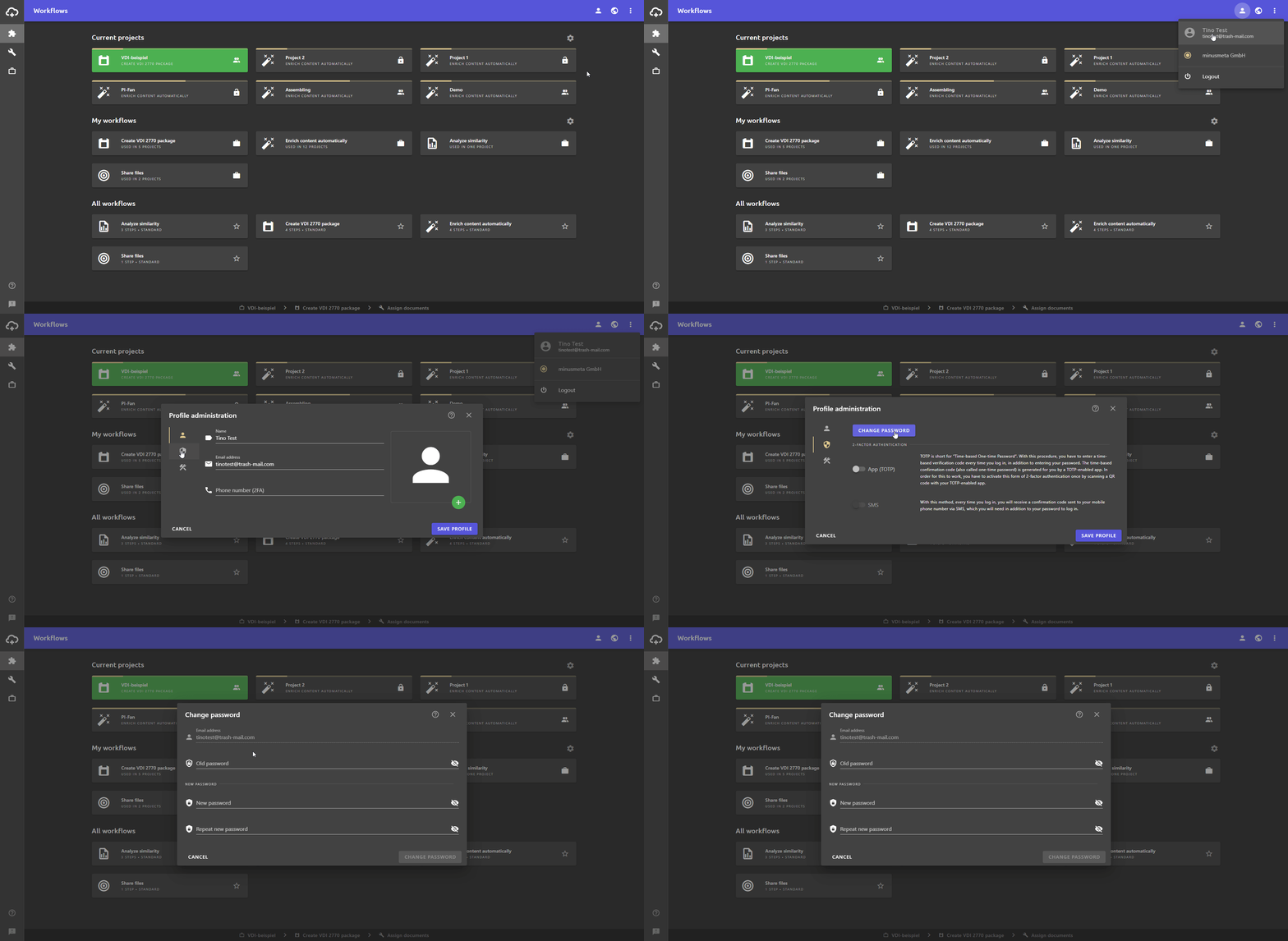
- Click the button to open the user settings.
- Click the User Profile button.
The Edit User Profile dialogue opens. - Click on the tab security.
- Click the CHANGE PASSWORD button.
The Change Password dialogue opens. - Enter your old password in the Old password field.
Note: By clicking on the button you can see what you are typing into the field.
- Enter a new password in the New password field. The new password must meet the following minimum requirements:
- The password must have at least 8 characters
- Your password must contain at least one number (
0-9) - Password must contain at least one special character
(^ $ * . [ ] { } ( ) ? - " ! # % & / \ , > < ' : ; | _ ~) - Password must contain at least one uppercase letter (
A-Z) - The password must contain at least one lowercase letter (
a-z)
- Re-enter the new password in the Repeat new password field.
- Click the green CHANGE PASSWORD button to save the password change.
Note: If the CHANGE PASSWORD button appears grayed out, there is something wrong with your entries. In this case, check:
- Have you entered your old password correctly?
- Does your new password meet the minimum requirements?
- Did you repeat the new password correctly?
You're not getting anywhere?
Contact Support