Content of this topic
The Projects view shows you all the projects that you have created or that are shared with you. Further information on projects can be found on the help page Projects overview.
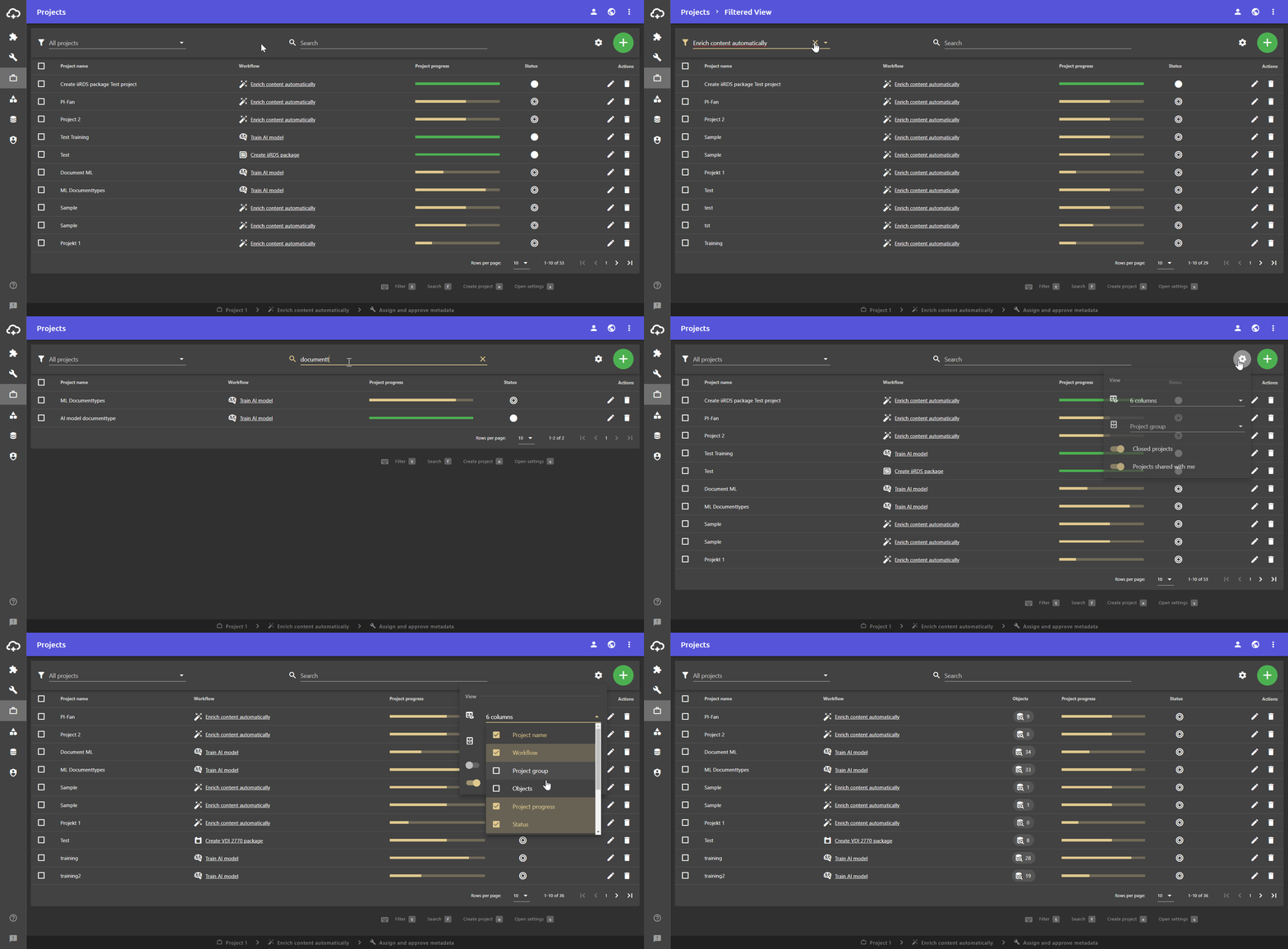
Layout
The projects view is a table view. The following columns are displayed by default.
The following table shows an overview of the columns that can be displayed in the project view.
| Column name | Contents |
|---|---|
| Project name | The names of the projects are displayed in this column. You can recognize the currently active project and projects that have been shared with you by the symbol in front of the project name. |
| Workflow | This column shows the workflow to which the project is assigned. |
| Project progress | This column displays a progress bar of the respective project. For example, if the bar is filled up to one third, you have completed one third of the workflow steps. |
| Objects | Shows how many objects are being processed in the project. Click on the icon to open a dialogue that displays the objects. |
| Status | Shows the status of the project with an icon. The status of the currently active project is shown in green. Further details on the project status can be found on the help page Project status |
| Visibility | Shows the visibility of the project with an icon. Further information on visibility can be found on the help page for visibility |
| Origin | Indicates who created the project. |
| Modified at | Shows when the project was last changed. |
| Actions | In this column, you can edit and delete projects. |
At the bottom you can set how many table rows should be displayed per page. If you have more projects than are set here, the table will span over several pages. You can switch between the pages at the bottom right using the buttons < and >.
Open project
If you click on a project in the projects view, it opens in the Work view. You can find out more about the working view on the help page Working view.
Filter view
You can use the filter function to filter the projects in the table according to their workflow.
- Click on the field next to the filter icon .
A drop-down list opens. Next to the individual filter options (workflows), the number of projects that use the corresponding workflow can be seen in a blue circle. - Click on the workflow whose projects are to be displayed.
The drop-down list closes automatically and only the projects that are assigned to the selected workflow are displayed.
The title of the selected workflow is displayed in the filter field. - Click on the button in the filter field to remove the filter.
The set filter is removed and you can see all your projects again.
Search for projects
You can search for projects using the search bar. The search takes both the project name and the workflow name into cosideration. You can also use the search bar to filter the projects displayed based on workflows.
Delete your entry in the search bar to display all projects again.
Customize view
You can open the table settings via the settings button . You can customize the view via the table settings.
Click anywhere outside the table settings to close them.
Show and hide completed projects
You can show and hide closed projects via the toggle Closed projects in the table settings If you hide them, projects that you have already completed, i.e. have gone through all workflow steps, are no longer displayed in the projects view.
Show and hide “Projects shared with me”
You can use the toggle Projects shared with me in the table settings to show and hide projects that are shared with you.
Projects shared with you are projects that have been created by another user but shared with you. You can recognize them by the symbol in front of the project name.
Edit columns
You can use the drop-down list with the icon to edit the columns of the table view. You can add or remove columns.
More information
The drop-down list with all the usable columns can be expanded next to the icon. By activating or deactivating the checkboxes , columns are added or removed from the table view.For more information, see the section Edit columns of the 'Customize table views' help page.
Edit projects
You can edit projects using the button in the Actions column of the respective table row. Here you can change the project name, status and visibility, among other things.
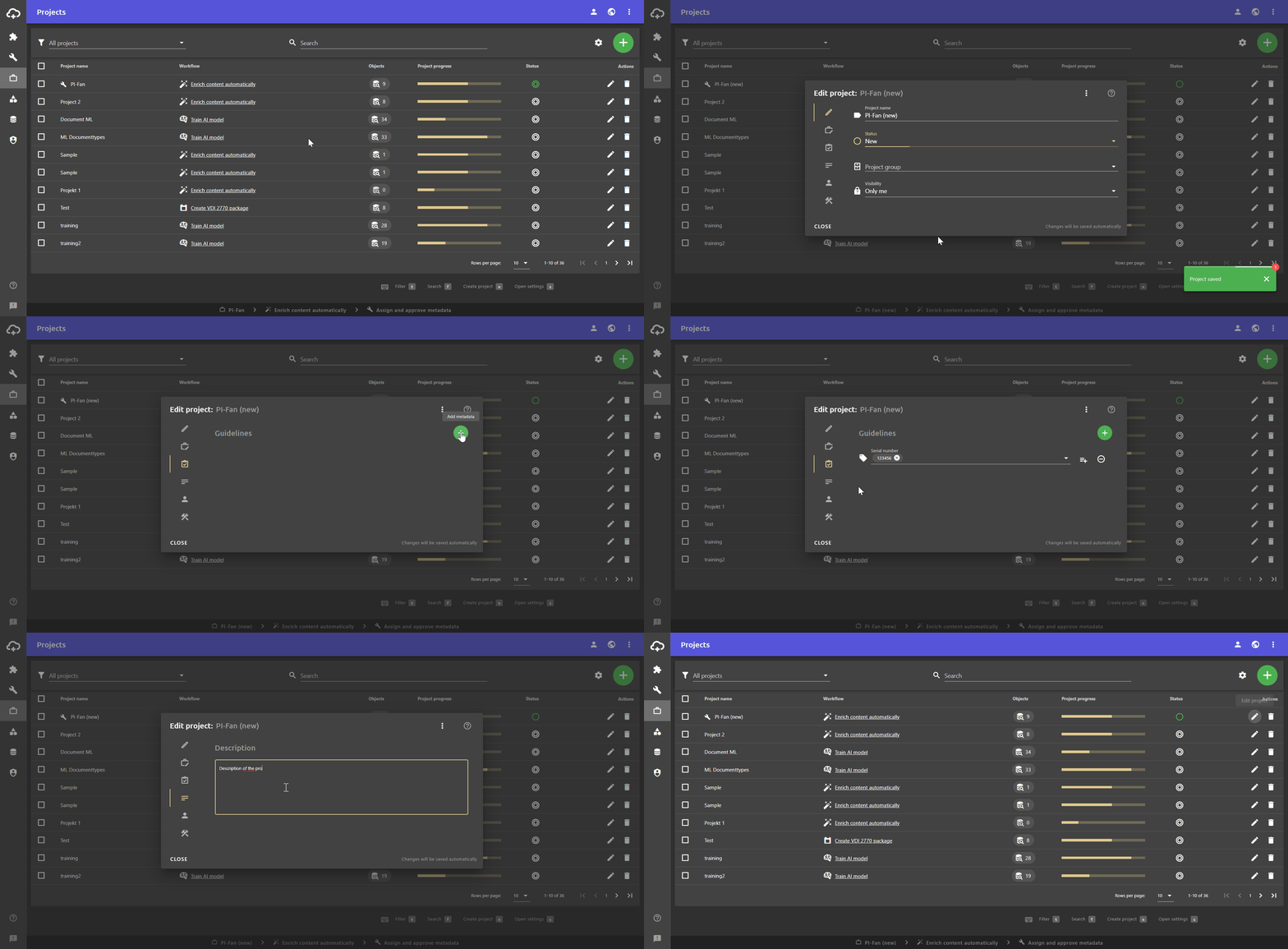
Using the More-menu in the Edit project dialogue, you can also export or delete the project.
Delete projects
You can delete projects using the button.
- In the Actions column, click on the button to delete the project in this row.
The Delete project dialogue opens, which can be used to confirm or cancel the deletion of the project.
Attention: This action cannot be undone!
- Click on YES to confirm the deletion of the project.
Delete multiple projects
If you want to delete several projects, first select the desired projects using the checkboxes and then click to delete the selected projects. The red delete button only appears if at least one project is selected.
Objects in deleted projects
If you delete a project, the Delete project dialogue opens. Here you have the option of selecting whether all related objects should also be deleted. If objects are used in another project, they are not deleted, even if you activate the option Delete all related objects as well. You can still find the objects in the Objects view.
