Content of this topic
- Overview of object types
- Create object
- Visibility of objects
- Reuse of objects
- Delete and remove objects
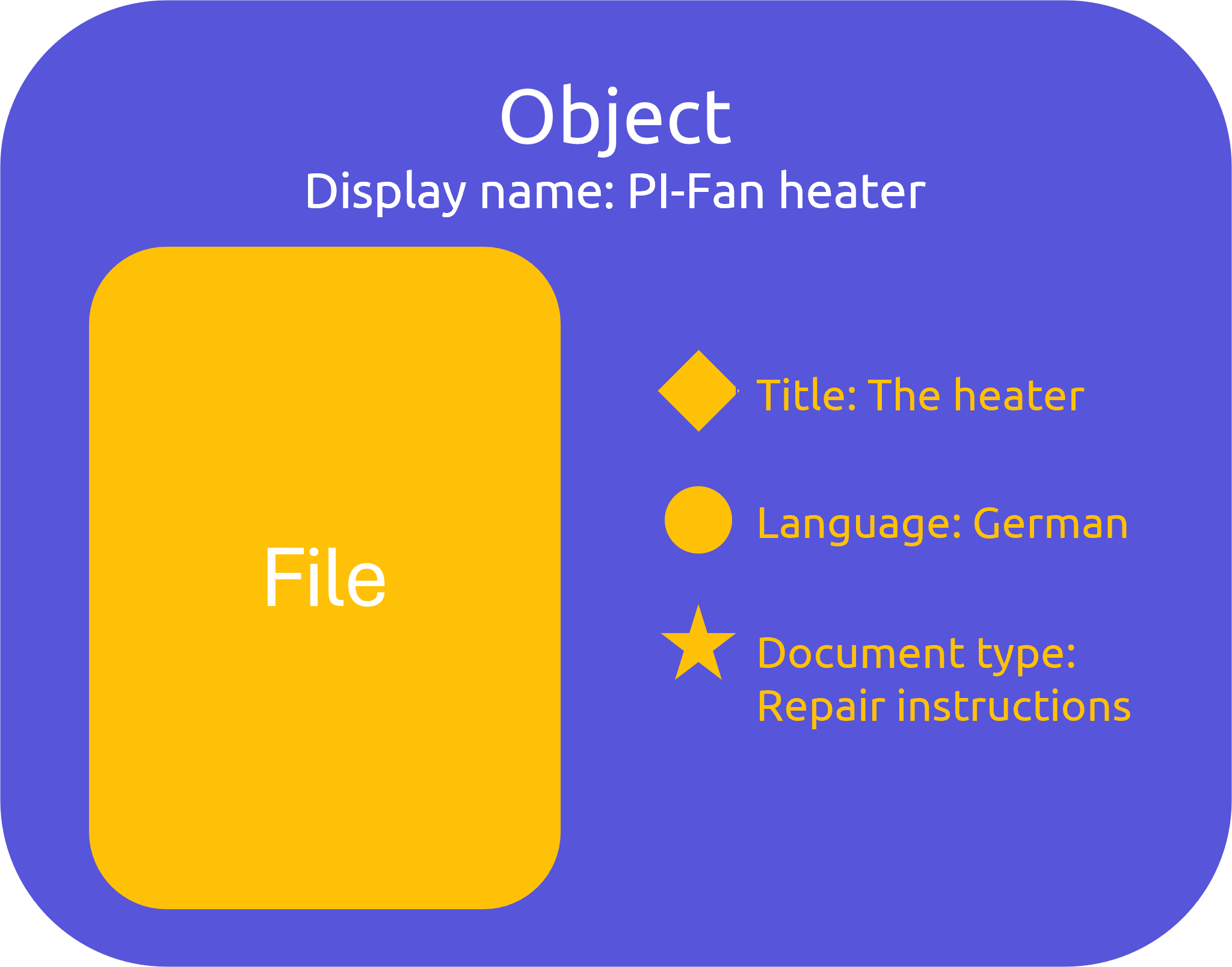
When you upload files into a project, plusmeta puts the files into an object. The object encases the file. The file itself remains unchanged. The metadata detected in plusmeta is saved to the object. Depending on the file type, plusmeta assigns the object to an object type. For example, PDF files are identified as Document, HTML files are classified as Content component. The results of some workflows are also objects, e.g. ML models or iiRDS packages. plusmeta also has other object types, most of which are relevant for configuration purposes.
Overview of object types
plusmeta distinguishes between different object types. There are object types that only occur in certain workflows. The object types only become visible if the appropriate permissions are assigned to your user.
| Object type | Use |
|---|---|
| Content component | HTML files |
| Document | PDF files |
| Image | Graphics, images or animations (svg, jpeg, gif) |
| Fragment | Components of HTML files |
| Segment | Reference to specific segment of pages of a PDF (start and end page) |
| Placeholder | Special object type used in the “Compile documentation” workflow. Placeholders are search grids for documents defined via metadata. |
| Text object | txt files |
| Media archive / Documentation ZIP | ZIP-container |
| iiRDS-container | plusmeta case around iiRDS packages |
| VDI 2770 container | plusmeta case around VDI 2770 packages |
| VDI 2770 documentation container | VDI 2770 package |
| VDI 2770 main document | Main file (PDF) of a VDI 2770 package, which contains an overview of the documents contained with their document categories. |
| Similarity analysis | Result of the workflow Analyze similarity |
| Generic object | Unspecified object |
| Configuration object | Object that contains configurations for extraction methods, imports, etc. (you can learn more in the Superuser training) |
| ML model | Result of the workflow Train AI model |
Create object
Objects are created automatically when you upload files in projects. The result of projects is also saved as an object in plusmeta, e.g. a generated iiRDS package or a trained ML model.
You can also create objects manually in the Objects view using the Add button . This is particularly relevant for configuration.
Visibility of objects
Objects can have different levels of visibilitiy. For more information, see the help page Set visibility.
Reuse of objects
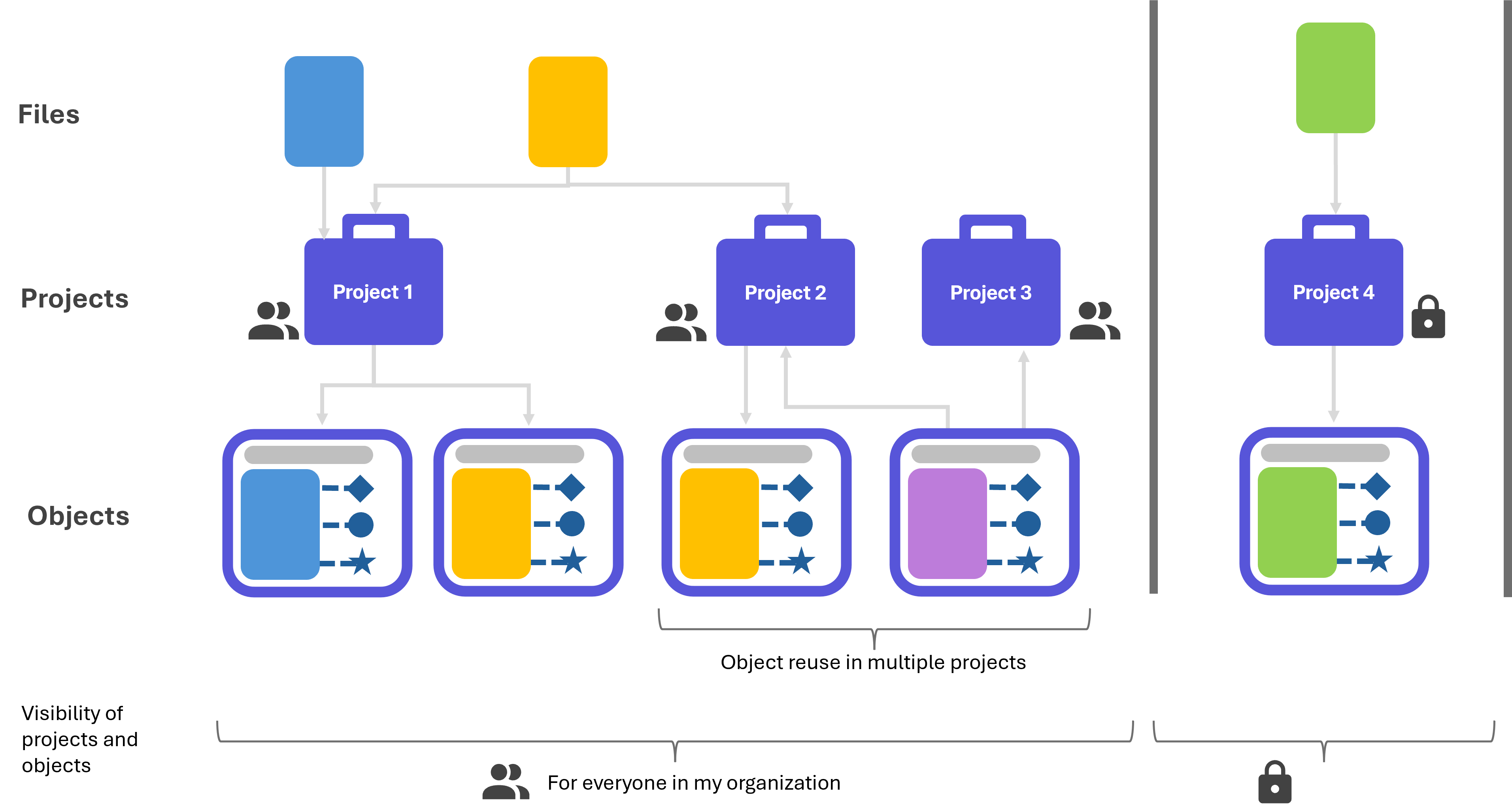
You can reuse existing objects in plusmeta in several projects. This is not a copy of the object, but an actual reuse. This means that the metadata you assign in a project is also displayed in the project in which you reuse the object. Accordingly, changes to the object also affect all reuses. You can see an example of a reused object in the pink file in the graphic below.
If you want to use a copy of the file in several projects, you must upload the file again in the other project and thus create a new object (see yellow file in the graphic below).
If you reuse an object in a project that is visible to everyone in your organization, the object also becomes visible to everyone.
Delete and remove objects
You can remove or delete objects. Depending on the object type, this is possible both in the Objects view and in various workflow steps.
If you remove an object, it remains in the Objects view and is only removed from the current project.
If you delete an object, it is deleted from plusmeta. If the object is used in several projects, an exclamation mark is displayed next to the icon . If you delete such an object, it will be deleted from all projects.
