Content of this topic
- Example 1: Creating and assigning complex identities for metadata (values)
- Example 2: Creating and assigning complex identities for objects (documents, HTML files, etc.)
Complex identities are used in plusmeta to assign alternative identities. This makes it possible to give metadata and objects an identity in addition to their ID.
Complex identities are provided for in the VDI 2770 and iiRDS standards, among others. In workflows where an iiRDS or VDI 2770 package is created, complex identities are output according to the guidelines of the Standard:
- If the iiRDS standard is used, the complex identities are output as
iirds: IdentityDomain. - When outputting according to VDI 2770, the complex identities are output as an additional object reference.
To create a property that can be used as an alternative identity, the desired property must be assigned the system role Identity (plus: IdentityDomain).
This is possible for metadata (property with the system role Metadata) and attributes (properties of the class Attribute):
-
Metadata with the Identity system role can be used in particular to assign an additional ID to objects. For example, you can assign the ID used in the Component Content Management System (CCMS) to a topic or assign an identifier to an object in accordance with VDI 2770.
-
Attributes with the Identity system role can be used to give Metadata (values) an additional identity. For example, you can add a material number to a product variant or an assembly.
Metadata can be assigned alternative identities, but it can also be used to assign an alternative identity to an object. In the first case, an attribute is used that assigns the alternative identity to a metadata value (a list value of a metadata). In the second case, a metadata is used to assign an alternative identity to an object.
Example 1: Creating and assigning complex identities for metadata (values)
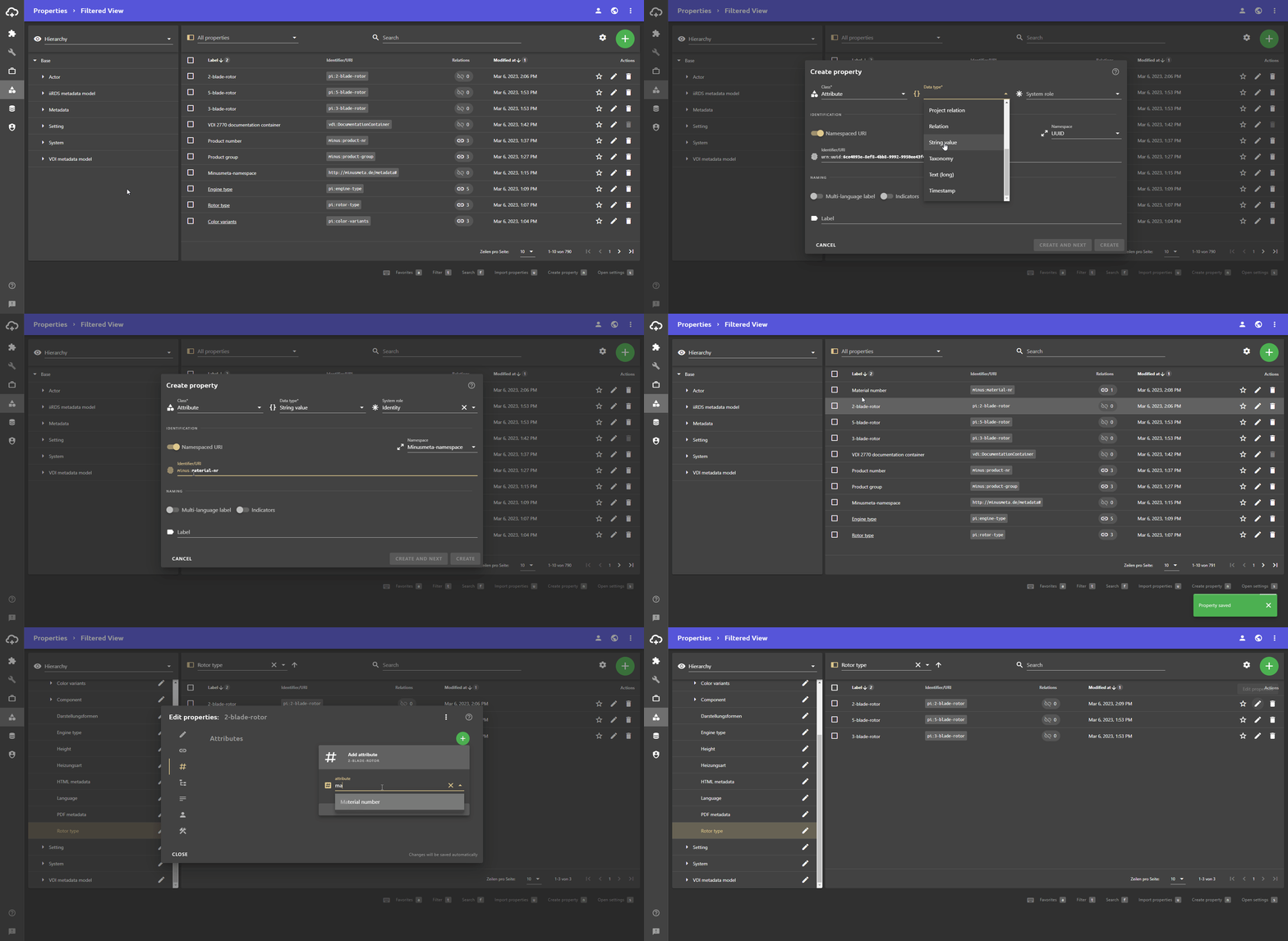
To create a complex identity for a metadata, you must create a new attribute with the Identity system role and assign it to the metadata:
- Open the Properties view.
- Click the Add button and then click the button.
The Create property dialogue opens. - In the field Class select the value Attribute from the drop-down list.
- In the field Data type select the desired data type for the values of the attribute. For alternative identities, these are usually the data types String value and Number.
- In the System role field, select the Identity value.
- In the IDENTIFICATION area, replace the automatically set identifier with your own identifier if necessary.
- Enter a label for the attribute.
- Click the CREATE button.
The new attribute is saved and the dialogue is closed.
To assign the newly created alternative identity to a metadata value, the attribute must be assigned:
- Open the Properties View.
- Click on the button at the desired property (usually the list value of a metadata) to open the Edit properties dialogue.
The Edit properties dialogue opens. - Open the Attributes tab.
- Click the Add button.
- Select the attribute you have just created from the drop-down list and confirm with CREATE NEW ATTRIBUTE.
The new attribute is added. - Enter the desired value.
- Close the Edit properties dialogue.
All your changes will be saved automatically.
Example 2: Creating and assigning complex identities for objects (documents, HTML files, etc.)
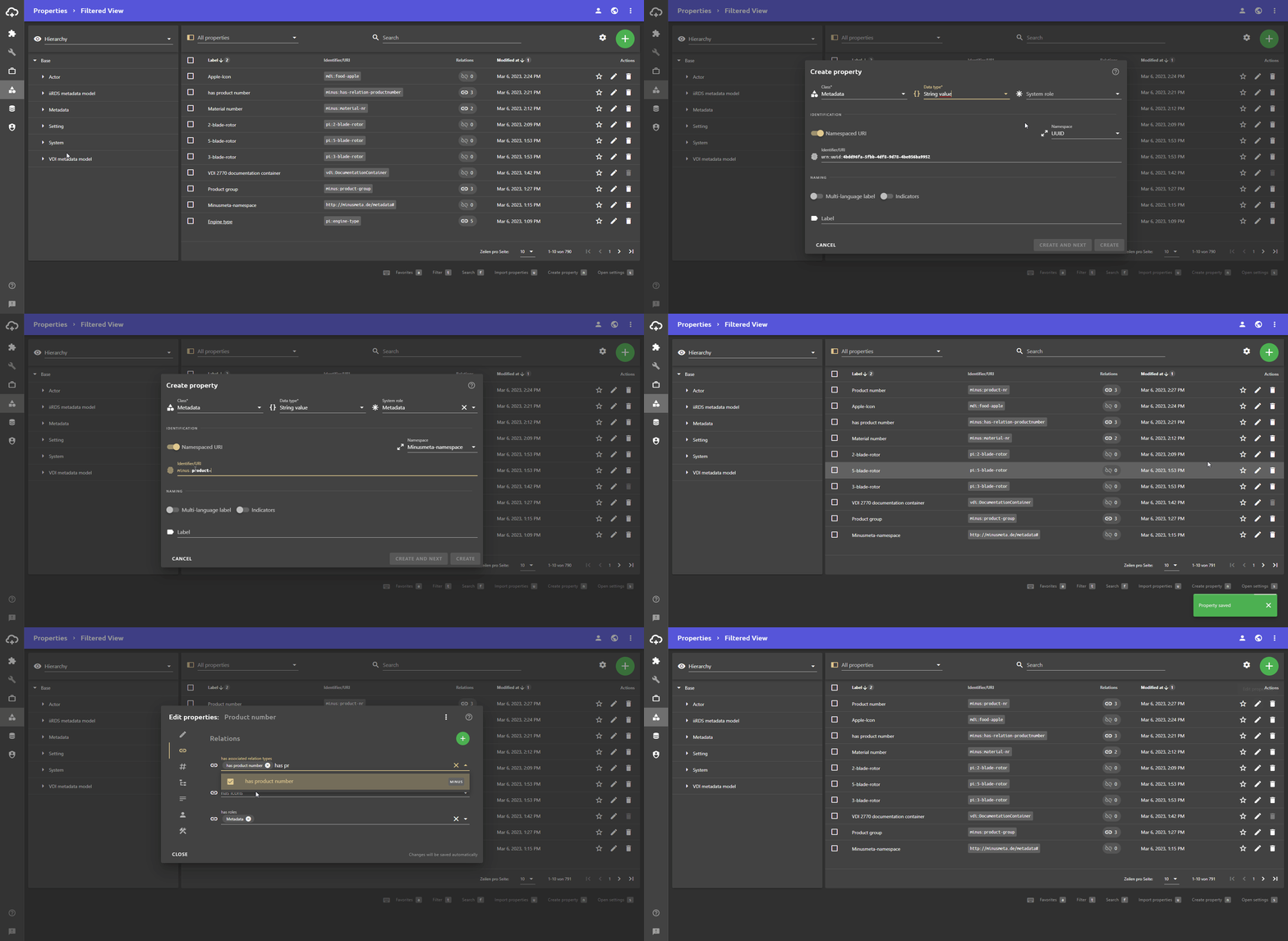
To create a complex identity for an object, you must create a new metadata with the Identity system role.
- Open the Properties view.
- Click on the Add button and then click on the button.
The Create property dialogue opens - In the Class field, select the desired hierarchically higher property from the drop-down list, for example Metadata. Which class is correct here depends on your metadata configuration.
- Select the desired data type in the field Data type.
Tip: For metadata intended to be used as a complex identity, the data types Class, String value and Number are suitable. If you want to create a fixed value list from which the value of the identity is selected, you must select the Class data type. If you want to configure a free text field in which the value of the identity for the object can be entered, you must select the data type String value or Number.
- In the System role field, select the Metadata value to make the property an assignable metadata.
- In the IDENTIFICATION area, replace the automatically set identifier with your own identifier if necessary.
- Enter a lable for the metadata.
- Click the CREATE button.
The new property is saved and the dialogue is closed. - On the property, click the button to open the Edit properties dialogue.
The Edit properties dialogue opensNote: According to the default sort order in plusmeta, the last property created should be at the top of the properties view. If you have adjusted the sort order or activated a filter, the metadata you have just created may not be displayed at the top. In this case, you can search for it using the search field or edit the table view to sort by the table column Modified at. - Open the Relations tab.
- In the Roles field, select the Identity system role from the drop-down list.
The new system role has been added.
- Close the Edit properties dialogue.
All your changes will be saved automatically.
The configured metadata can now be used in the workflow step Assign and approve metadata. Depending on the configuration, various scenarios are possible, which are outlined using the following examples:
- The metadata appears automatically as a free text field on all objects
[Configuration: Data type = String value/Number; System roles= Identity, Metadata; Attributes= Recommended] - The metadata has a free text field and can be added manually to an object
[Configuration: Data type = String value/Number; System roles = Identity, Metadata] - The metadata has a fixed value list and appears automatically on all objects, possibly already prefilled
[Configuration: Data type = Class; System roles= Identity, Metadata; Attributes= Automatic, Recommended] - The metadata has a fixed value list and appears automatically on all objects, possibly already prefilled
[Configuration: Data type = Class; System roles= Identity, Metadata; Attributes= Automatic, Recommended] - The metadata has a fixed list of values and only appears on the objects for which values were automatically found
[Configuration: Data type = Class; System roles= Identity, Metadata; Attributes= Automatic]
If you would like to add a larger number of list values, you can also use the Excel import or a JSON import. If you have any questions, please contact Support.
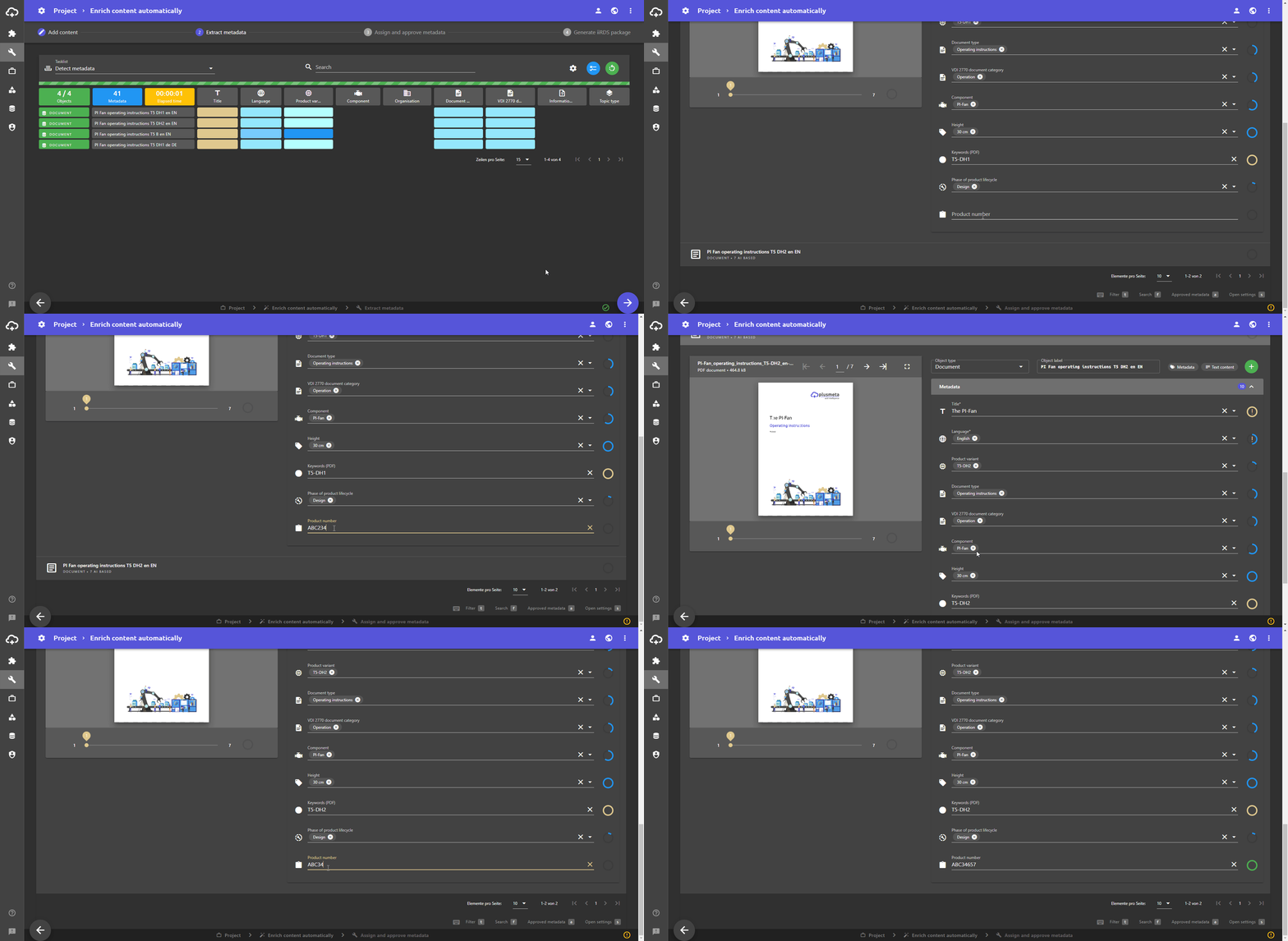
The following GIF shows how a metadata behaves when it is configured to automatically appear as a free text field on all objects (first scenario). This metadata was created in the GIF at the beginning of this example.