Content of this topic
User portal
The User portal is your central help platform. Here you will find the plusmeta documentation, tutorials, FAQs and videos. In addition, you can also find software release information such as release notes and the roadmap of planned features.
Open User portal
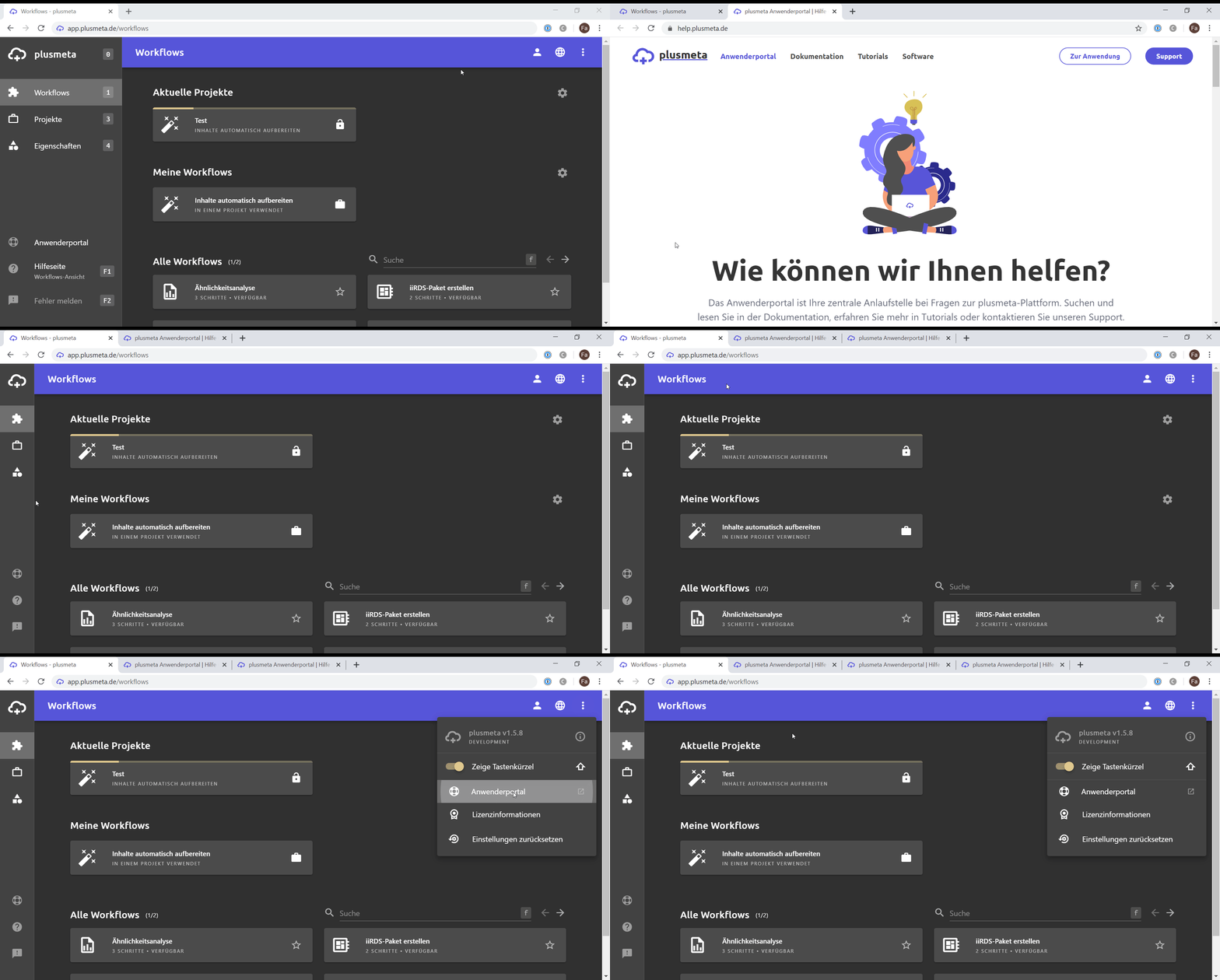
There are several ways to open the User portal.
- Click on in the side bar to open the User portal.
- Click on the more menu (top right) an then on User portal to open the User portal.
- If a dialogue is currently open in plusmeta, you will find a button in the corner that you can use to open the User portal.
- Open the help.plusmeta.de page in your browser to open the User portal.
User portal structure
- The User portal view is the start page of the User portal. In addition to the search function, you will find several quick links to the documentation, FAQs, video tutorials and frequently read help pages.
- You will find the plusmeta documentation in the Documentation view.
- On the left side of the documentation you will always find the table of contents, which you can use to access various help pages.
- At the end of each help page you will find two buttons: Previous and Next. You can use this to switch to the next and previous help page, according to the order in the table of contents. Above the buttons, you can see what the next and previous help pages are.
- Below, you can find the section Related topics. Up to 6 links to related help pages will be displayed in this area.
Context-sensitive help
Context-sensitive help is available for most views in plusmeta. This means that suggested help pages match your current view of the software. For example, if you are in a workflow step for which a help page exists, that page is suggested in the help area.
Open context-sensitive help
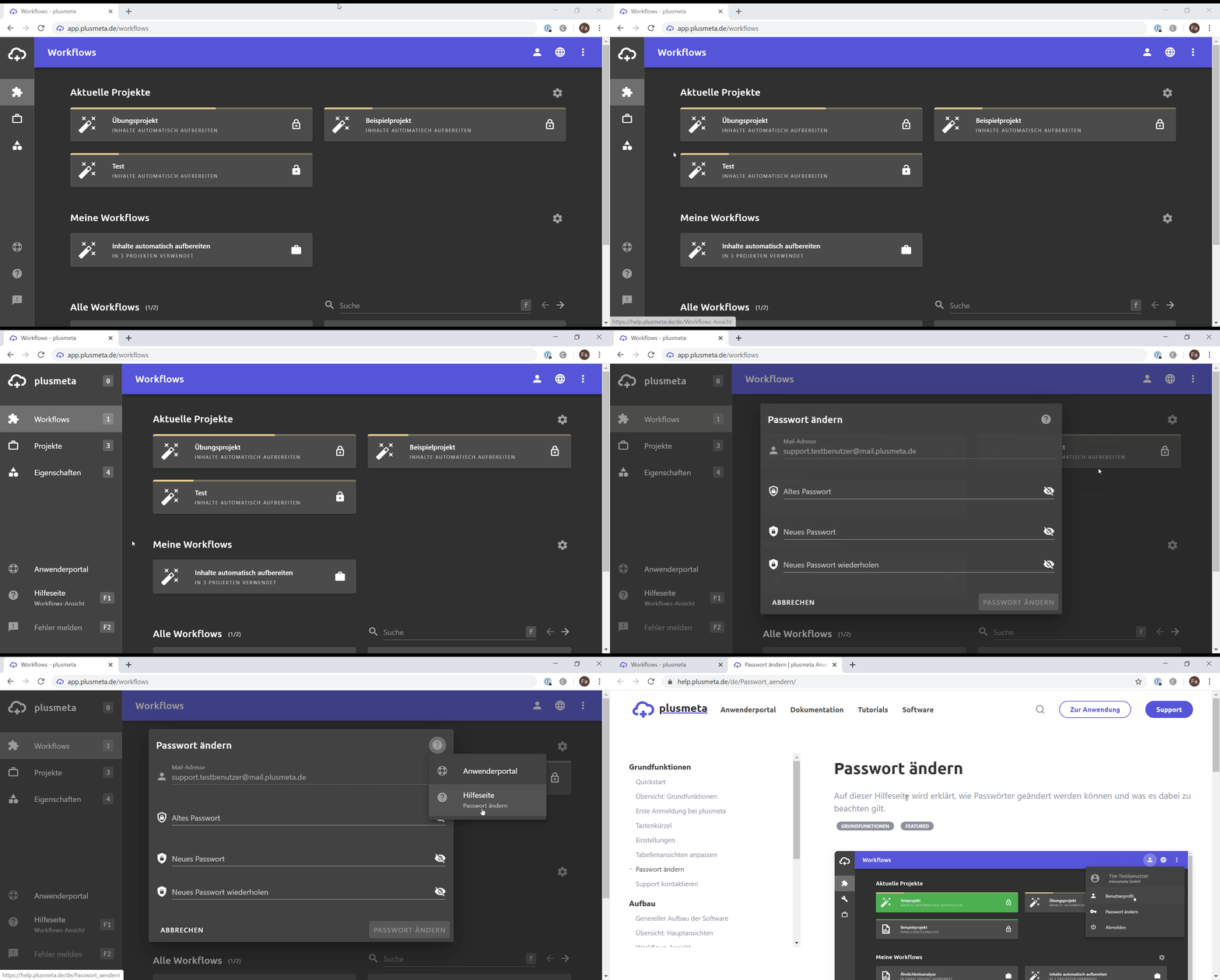
Tip: You can tell whether context-sensitive help is available by the help button: If it is filled in , context-sensitive help is available. When you hover the mouse pointer over the help area or expand it, you see the title of the help page. If there is no context-sensitive help, the help button is not filled in. Help is displayed by hovering over it with the mouse pointer or by expanding the help area.
Main views:
- Open the side bar by clicking on the plusmeta cloud or hover over the button with the mouse pointer The title of the context-sensitive help is displayed. If there is no help page for your current view, you will only find help here.
- Click on the button in the side bar. The help page in the User portal will open in a new tab in your browser. If there is no suitable help page, you will be redirected to the start page of the documentation.
Dialogues:
- Click on in the top right-hand corner of the dialogue A submenu opens with a button for the User portal and a button for help. If there is context-sensitive help for the current dialogue, the title of the corresponding help page is shown here.
- Click on Help page (if there is context-sensitive help) or Help (if there is none) The help page opens in a new tab in the User portal. If there is no suitable help page, you will be redirected to the start page of the documentation.
