Content of this topic
plusmeta Insights
In plusmeta, you can use the Insights function to search for specific information within a document or an entire project. The Insights function uses the information contained in the text and metadata of documents or projects. No answers are hallucinated by the system.
Insights for projects
- Switch to the workflow step Assign and approve metadata of a project.
- Click on the button in the settings bar.
The Insights dialogue opens. When opening for the first time, a short analysis is required. The progress of the analysis is shown by the indicator next to the project name. - Enter what you want to find out about the document in the input field, e.g. “What is the weight of the model T3-H1?” or “How do you repair the rotor?”.
- Click on . Insights searches the project for the information you are looking for and returns it an the answer.
- Optionally, click on the name icon next to the entered message and use the button to copy the input to the chat input and adjust it.
Context filter
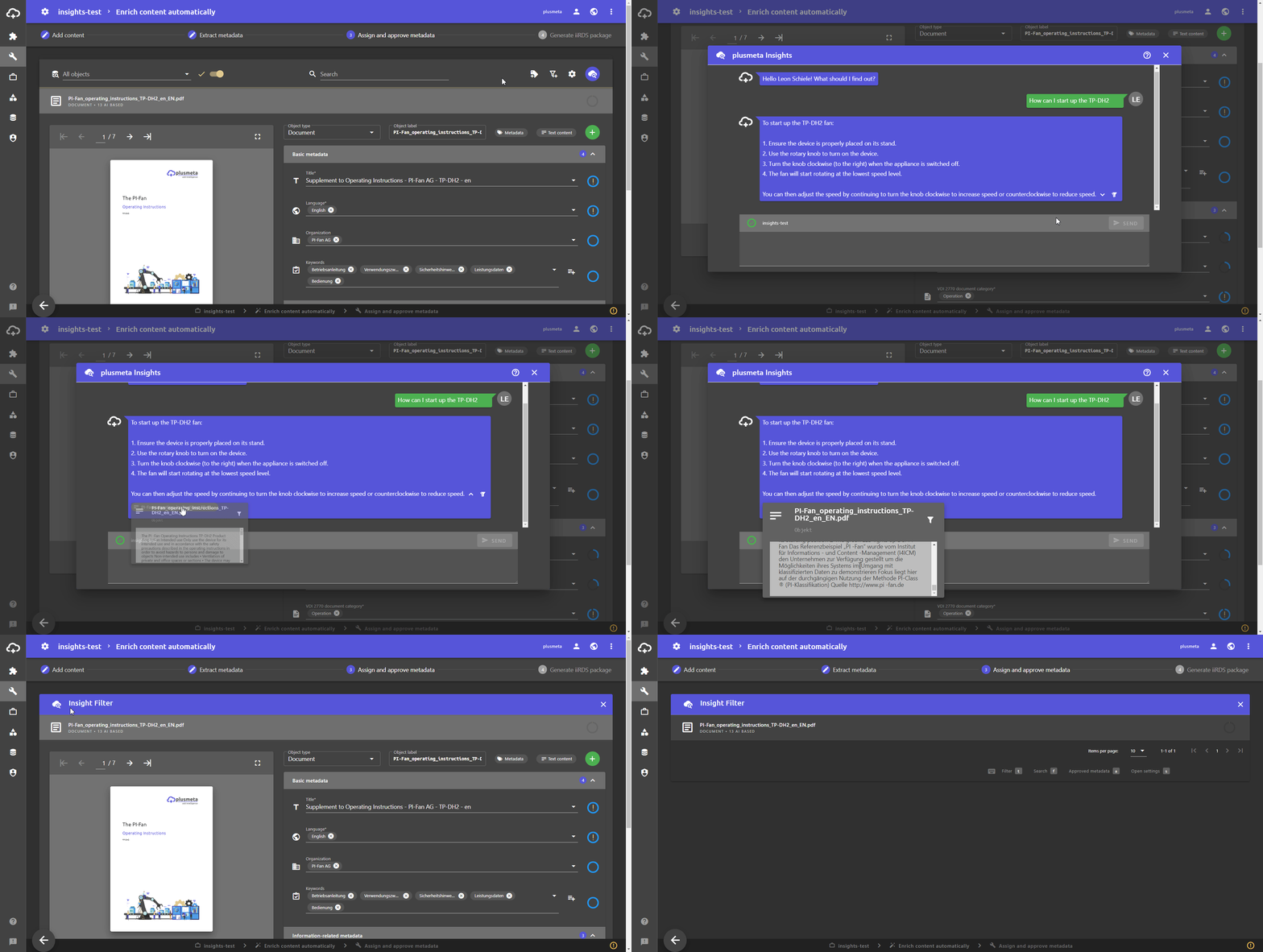
You can filter the project according to the documents in which the information was found or display a preview of the documents.
Move the mouse over the answer text field and click on the button. A preview of the objects and metadata in which the information was found is displayed. Click on the filter icon to filter the project according to the documents in which the information was found.
Insights for objects
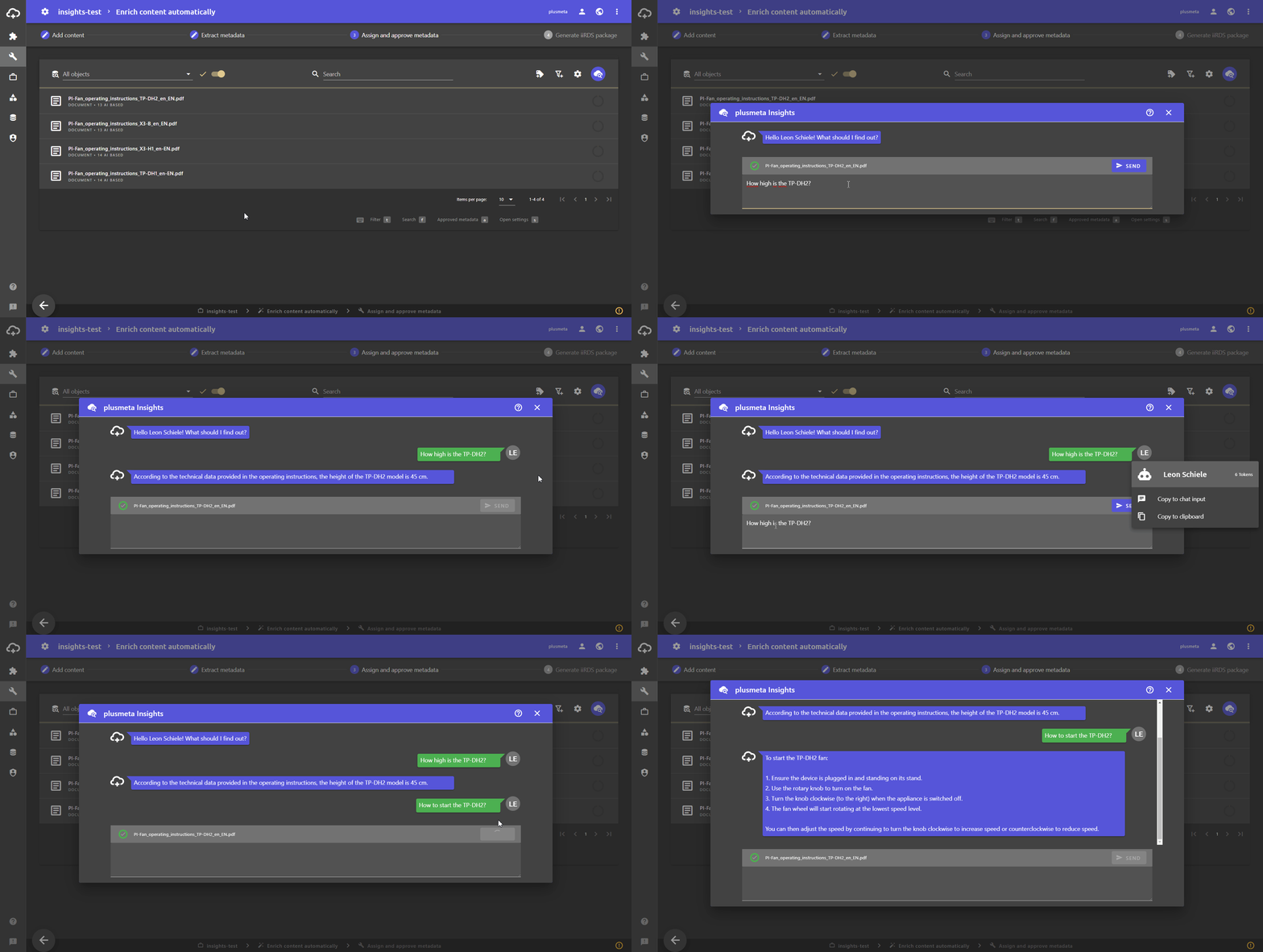
- Switch to the workflow step Assign and approve metadata of a project.
- Move the mouse over the object icon and click on the button
The object menu opens. - Click on the button.
The Insights dialogue opens. - Enter what you want to find out about the document in the input button, e.g. “What is the weight of the model T3-H1?” or “How do you repair the rotor?”.
- Click on . Insights searches the project for the information you are looking for and returns this as the answer.
- Optionally, click on the name icon next to the entered message and use the button to copy the input to the chat input and adjust it.
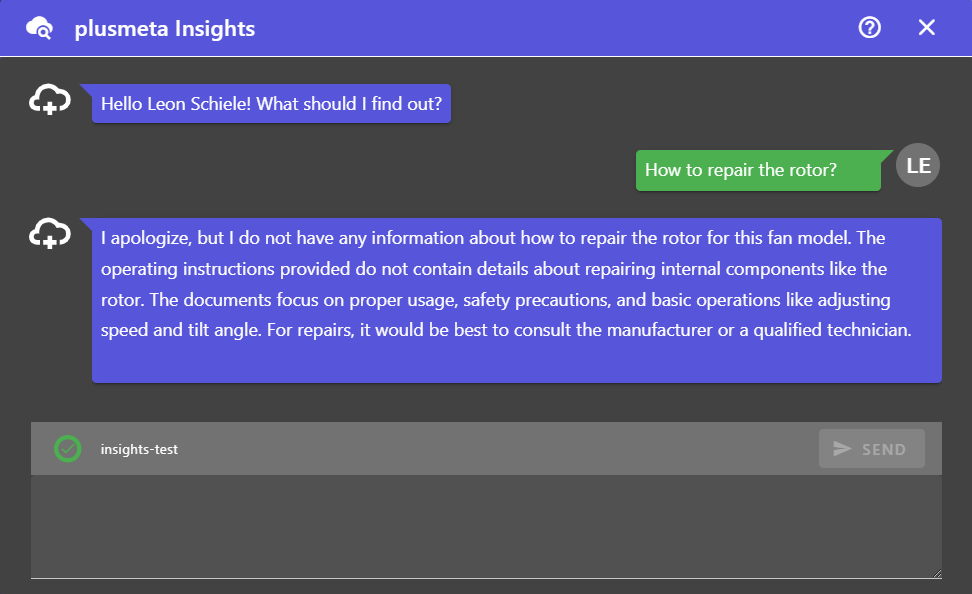
No relevant information found
If no matching information is found in documents or projects, Insights indicates that it cannot find any information on the query in the objects. Instead it provides information that is contained in the objects.