Content of this topic
Objects and projects can have different visibility statuses in plusmeta:
- Only me: Only you can see the project. The project is not visible to your colleagues.
- Everyone in my organization (shared by you): All users assigned to your organization in plusmeta can see and access the project.
- Everyone in my organization (shared by another user): All users assigned to your organization in plusmeta can see and access the project.
- Everyone with shared link: Everyone (including users without a user account in plusmeta) can see and access the project via a generated share link.
Visibility of projects
You can set the visibility of a project while creating it. But you can also change the visibility of existing projects at any time.
Set project visibility when creating projects
By default, projects are always created with visibility Only me. If you want to customize the visibility of a project when creating it, proceed as follows:
- In the Workflows view, click on the desired workflow to create a new project.
- Click on the next to the text field for the project name. A dialog opens showing the available visibility options
- Select the desired visibility status.
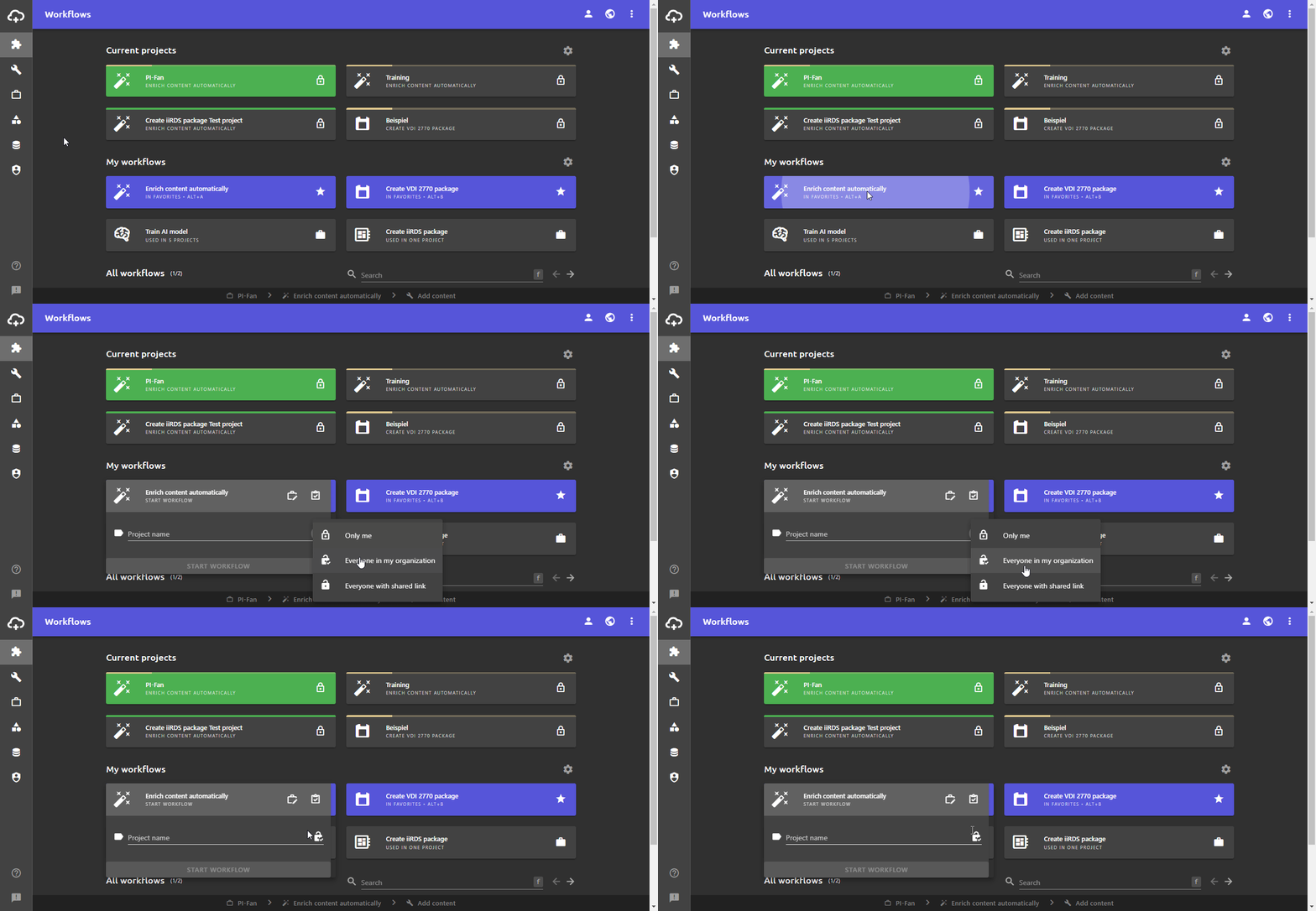
Change visibility of projects retrospectively
You can set the project visibility either in the or in the Projects view. Customize Work view.
Change visibility of projects in the Projects view
- Open the projects view via the Side bar.
- Click on in the line of the desired project to open the Edit project dialog.
- Click on the Visibility field.
A drop-down list with all available visibility statuses opens.Note: If the project has the visibility Everyone in my organization (shared by another User), the visibility can only be changed by this User. In this case, the Visibility field is grayed out. - Click on the desired visibility status. The Change visibility dialog opens.
- Confirm the change in the dialog.
Changes will be saved automatically. - Close the Edit project dialog.
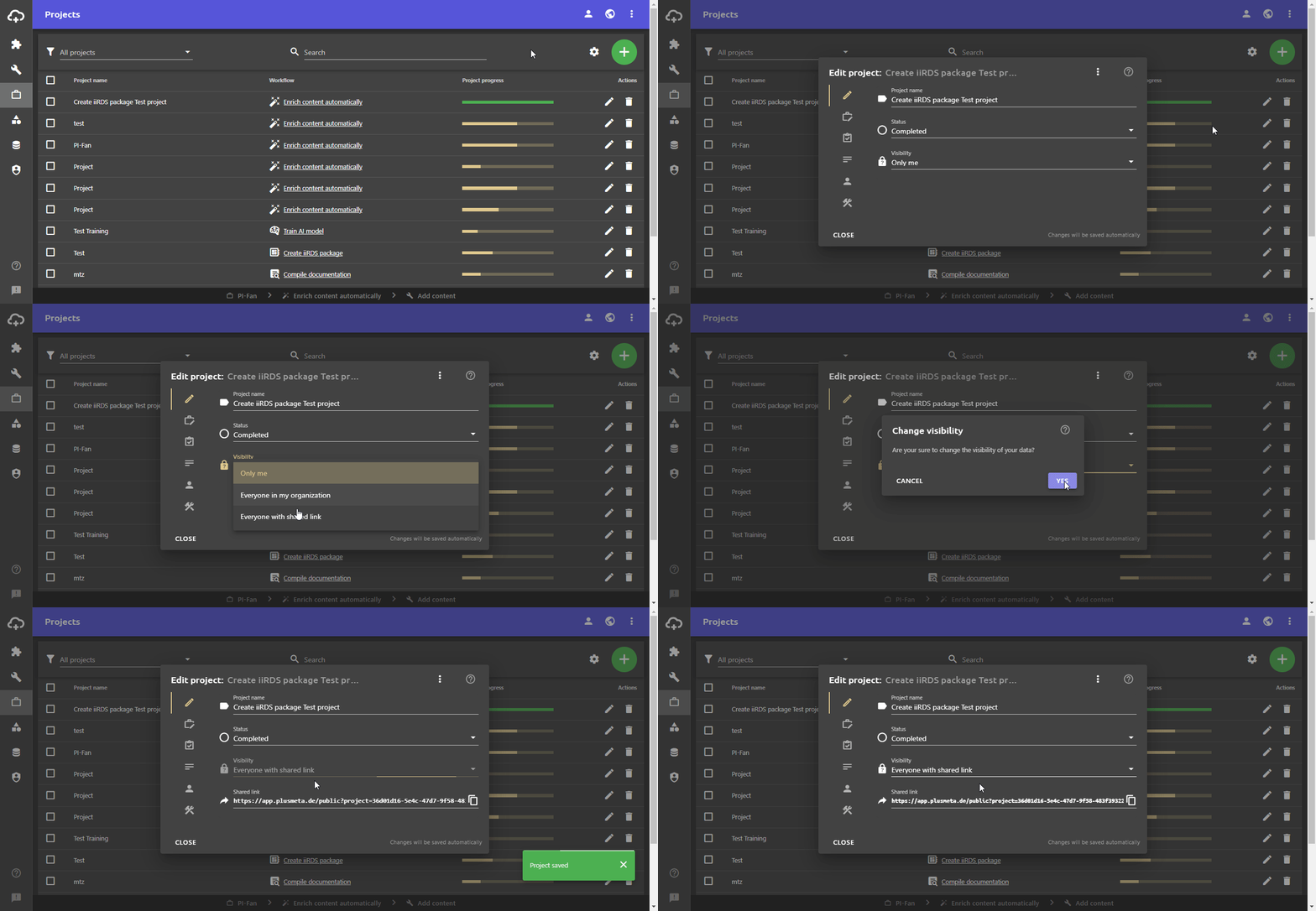
Change visibility of projects in the Work view
- Open the desired project in the Work view.
- Click on the icon next to the project name at the top left.
The project settings open. - Click on the visibility icon (depending on the current Settings:, , or )
A field with all available visibility statuses opens.Note: If the project has the visibility Everyone in my organization (shared by another User), the visibility can only be changed by this User. The visibility icon appears grayed out in this case. - Click on the desired visibility status. Changes will be saved automatically.
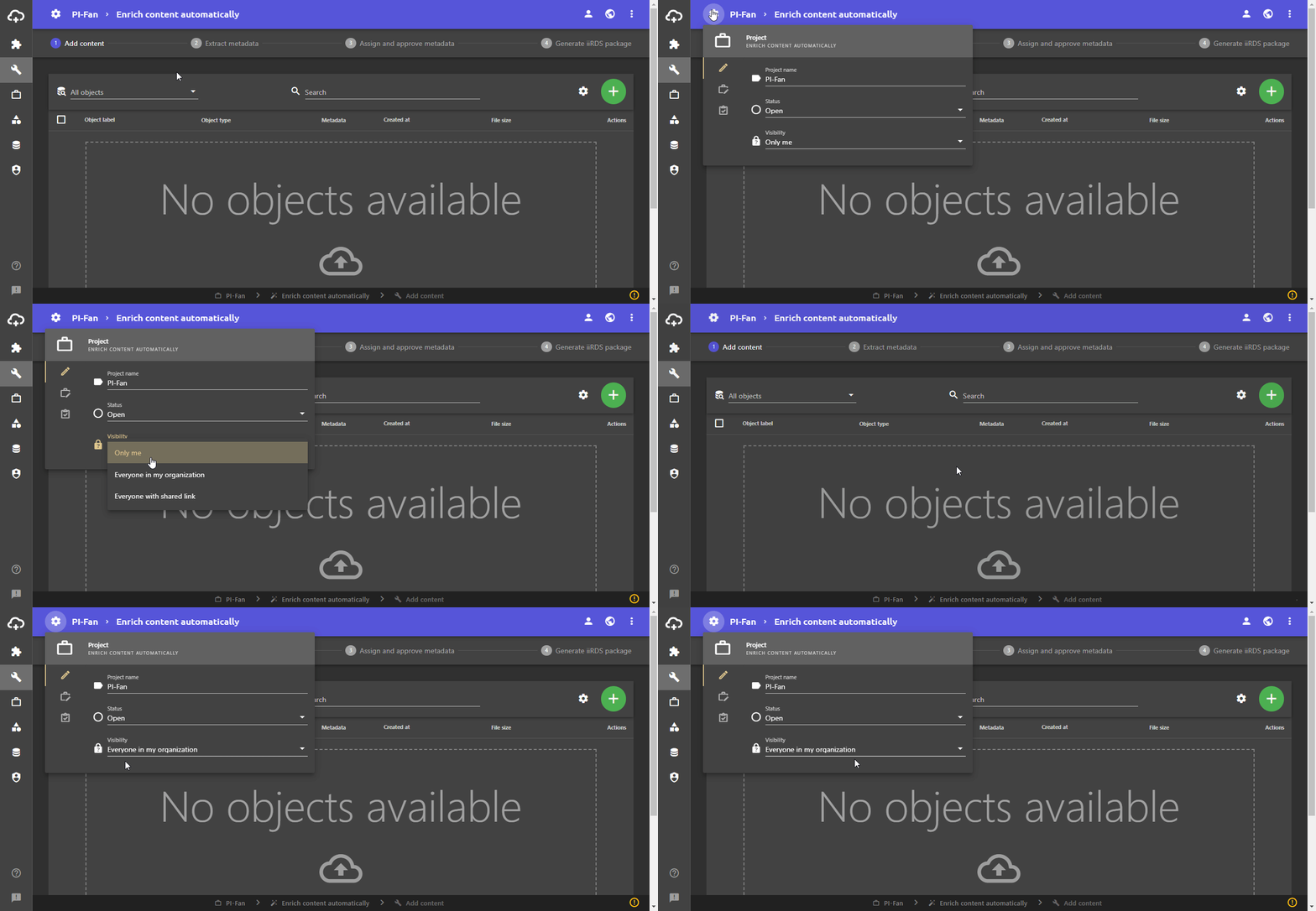
Visibility of objects
By default, the visibility of objects uploaded or created in projects always corresponds to the visibility of the project. If you have uploaded files in a project that is only visible to you, the files also have the visibility status Only me.
Create objects manually in the Object view, such as configuration objects, you can set the visibility directly in the Create object dialog. The default value here is also Only me.
You can subsequently adjust the visibility of objects in the Objects view:
- Open the Objects view via the Side bar.
- Click on in the line of the desired object to open the Edit object dialog.
- Click on the Visibility field.
A drop-down list with all available visibility statuses opens.Note: If the object has the visibility Everyone in my organization (shared by another User), the visibility can only be changed by this User. In this case, the Visibility field is grayed out. - Click on the desired visibility status. Changes will be saved automatically.
- Close the Edit object dialog.
