Add objects (PDFs, HTML files, etc.) to your project directly from your computer using the Add button.
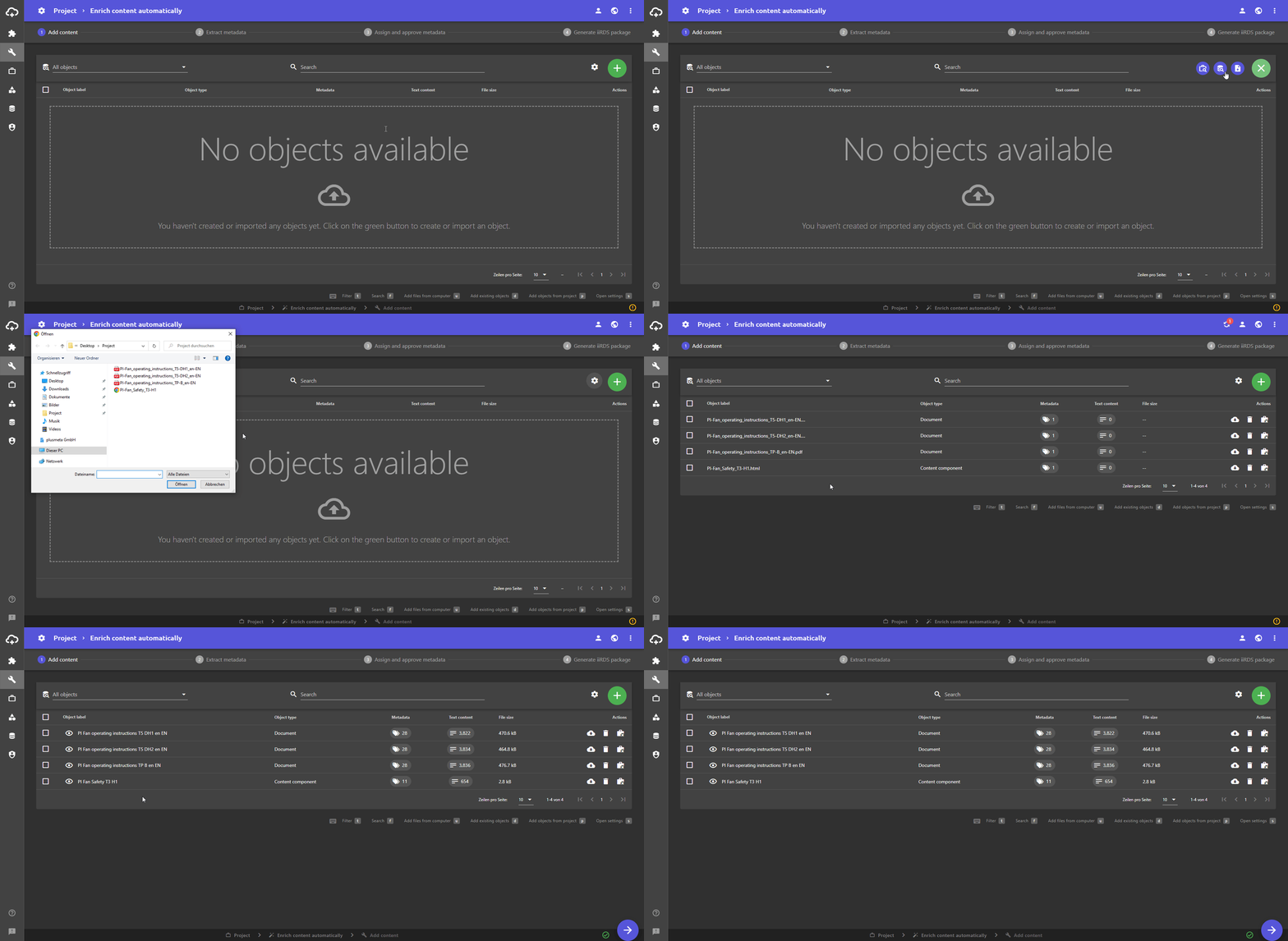
- Click the Add object button.
Three buttons appear. - Click the button to add objects from your computer. The file manager of the operating system (e.g. Windows Explorer or macOS Finder) opens.
- Navigate to the location of the files you want to add.
- Select the file(s).
Tip: If you want to select multiple files at the same time, hold down the Ctrl (Windows) or command/cmd (Mac) key, and then click the desired files one by one. If you want to select several files directly below each other, hold down the Shift key and then click on the top and then the bottom file. All files in between are selected automatically.
- Confirm the selection with Open (Windows) or Select (Mac). The files are now uploaded in the background and appear in the objects list.
Click here return to the Add Objects help page.
