Content of this topic
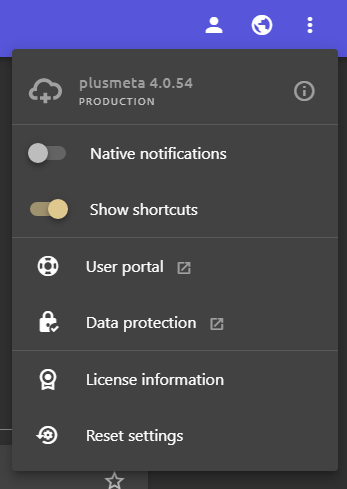
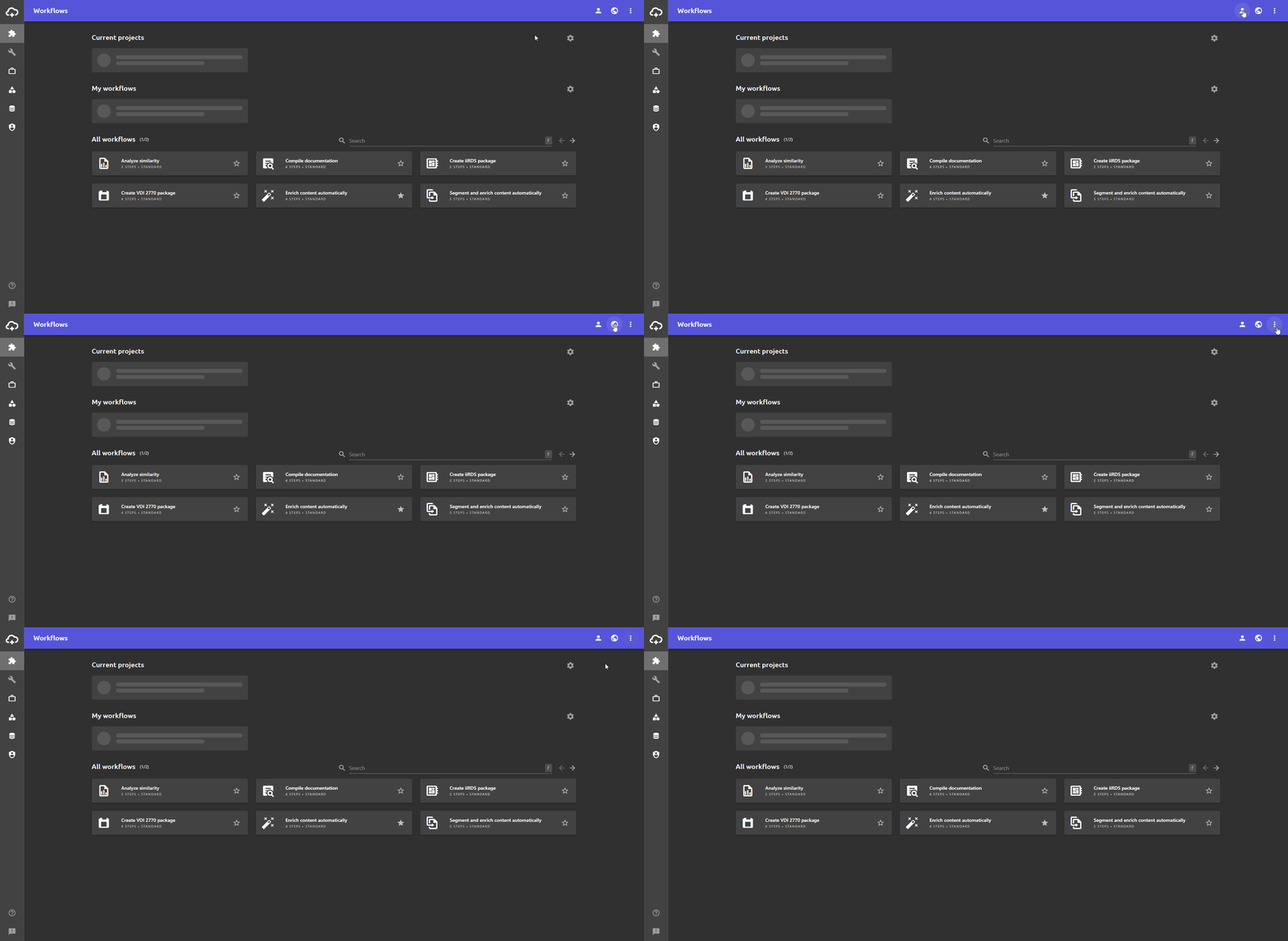
There are three settings menus in plusmeta: User settings Language settings and the so-called More-menu. You will find all three at the top right.
User settings
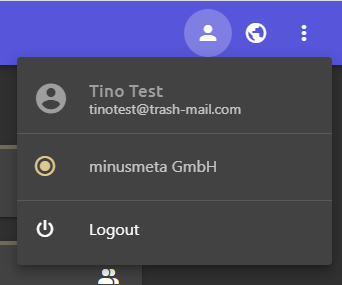
The user settings can be opened via the button.
Profile administration
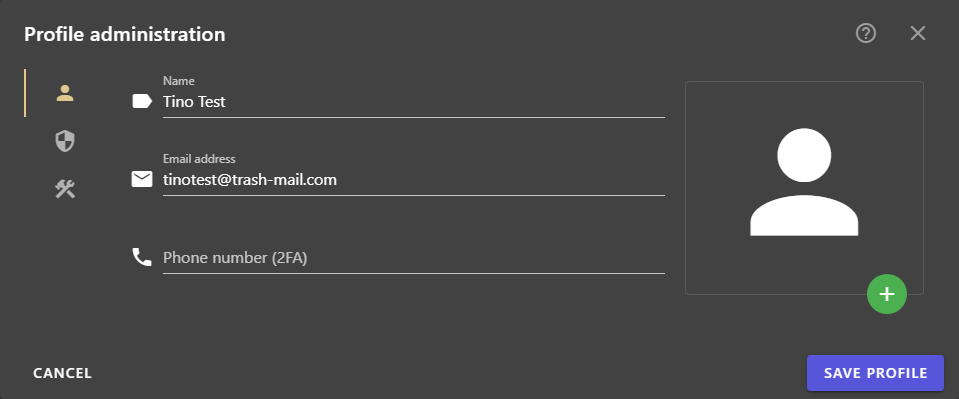
Depending on the rights assigned to your user, you can make changes to your email address, user role, name and organization here.
- Open the User settings via the button.
- Click on yourUser profile.
The Profile administration dialogue opens. - Make the desired changes.
Note: Whether you can edit your user profile depends on your rights. If necessary, contact your plusmeta administrator or our support.
- Click SAVE PROFILE to save the changes.
Set up 2-factor authentication
Enterprise customers can set up 2-factor authentication in their user profile. The confirmation code can be received via SMS or app (TOTP).
For more information, see the help page 2-factor authentication.
Change password
- Click on the User settings and then on your User profile.
- Click on the tab an then on CHANGE PASSWORD.
- In the Change password dialogue, set a new password and click CHANGE PASSWORD.
You can find out what you need to consider when changing your password on the Change password help page.
Logout
Click on the User settings an then on Logout to log out.
Language settings
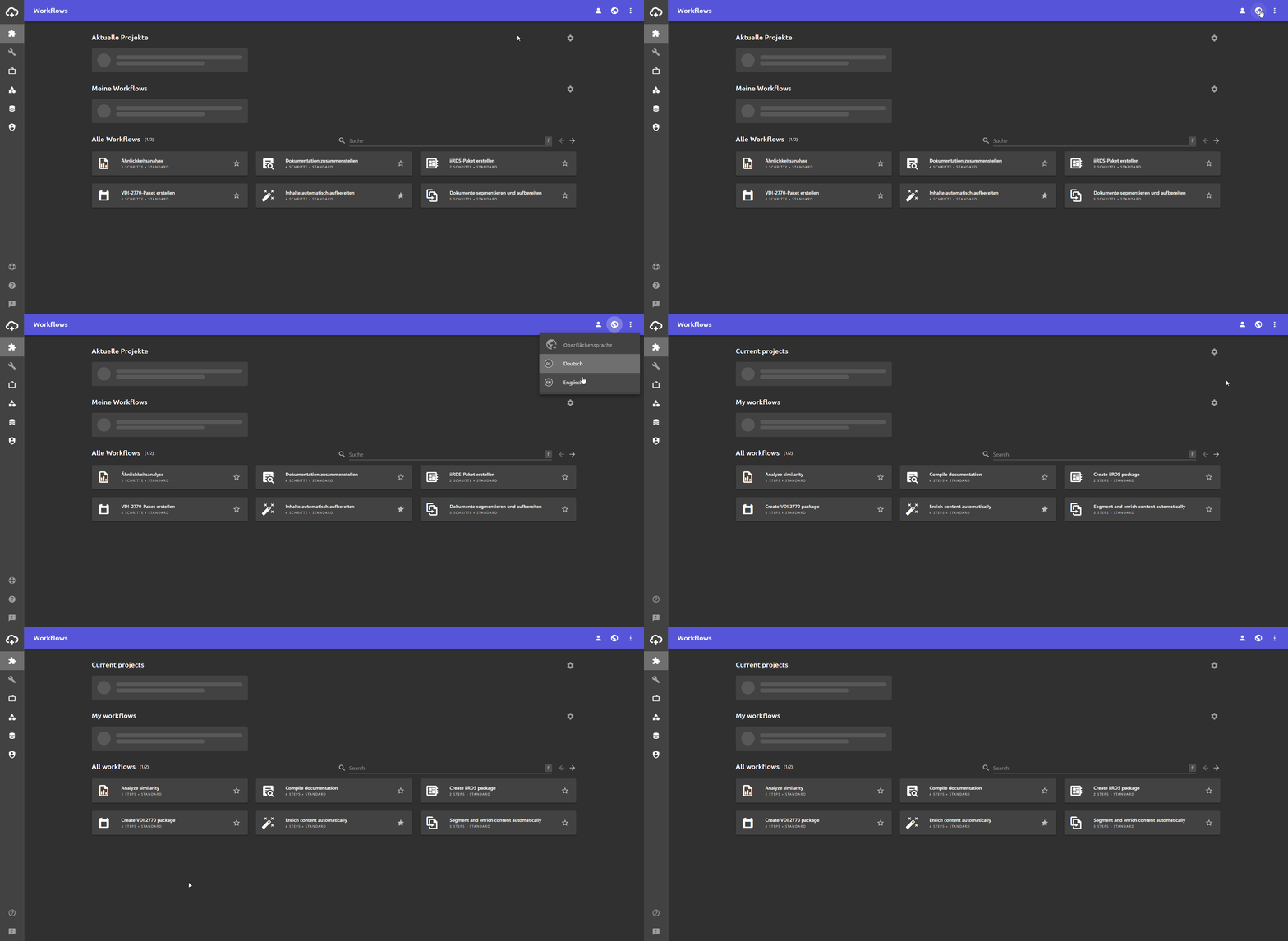
You can open the language settings via the button. Here you can change the interface language. plusmeta is available in German and English.
- Open the Language settings via the button.
- Click on the desired language.
The interface language is changed.
More
You can open the More-menu via the button.
In the More-menu you will find, among other things, information about the current version and license. Here you will also find links to the release notes and the user portal. In addition, you can enable or disable the preview of the keyboard shortcuts in this menu. You can find out more on the help page shortcuts.