Content of this topic
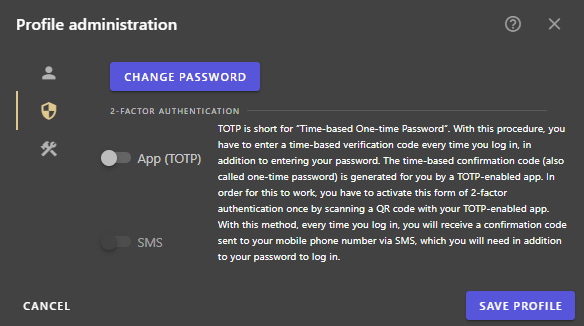
Enterprise customers can set up 2-factor authentication in their user profile. Two options are available: confirmation code via SMS or via app (TOTP).
SMS: With this method, every time you log in, you will receive a confirmation code sent to your mobile phone number via SMS, which you will need in addition to your password to log in.
App (TOTP): TOTP stands for “Time-based One-time Password”. With this procedure, you have to enter a time-based verification code every time you log in, in addition to entering your password. The time-based confirmation code (also called one-time password) is generated for you by a TOTP-enabled app. In order for this to work, you have to activate this form of 2-factor authentication once by scanning a QR code with your TOTP-enabled app.
Option 1: SMS
- Open the user settings using the button.
- Click the User Profile button.
The Edit User Profile dialogue opens. - In the area Users Your mobile phone number in the Edit user profile dialogue in the field Enter phone number (2FA).
- In the area Safety Activate the SMS procedure with the switch.
Note: If you have not entered a phone number yet, the option SMS is grayed out.
- Click SAVE USER PROFILE to save the changes.
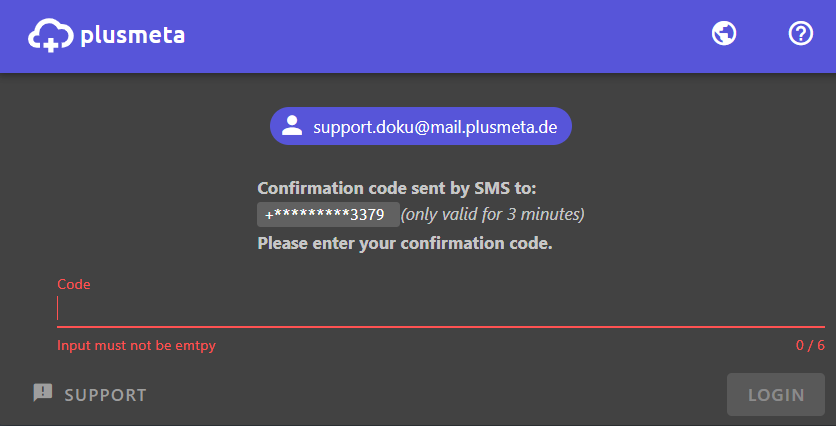
2-factor authentication is set up automatically. If you login in the future, you will receive a confirmation code via SMS to the number you provided. In addition, the following dialogue appears in the login process, in which you must enter the SMS code:
Option 2: App (TOTP)
For this procedure, you will need a TOTP-enabled app. This is a password program that generates a new, time-based verification code every 30 seconds. To make this work, you’ll need to scan a QR code with your TOTP-enabled app when you set it up. This QR code contains a key with which the app can then generate the time-based verification codes.
There are both TOTP-enabled apps for smartphones and for the computer, for example as a browser extension. Alternatively, however, there are also TOTP-capable hardware that can generate the time-based confirmation codes.
An example of a TOTP-enabled app is 1Password. This program is available for computers and smartphones. Amazon Web Services also recommends the following programs for TOTP:
Authy, Duo Mobile, LastPass Authenticator, Microsoft Authenticator and Google Authenticator.
- Open the user settings using the button.
- Click the User Profile button. The Edit User Profile dialogue opens.
- In the area Safety use the switch to activate the app (TOTP) procedure.The Set up 2-factor authentication dialogue opens. A QR code is now displayed to you. Scan it with your TOTP-enabled app to get the verification code.
- Enter the 6-digit verification code.
- Click ENABLE to save the changes and complete the setup of 2-factor authentication.
If you login in the future, you will be shown a dialog in the login process, in which you must enter the currently valid confirmation code. Since the verification code renews every 30 seconds, you will need to retrieve the currently valid code from your TOTP-enabled app. Due to the one-time setup with QR code, it always displays the currently valid confirmation code.
You are stuck?
Contact Support