Content of this topic
Basics
Rule-based assignment (RB) is a method in plusmeta for metadata extraction .
Rule-based assignment matches the text with the list of values defined in the metadata. If a match is found, points are awarded. The match scoring the most points is assigned.
How many points are awarded depends on where the match was found. In addition to the names (labels) of the list values, indicators can also be specified. In addition, partial matches can also score points. The frequency of hits is not taken into account.
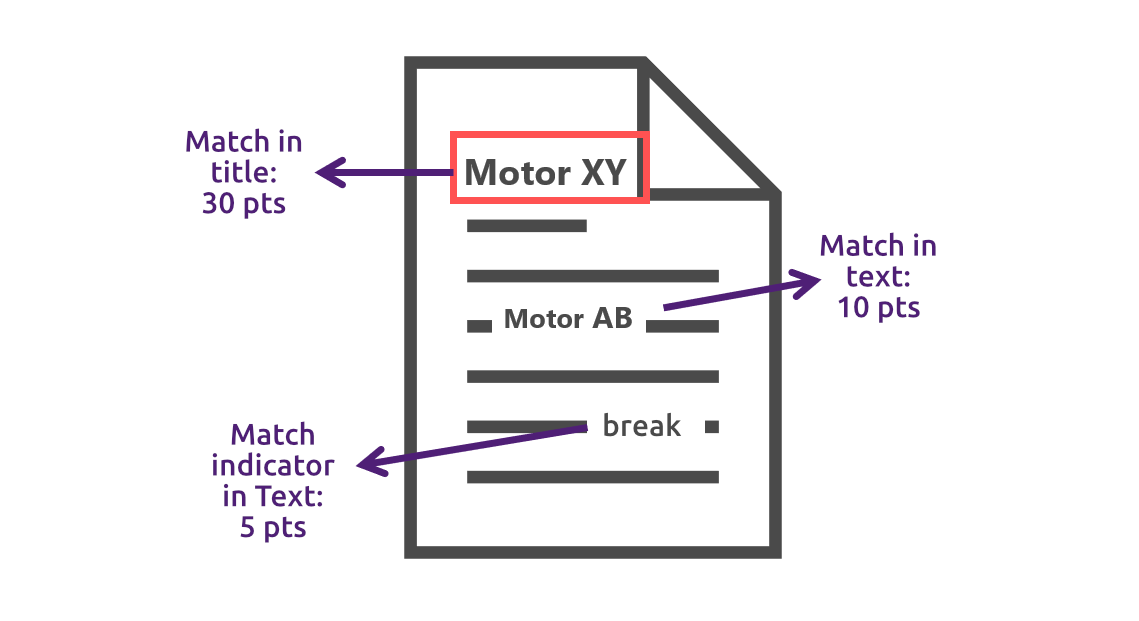
There are default values in plusmeta for the points awarded. However, they can also be configured individually.
Indicators
Indicators play an important role in rule-based assignment. Words or string values can be configured as indicators, which are used for the assignment of certain metadata values. Indicators can be synonyms, alternative spellings, or other clue words that typically occur in the texts. If indicators are found in texts, the hits are also included in the scoring. plusmeta has default values for the scoring of indicator hits. How many points Indicators and Indicator parts receive can also be configured individually.
Further information on indicators can be found here.
Customize rule-based assignment
Rule-based assignment is based on configurable rules. The configuration is done via a configuration object. If there is no specific configuration object, the default rules are applied.
Create configuration object
A configuration object can be used to adjust the default values of the rule-based assignment.
- Open the Objects view.
- Click on the Add button to create a new object.
- Select Configuration object as the object type.
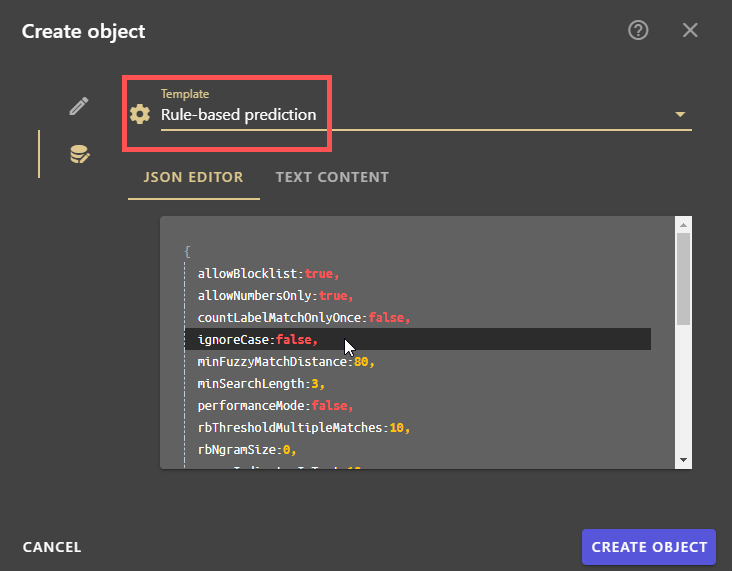
- Open the lower tab of the Create object dialogue.
- Select the template Rule-based prediction .
Note: If no template is selected during creation, it cannot be added later.
- Adjust the desired values in the JSON editor.
- Click on CREATE OBJECT .
Activate configuration object
- Open the properties view.
- Select the metadata to which you want to assign the configuration object.
- Click on the button to open the Edit properties dialogue.
The Edit properties dialogue opens. - Open the Relations tab.
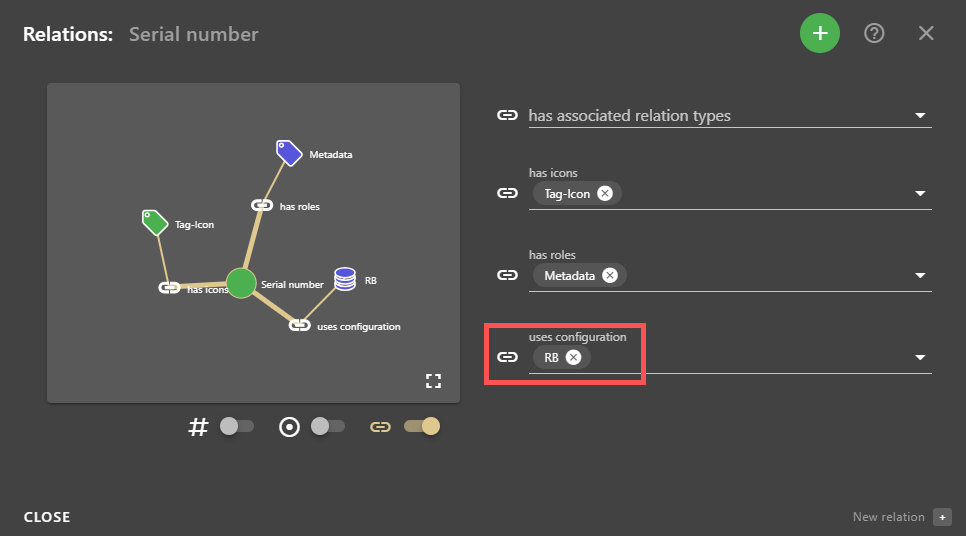
- Click on the Add button to add a relation.
- Select the relation uses configuration from the drop-down list.
- In the uses configuration field, select the configuration object from the drop-down list.
- Click CLOSE.
All your changes will be saved automatically.
Parameter configuration
| Modifier | Value | Function | Default value |
|---|---|---|---|
allowBlocklist |
True / false |
Allow / ignore blocklist. Example: “is” and company with the product range “IS” | true |
allowNumbersOnly |
True / false |
True = Pure numerical values are also evaluated ; False = Pure numerical values are not evaluated | true |
ignoreCase |
True / false |
Ignore or consider upper and lower case. | false |
minFuzzyMatchDistance |
Percentage (without % character) | Specifies the minimum match percentage for fuzzy matches. Fuzzy matches are multiplied by this value. As a result, the score of fuzzy matches is lower. | 80 |
minSearchLength |
Number ≥ 0 | Specifies the minimum length of the searched character string values, e.g. indicators that only have 2 characters are not found if 3 is set. | 3 |
performanceMode |
True / false |
Issues fuzzy matches | false |
rbThresholdMultipleMatches |
% figure | Issues fuzzy matches | false |
rbNgramSize |
Number | Specifies how many words the word groups contain when the text is split into tokens, e.g. for “1” the tokens consist of single words, for “2” of word pairs, and so on. As soon as multi-word tokens are created (“2” or more), additional 1-word tokens are also created. If the specification is negated, e.g. “-3”, then every intermediate step is also generated (1-, 2- and 3-word tokens). | |
0 |
|||
scoreIndicatorInText |
Score value 0 - x | Score for hits of an indicator in the text | 10 |
scoreIndicatorInTitle |
Score value 0 - x | Score for matches of an indicator in the title | 20 |
scoreIndicatorInSource |
Score value 0 - x | Score for matches of an indicator in a metadata source | 10 |
scoreIndicatorPartInTitle |
Score value 0 - x | Score for matches of a part of an indicator in the title | 5 |
scoreIndicatorPartInText |
Score value 0 - x | Score for matches of a part of an indicator in the text | 2 |
scoreIndicatorPartInSource |
Score value 0 - x | Score for matches of a part of an indicator in a metadata source | 2 |
scoreLabelInText |
Score value 0 - x | Score for matches of a label in the text | 55 |
scoreLabelInTitle |
Score value 0 - x | Score for matches from a label in the title | 85 |
scoreLabelInSource |
Score value 0 - x | Score for matches of a label in a metadata source | 85 |
scoreLabelPartInText |
Score value 0 - x | Score for matches of a part of a label in the text | 10 |
scoreLabelPartInTitle |
Score value 0 - x | Score for matches of a part of a label in the title | 30 |
scoreLabelPartInTitle |
Score value 0 - x | Score for matches of a part of a label in a metadata source | 30 |
tokenSplitPattern |
RegEx | Regular expression for the splitting of the texts into tokens | (?:[^_\.,:"\[\]\(\)\s]+[\.,:]?)+ |
