Content of this topic
In the workflows view, you can see your current projects, highlighted workflows and all your workflows.
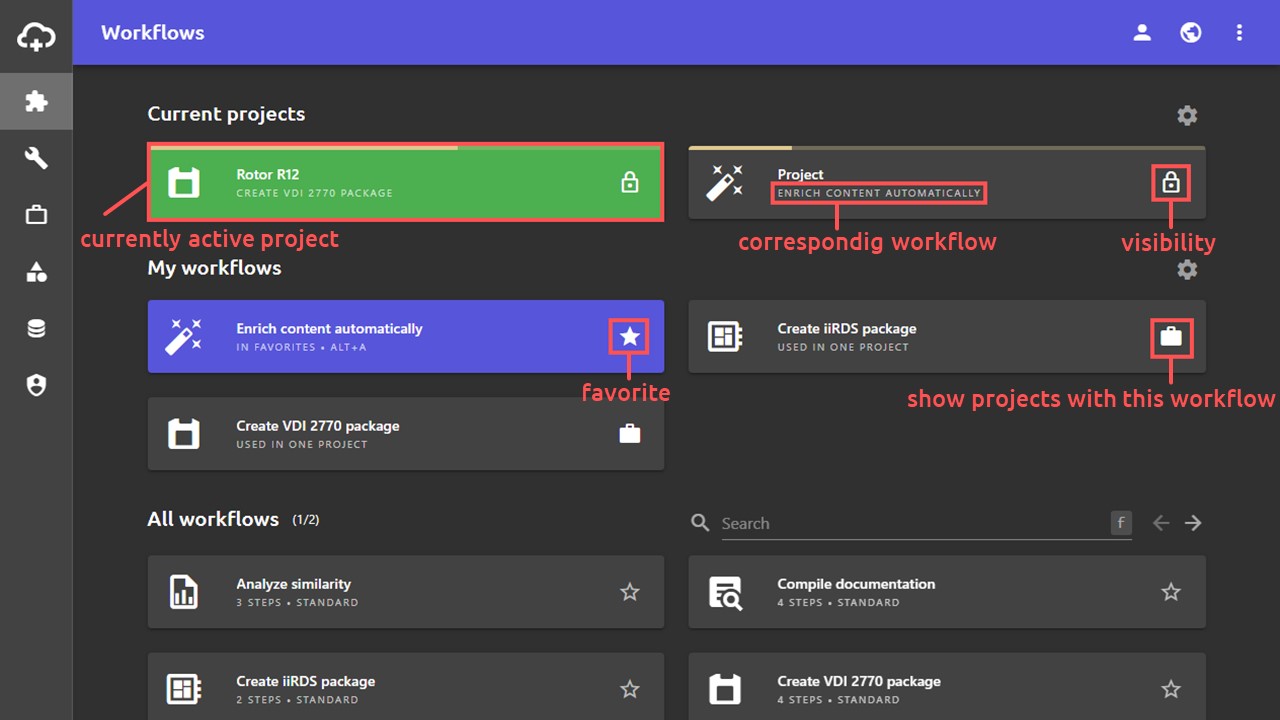
Current projects
In the Current projects area, you can see the projects that you have recently opened or edited. Depending on the size of your screen, you can see the last 2 to 6 projects here. The projects view gives you an overview of all projects.
- The project highlighted in green is your currently active project. This is the last project you worked on. This project is also open in the work view and is also displayed at the bottom of the status bar. If no project is highlighted in green, you do not have a currently active project. This is the case, for example, if you have completed or deleted your last edited project.
- The line at the top of the project panels is the progress indicator. It tells you how far your project has progressed. If the progress indicator is green, the project is complete.
- The assigned workflow of the project is displayed below the title.
- The symbol on the right in the project panel provides information about the visibility of the project:
- Only me: Only you can see the project. The project is not visible to your colleagues.
- Everyone with shared link: Everyone (including users without a user account in plusmeta) can see and access the project via a generated share link.
- Everyone in my organization (shared by you): All users assigned to your organization in plusmeta can see and access the project.
- Everyone in my organization (shared by another user): All users assigned to your organization in plusmeta can see and access the project.
- You can use the button to set whether completed projects and projects shared with you should be shown or hidden in the Current projects area.
My workflows
In the My workflows area, you can see highlighted workflows. There are two ways to highlight workflows:
- Favorites: Workflows that have been marked as favorites (click on the star) appear highlighted in blue in the My workflows area.
- Frequently used: Frequently used workflows also appear in the My workflows area without any special color highlighting.
- You can use the button to set whether favorites and frequently used workflows should be shown or hidden in the My workflows area.
All workflows
In the All workflows area, you can see all the workflows that have been assigned to you. If these do not fit on one page, you will also see a search field and a scroll function.

