Content of this topic
- LLM metadata extraction
- Create property with LLM template
- Configure LLM metadata extraction
- Use LLM metadata extraction
LLM metadata extraction
LLM are a method in plusmeta for metadata extraction.
LLM metadata extraction uses Large Language Models (LLM) to extract technical data, such as dimensions or weight, from texts or to summarize extensive documentation.
Create property with LLM template
The easiest way to use LLM metadata extraction in plusmeta is by creating properties with a LLM template. The following templates in the Create properties dialogue use LLMs:
- Technical data
- Summary
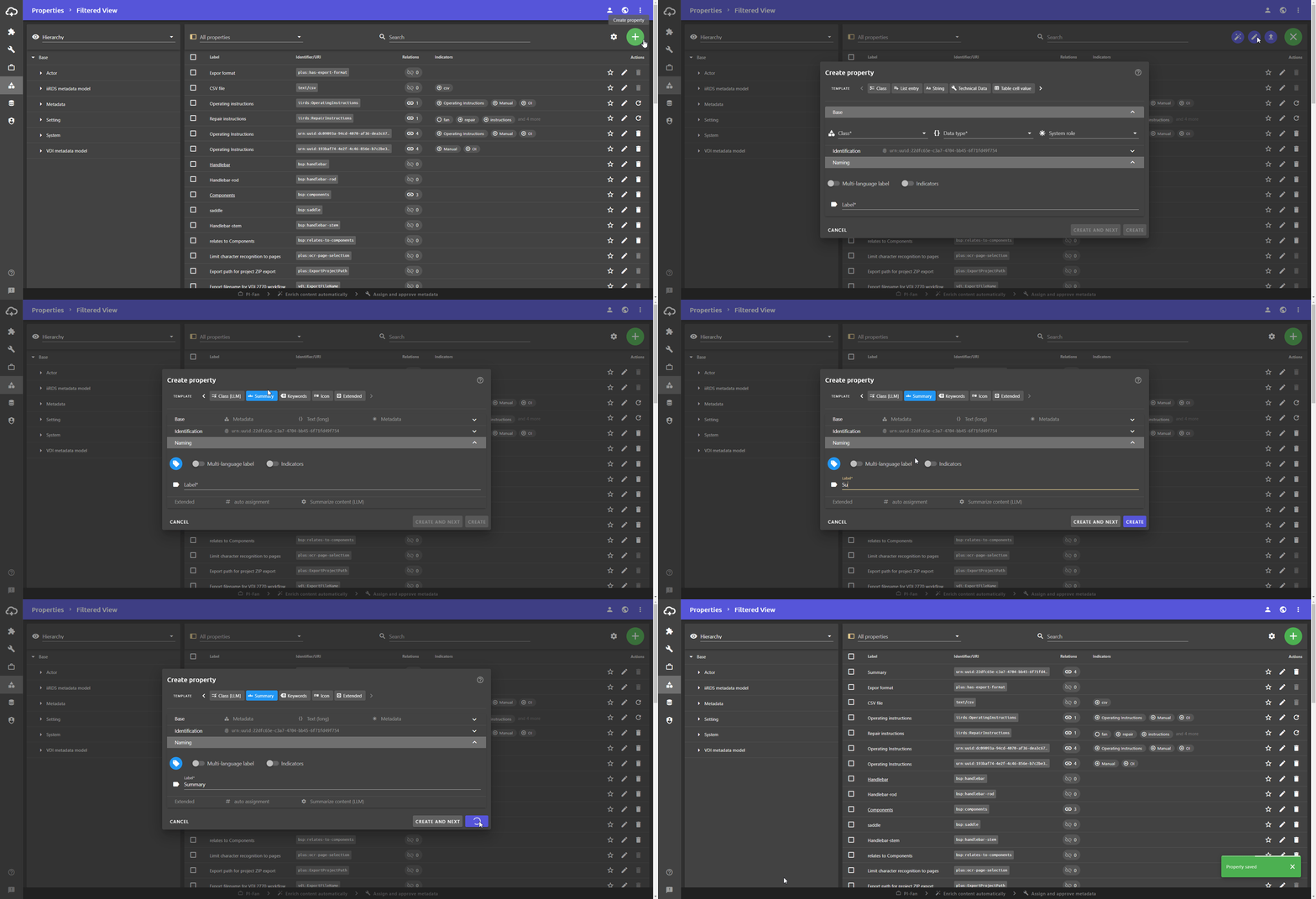
- Open the Properties view.
- Click the Add button and then click the button.
The Create property dialogue opens. - In the top bar, select the template Technical data or Summary for the new property.
All relevant information is set automatically based on the template.Info: The templates set values for class, data type, system role, attribute and configuration object. Explanations for the templates can be found in the respective tooltips. - Optionally, adjust the Identifier/URI of the property in the Identification area.
- Enter a name for the property using the Label field in the Naming area.
- To specify Indicators, activate the Indicators switch.
- In the Naming area, a symbol for the property can be assigned via the button at the top left.
- Click the CREATE button.
The new property is created and the dialogue closes.
You can find further information on creating properties using templates here.
Configure LLM metadata extraction
To be able to configure the LLM metadata extraction, a corresponding configuration object must be created.
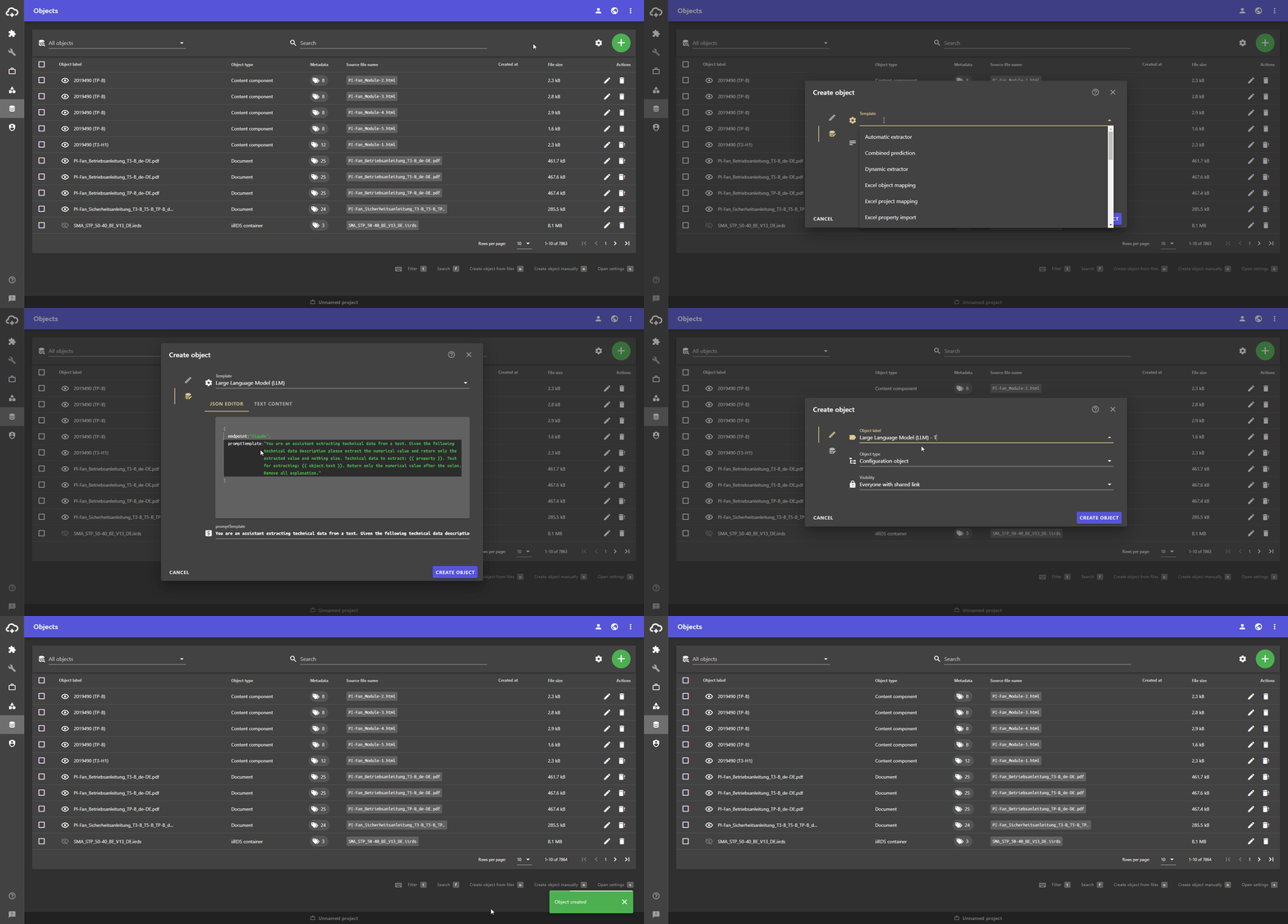
- Open the Objects view .
- Click on the Add button to create a new object.
- Select Configuration object as the object type.
- Open the lower tab of the Create object dialogue.
- Select the Large Language Model (LLM) template.
Note: If no template is selected during creation, it cannot be added later.
- Optionally adjust the parameters in JSON-EDITOR .
Note: The parameters of the configuration object can be adjusted directly in the object, or later in the WF step Assign and approve metadata.
- Open the upper tab and enter an object label.
Note: The drop-down list suggests names according to the object type and template selected.
- Click on CREATE OBJECT.
Adjust parameters in configuration object
The following parameters can optionally be adjusted in the configuration object or later in the worklow step Check and assign metadata.
endpoint: The default parameter here is claude.
The following models can be used as an endpoint:- claude
- llama2
- llama3
- chatgpt
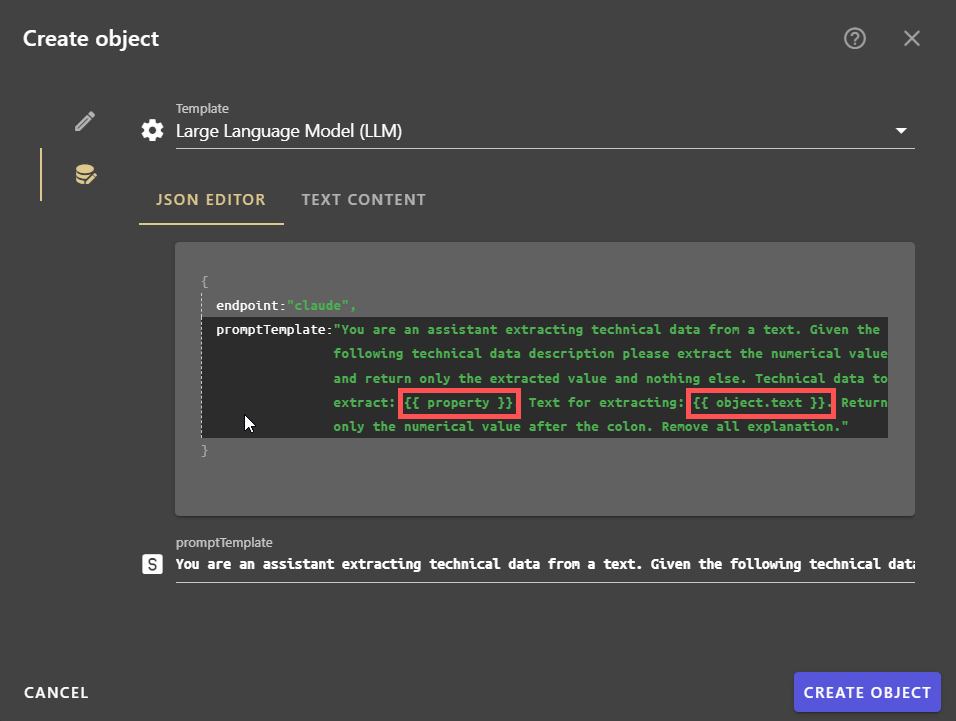
promptTemplate: The standard template for the prompt refers to the extraction of technical data. The prompt can be customized either in the configuration object or in the workflow step Assign and approve metadata.
Placeholder
The following placeholders can be used in the prompt to use the configuration object for various properties and documents.
| Placeholder | Description |
|---|---|
property |
Placeholder for the respective property. All information related to the property is transferred. |
property.label |
Only the label of the property is transferred (weight, length, etc.). |
object.text |
Text of the respective object. |
Use LLM metadata extraction
To extract metadata using an LLM, a corresponding configuration object must be assigned to the metadata.
- Open to the Properties view .
- Select the metadata that you want to assign using LLM metadata extraction.
- Click on the button to open the Edit properties dialogue.
The Edit properties dialogue opens. - Open the Relations tab.
- Click on the Add button to add a relation.
- Select the relation uses configuration from the drop-down list.
- In the Relation target field, select the appropriate LLM configuration object to be used for the property.
- Click CREATE NEW RELATION.
All your changes will be saved automatically.
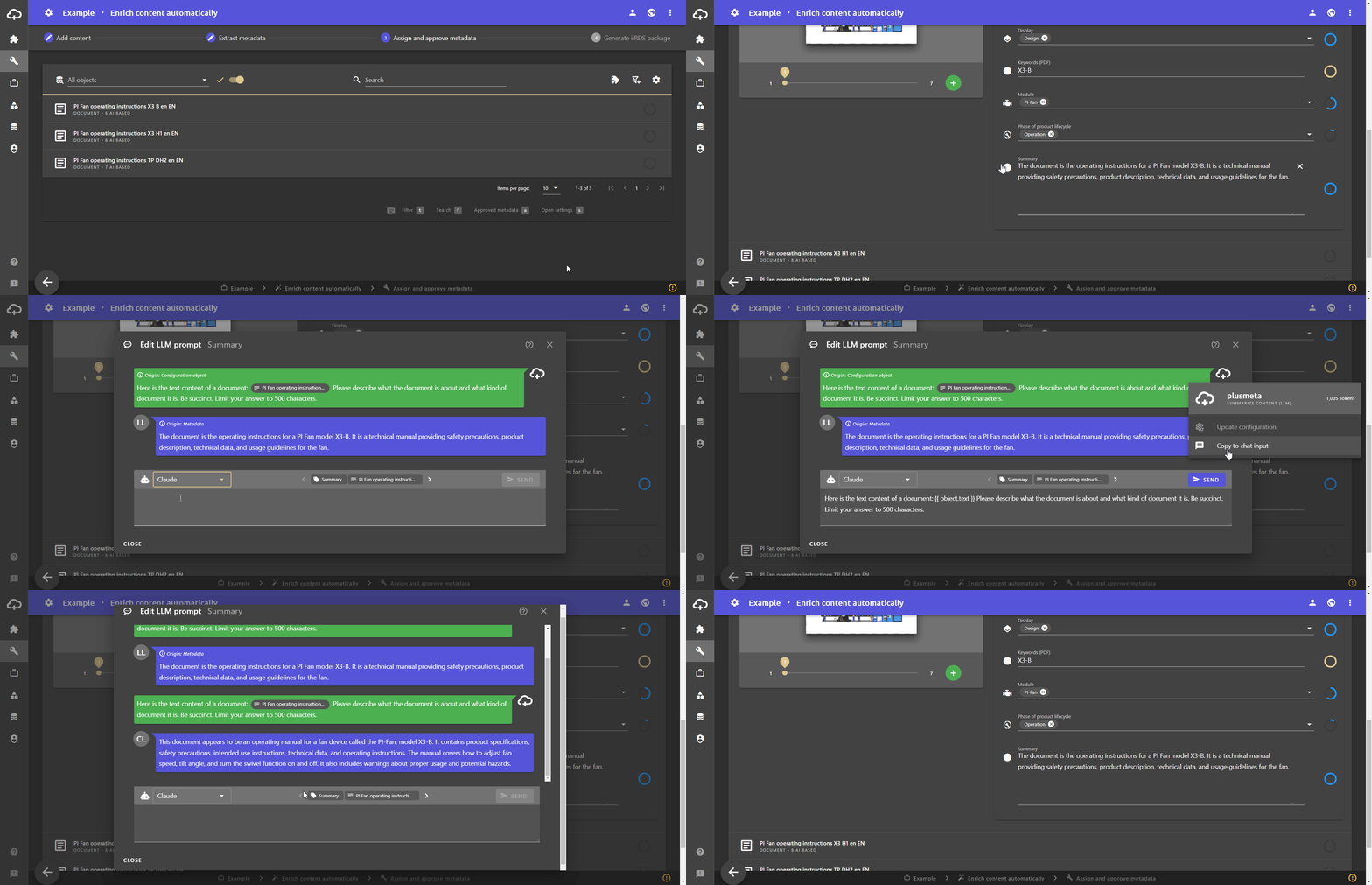
Adjust parameters in the workflow step ‘Assign and approve metadata’
The parameters that can be adjusted in the configuration object can optionally be adjusted when editing a project in the workflow step Assign and approve metadata.
- Go to the workflow step Assign and approve metadata.
- Open the metadata manager of the metadata to be edited. The metadata manager can be accessed by clicking on the icon to the left of the metadata field.
- Click on the button
The Edit LLM promptdialogue opens. - Select the LLM to be used from the drop-down menu.
- Move the mouse over the plusmeta icon next to the prompt and open the menu.
- Click on the button
The prompt text is copied to the chat input. - Customize the prompt in the chat input.
- Click on to receive the new result.
- If the metadata was created without the use of an LLM template, the adjustments can be saved to the configuration object using the button.