Content of this topic
Mapping
Metadata mapping is a method in plusmeta for metadata extraction.
Mappings are defined in a knowledge graph with dependencies between the metadata. This knowledge graph can be evaluated based on rules and used for metadata assignment: If a certain value “A” has been assigned as metadata, then the dependent value “B” will also be assigned.
One example is the dependency between the metadata “Document type” and “VDI 2770 document category”. If a value of the metadata “Document type” such as “Operating instructions” is found in the text, the corresponding value of the VDI 2770 document category “Operation” is also assigned as a metadata value. Another example would be the assignement of product attributes based on extracted product variants.
Configure metadata mapping
The following sections illustrate the configuration of a mapping using a specific example. The metadata from which the mapping is based is referred to below as “mapping”. The metadata that is filled by the mapping is referred to below as “mapped”.
Example: If the mapping metadata “Document type” is assigned, the mapped metadata “VDI 2770 document category” should also be assigned.
- Switch to the Properties view .
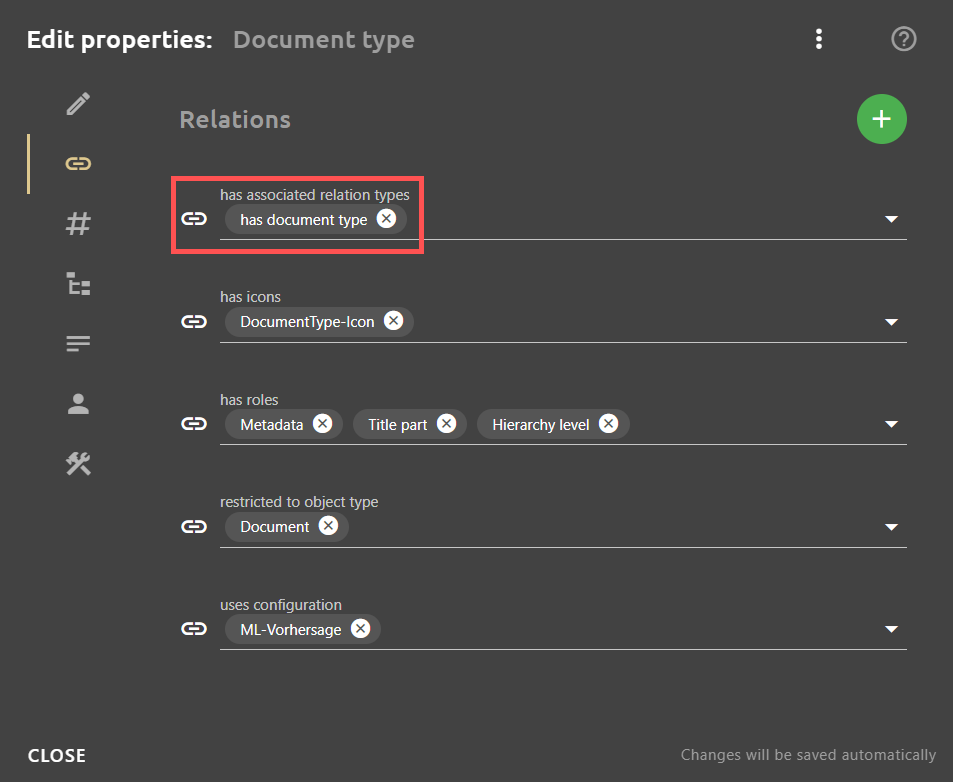
- Select the mapping metadata Document type and click on the button to open the Edit properties dialogue.
The Edit properties dialogue opens. - Open the Relations tab .
- Click on the Add button to add a relation.
- Add the relation has associated relation types and select has document type as the relation target.
Configure mapped metadata
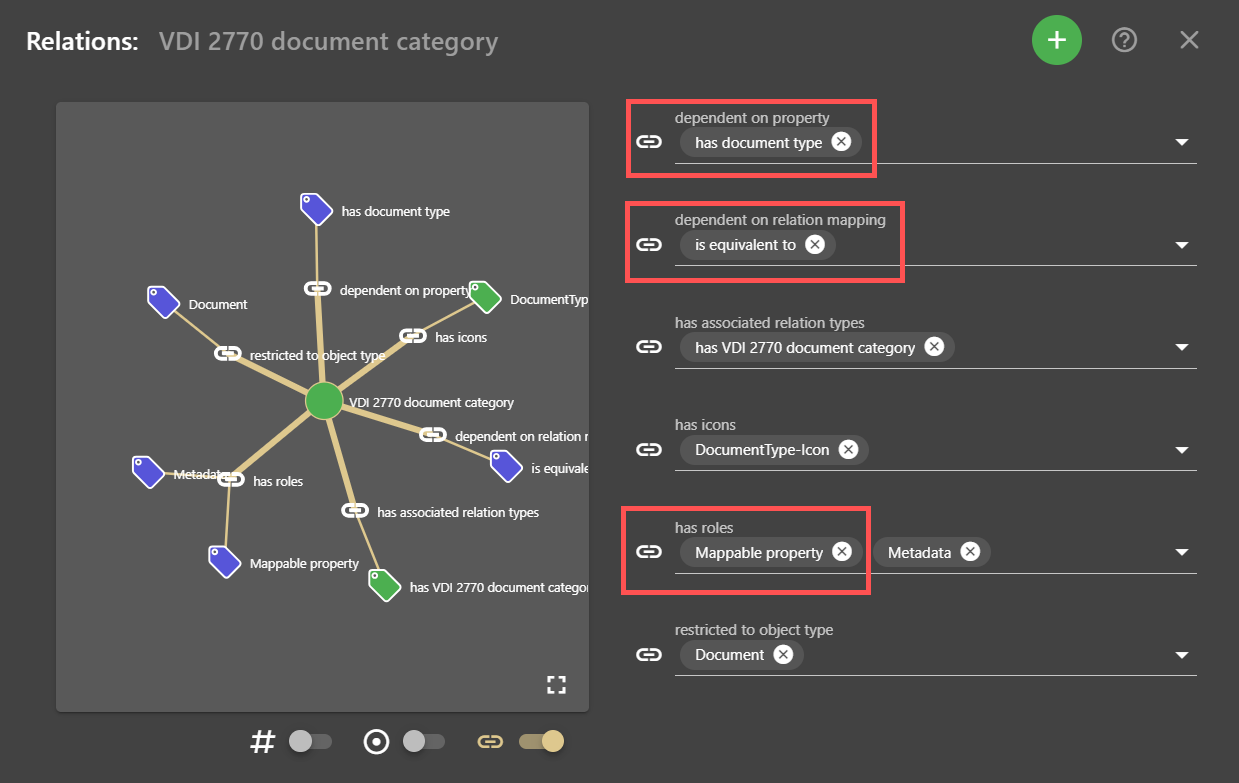
- Select the mapped metadata VDI-2770 document category and click on the button to open the Edit properties dialogue.
The Edit properties dialogue opens. - Open the Relations tab .
- Click on the Add button to add a relation.
- Add the relation has role and select Mappable property as the relation target The relation dependent on property and dependent on relation mapping are also added.
- In the dependent on property field, select the assigned relation type of the mapping metadata from the drop-down list, in the example has document type.
- In the dependent on relation mapping field, select is equivalent to from the drop-down list. The respective metadata values are linked by this relation.
Map metadata values
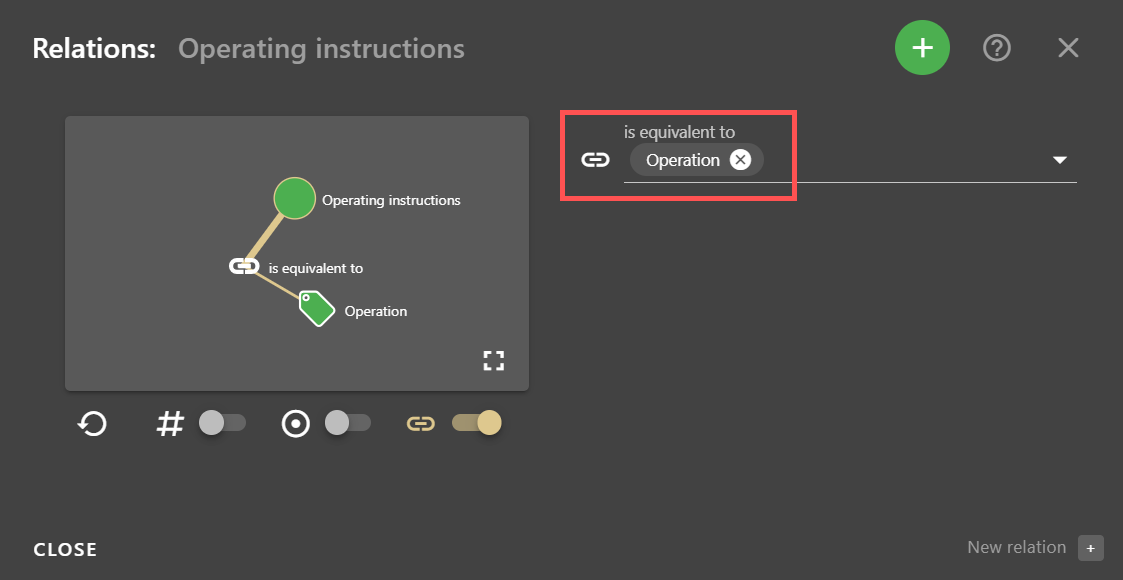
- Open the list values of the mapping metadata Document type in the Properties view .
- Click on the button to open the Edit properties dialogue.
The Edit properties dialogue opens. - Open the Relations tab .
- Click on the Add button to add a relation.
- Add the relation is equivalent to and select the corresponding list value of the mapped metadata as the target, e.g. “Operation” of the VDI-2770 document category.
Direct mapping
Direct mappings can be used to “redirect” input relations.
Example: The HTML file to be read contains a different relation than the relation with which the metadata is to be written to an iiRDS package.
- Open the Properties view.
- Select the metadata to be mapped.
- Click on the button to open the Edit properties dialogue.
The Edit properties dialogue opens. - Open the Relations tab .
- Click on the Add button to add a relation.
- Select the has role relation from the drop-down list.
- In the has roles field, select Mappable property from the drop-down list The dependent on relation mapping field appears.
- Enter the input relationship in the dependent on relation mapping field.
- Click on the Add button to add a relation.
- Select the relation has associated relation types from the drop-down list.
- In the Relation target field, select the relation from the drop-down list with which the values are to be assigned in plusmeta.
- In the attributes tab , activate the auto assignment attribute.
- Click CLOSE.
All your changes will be saved automatically.
Mapping fallback
If no suitable values are found for a configured metadata mapping, the rule-based assignment can be set as a fallback mechanism. This function must be activated via a configuration object.
Create configuration object
- Open the objects view .
- Click on the Add button to create a new object.
- Select Configuration object as the object type.
- Enter an Object label.
Note: The drop-down list suggests titles according to the object type and template selected.
- Open the lower tab of the Create object dialogue.
- Select the Mapping template.
Note: If no template is selected during creation, it cannot be added later.
- In the JSON EDITOR, set mappingFallbackRB to true.
- Click on CREATE OBJECT.
Activate Configuration object
- Open the Properties view .
- Select the metadata to which you want to assign the configuration object.
- Click on the button to open the Edit properties dialogue.
The Edit properties dialogue opens. - Open the Relations tab .
- Click on the Add button to add a relation.
- Select the relation uses configuration from the drop-down list.
- In the uses configuration field, select the configuration object from the drop-down list.
- Click CLOSE.
All your changes will be saved automatically.
