Content of this topic
- Difference between display name and title of an object
- Display name
- Title
- Change title
- Regenerate generated title
Difference between display name and title of an object
plusmeta distinguishes between the display name and the title of an object.
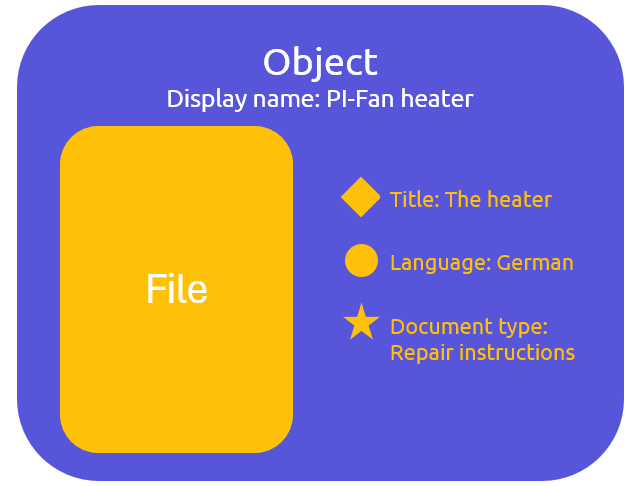
- File name: The file name is the name of the file uploaded to plusmeta (Source file name). It will not be changed.
- Display name: The display name is the name of an object in plusmeta. The object always forms a kind of case around an uploaded file. For this reason, the display name may differ from the file name. The display name is set automatically when a file is imported and is configurable.
- Title: The title is metadata of the object.
- Display name and title are not related but can also be equals by chance. Especially if they are generated in the same way.
Display name
The Clean file name is used by default. This is the file name without separators and file extensions. However, you can also customize the display name for each object individually.
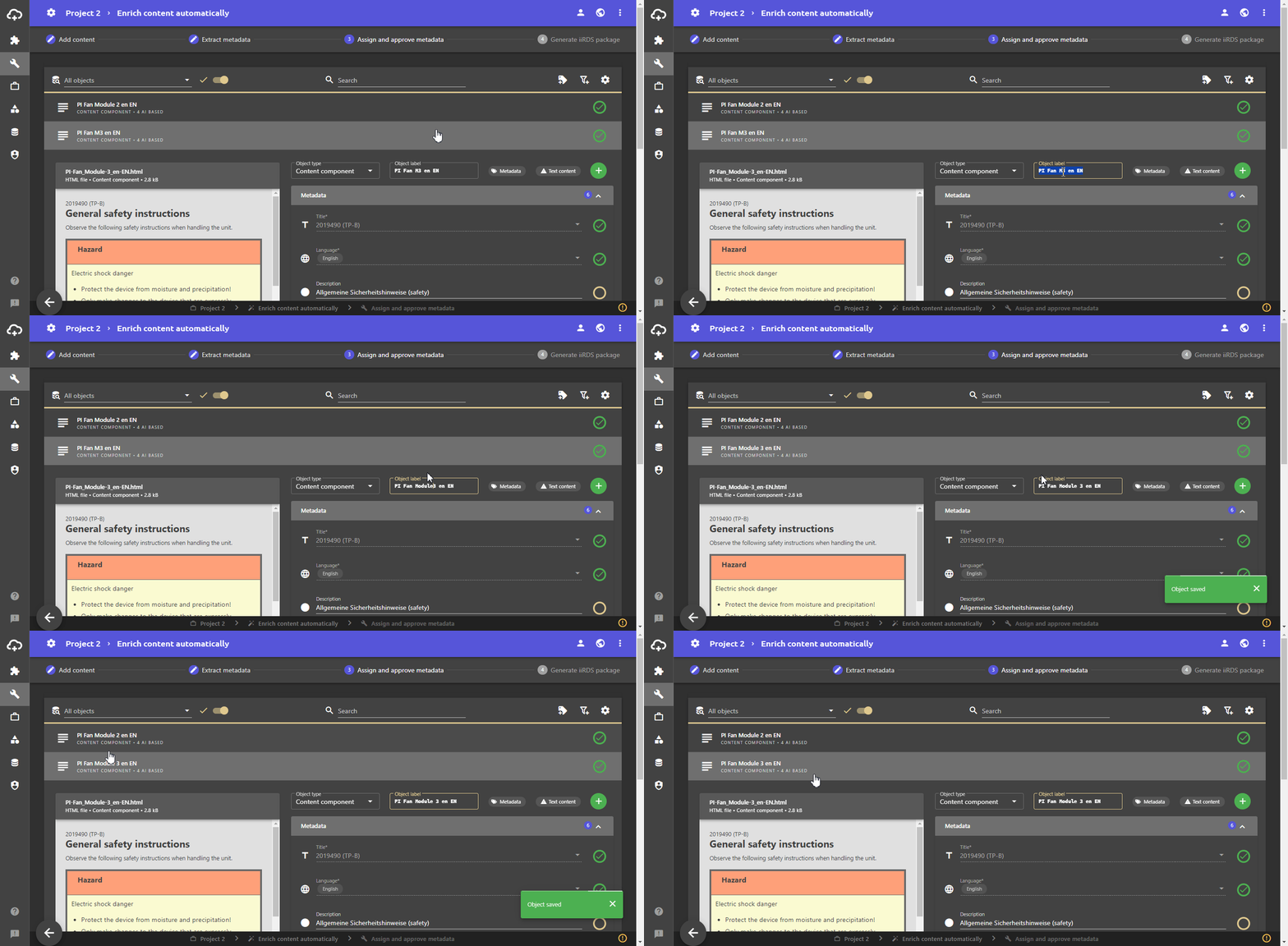
Change display name
- Go to the Work view.
- Go to the workflow step Assign and approve metadata.
- Click in the Object label field.
- Enter the desired display name.
- To save the change and complete the editing, click outside of the field.
Title
The metadata Title has a few special features in plusmeta. There is a list of potential candidates for the title. The preferred title candidat for the objects can be configured via the title priority.
Overview of the title candidates
There are several predefined title candidates in plusmeta:
| Title candidate | Description |
|---|---|
| Clean file name | File name without separators (dot, hyphens etc.) and file extensions. |
| Generated title | Title compiled from certain metadata. Which metadata and in which order can be configured in plusmeta. |
| Assumed PDF title | Title extracted from the PDF file: Largest text on the first page |
| Assumed HTML title | Title extracted from the HTML file: First h1, h2, h3, h4 or header |
| Title (HTML) | Imported value from an HTML file |
| Title (PDF) | Imported value from a PDF file |
| Title (iiRDS) | Imported value from a document / package / fragment |
| Title (Dublin Core) | Imported value from a document |
Change title
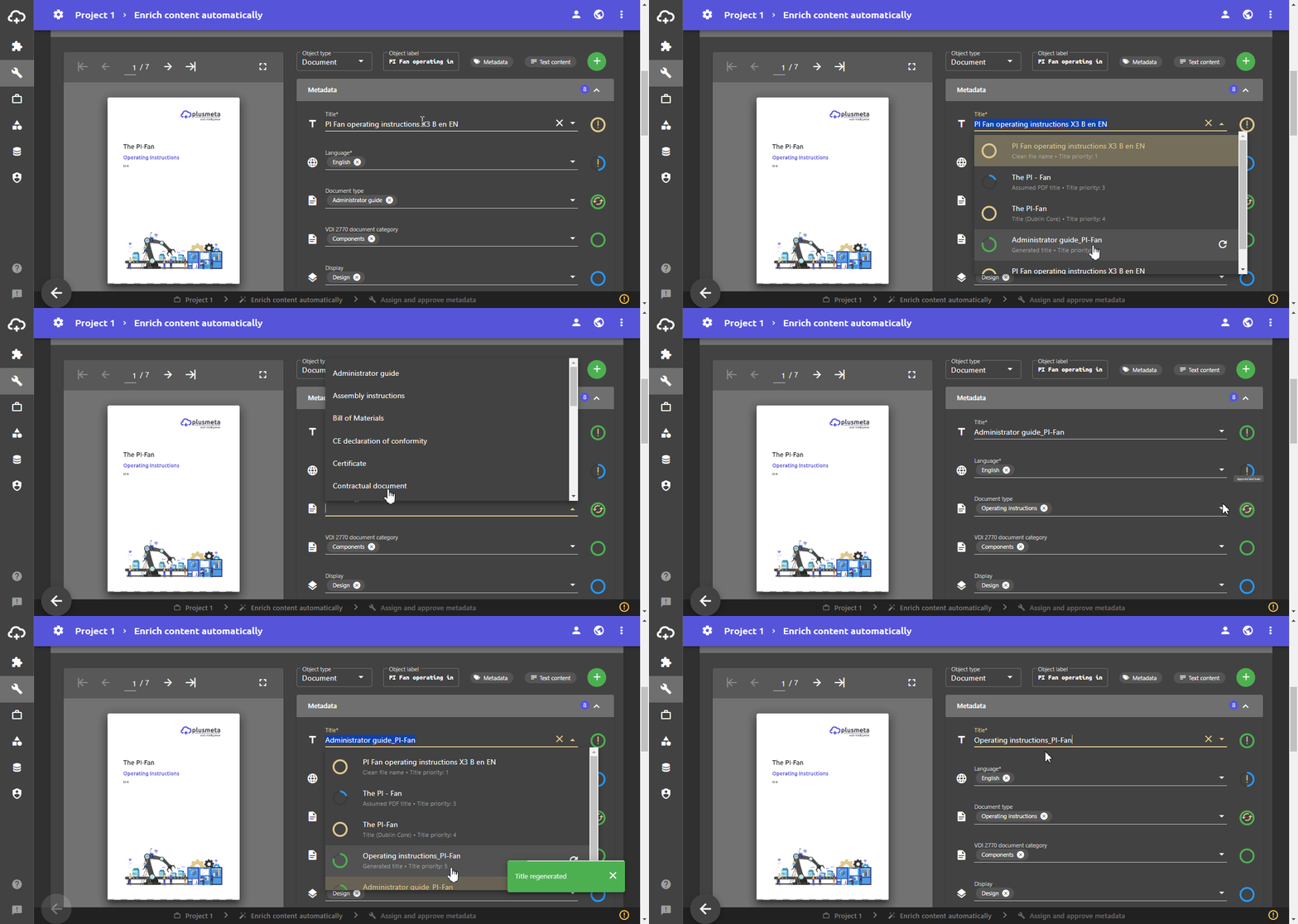
Values in the Title metadata field can be adjusted individually for each object.
- Click in the Title field.
A drop-down list with all title candidates opens. A metadata indicator is displayed next to the title candidates. - To select a different title, click on the desired entry.
Regenerate generated title
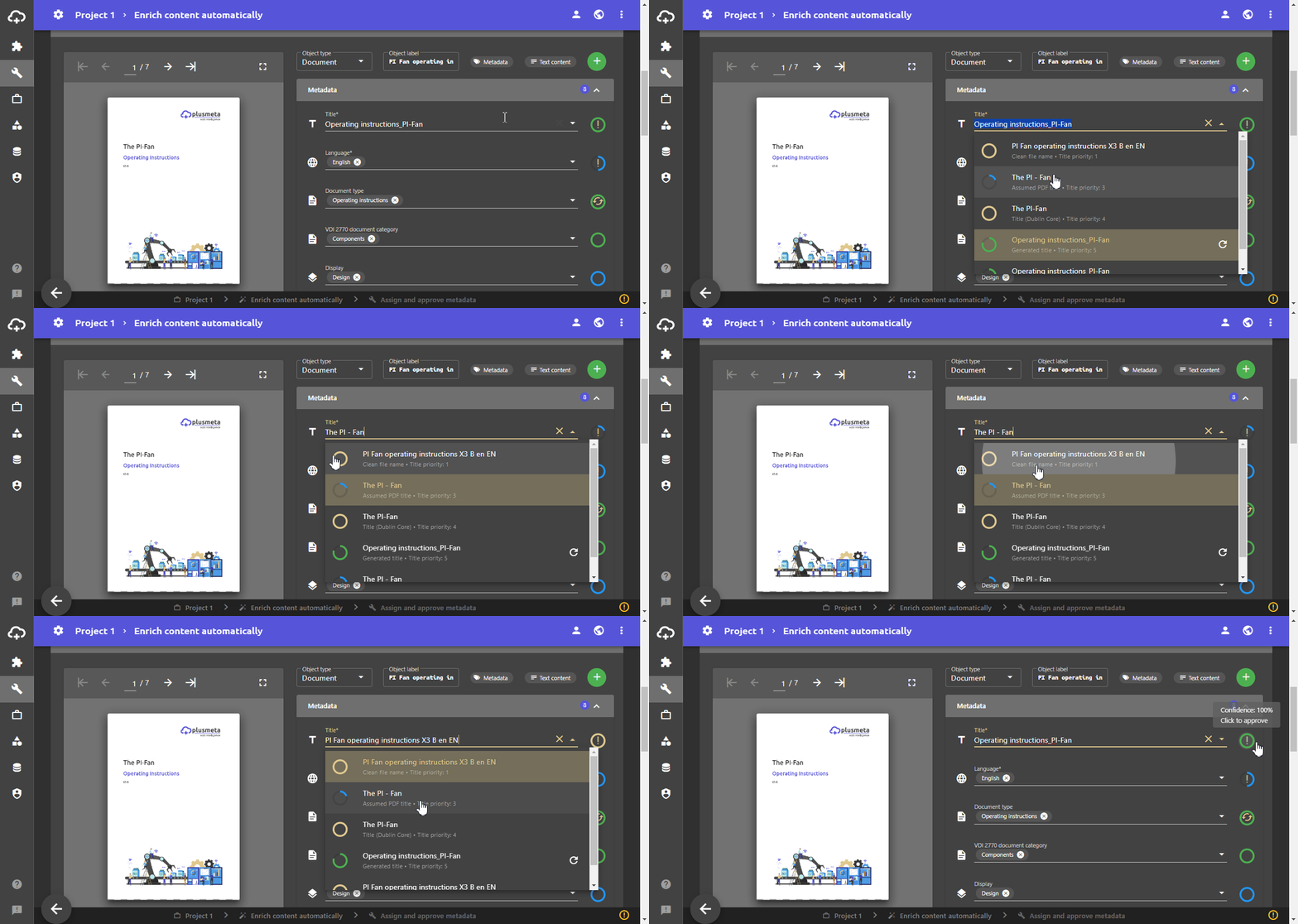
The generated title is made up of the object’s metadata. You can configure which metadata is included in the generated title, in which order they are and which separators are used.
If metadata that is included in the generate title has changed on the object, you should update it.
- Click in the Title field.
A drop-down list with all title candidates opens. - Click on the button next to the Generated title entry.
- To select a different title, click on the desired entry.