Content of this topic
Basics
Extractors work according to the principle of “pattern matching”. A regular expression is used to define a search pattern, e.g. a specific string value and format: “Serial number: xx-xxx-xxx”.
plusmeta searches the text for passages that match the pattern and extracts the specified part, e.g. 12-345-678, and writes it into the metadata field. Typical examples of this method of metadata extraction are number sequences such as serial numbers or dates.
This function must be activated via a configuration object.
Create configuration object
- Open the Objects view.
- Click on the Add button to create a new object.
- Select Configuration object as the object type.
- Open the lower tab of the Create object dialogue.
- Select the template Regular expression.
Note: If no template is selected during creation, it cannot be added later.
- In the JSON EDITOR, click on the line extractor and set to true using the toggle switch .
- Click on the three dots in the extractorOptions line.
- Replace the regular expression in the line pattern with your own regular expression (e.g. “(serial number:)\s(\d{3})”).
- If required, activate line-based processing (multiLine) and ignore upper and lower case (caseInsensitive) or deactivate the conversion of line breaks to spaces (convertNewlineToSpace).
- In the match field, enter the desired group whose content should appear in the metadata field.
Note: If only the actual serial number is to be extracted in the example "(serial number:)\s(\d{3})", then only group 2 would be matched.
- In the multiMatch field, select whether multiple values may be extracted (true) or only one (false).
- If required, remove one or more values from the list in the scope field.
Note: The scope defines where the extractor is applied: in the text (text) in the titles (title) or in the properties with the role "Source for metadata recognition" (sources).
- Click on CREATE OBJECT.
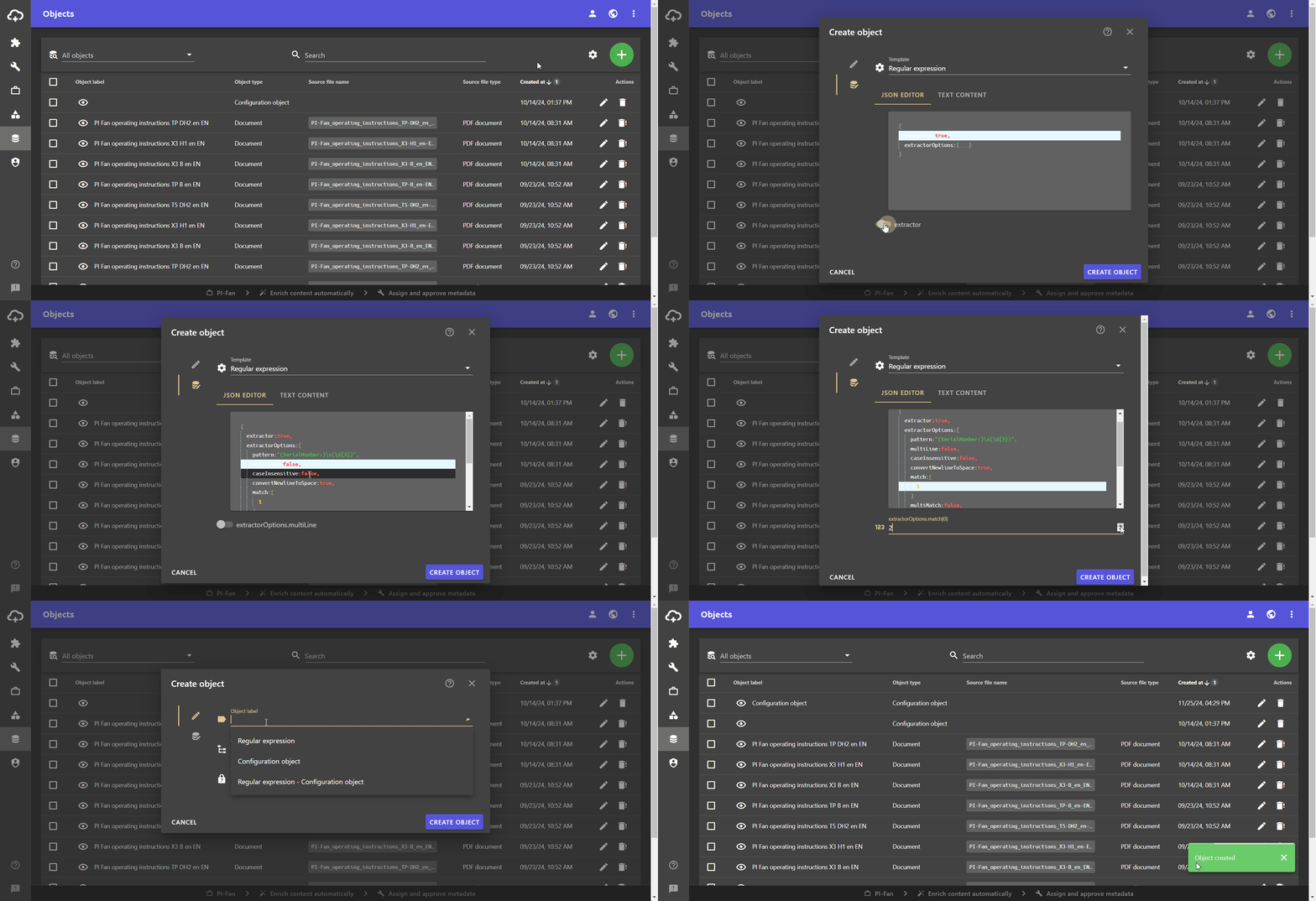
Use extractor
- Open the Properties view .
- Select the metadata to which you want to assign the configuration object.
- Click on the button to open the Edit properties dialogue.
The Edit properties dialogue opens. - Open the Relations tab .
- Click on the Add button to add a relation.
- Select the relation uses configuration from the drop-down list.
- In the uses configuration field, select the configuration object from the drop-down list.
- Switch to the Attributes tab .
- Click on the add button and select and activate the attribute auto assignment .
- Click CLOSE.
The changes are saved automatically.
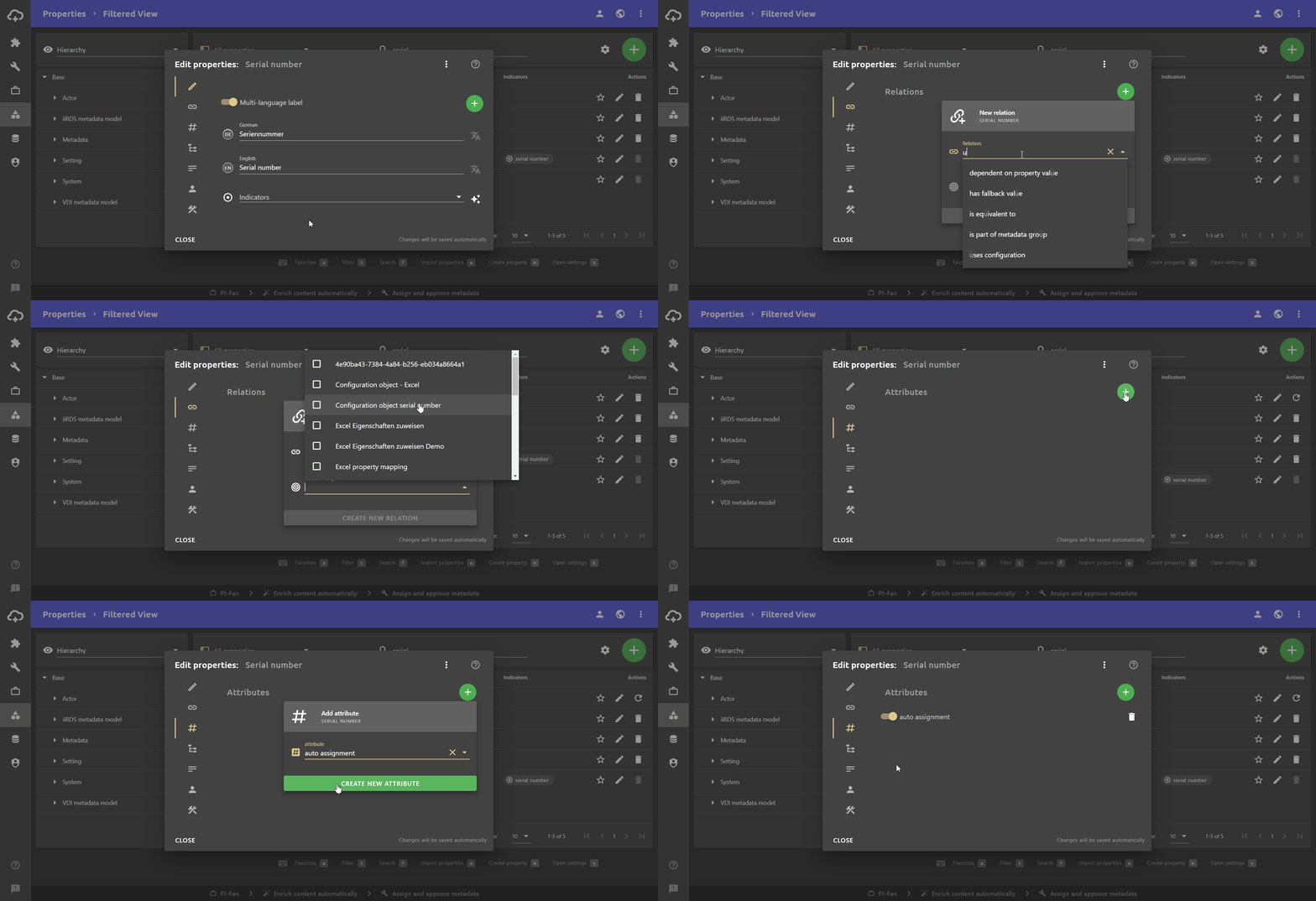
Modify string
It is possible to modify the character string extracted by the regular expression with additional character strings. These can be prefixes and suffixes as well as inserted character strings between groups.
This can be used to clean up results or to add characters to the metadata value.
Example: An “S-“ should always be written before the extracted serial number.
- Open the Objects view.
- Open the configuration object of type Regular expression.
- In the tab in the JSON EDITOR in the line match , enter the prefix “S-“ before the group that is to be matched.
- Click CLOSE.
The changes will be saved automatically.
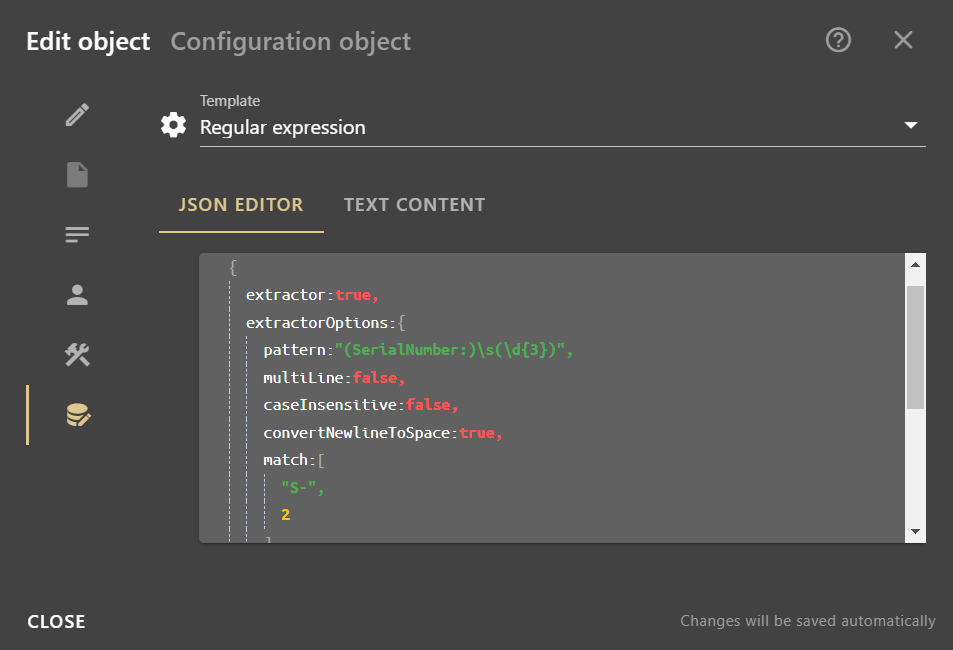
Auto extractors
Extractors can also be created without writing regular expressions using the “Auto extractor” function. Auto-extractors are created without configuration objects and are intended for metadata with units, e.g. height or weight.
Create property
- Open the Properties view .
- Click the Add button and then click the button.
The Create property dialogue opens. - Assign the class metadata .
- Select the appropriate data type (number for pure numerical values, string value for words or mixed values).
- Assign a label.
- Click on CREATE.
All your changes will be saved automatically.
Activate Auto extractors on property
- On the property, click the button to open the Edit properties dialogue.
The Edit properties dialogue opens. - Switch to the Attributes tab.
- Click on the Add button and select the attribute Unit .
- In the Unit field, enter the unit as it can be found in the content.
- Click on the add button and select and activate the attribute auto assignment .
- Click CLOSE.
The changes are saved automatically.
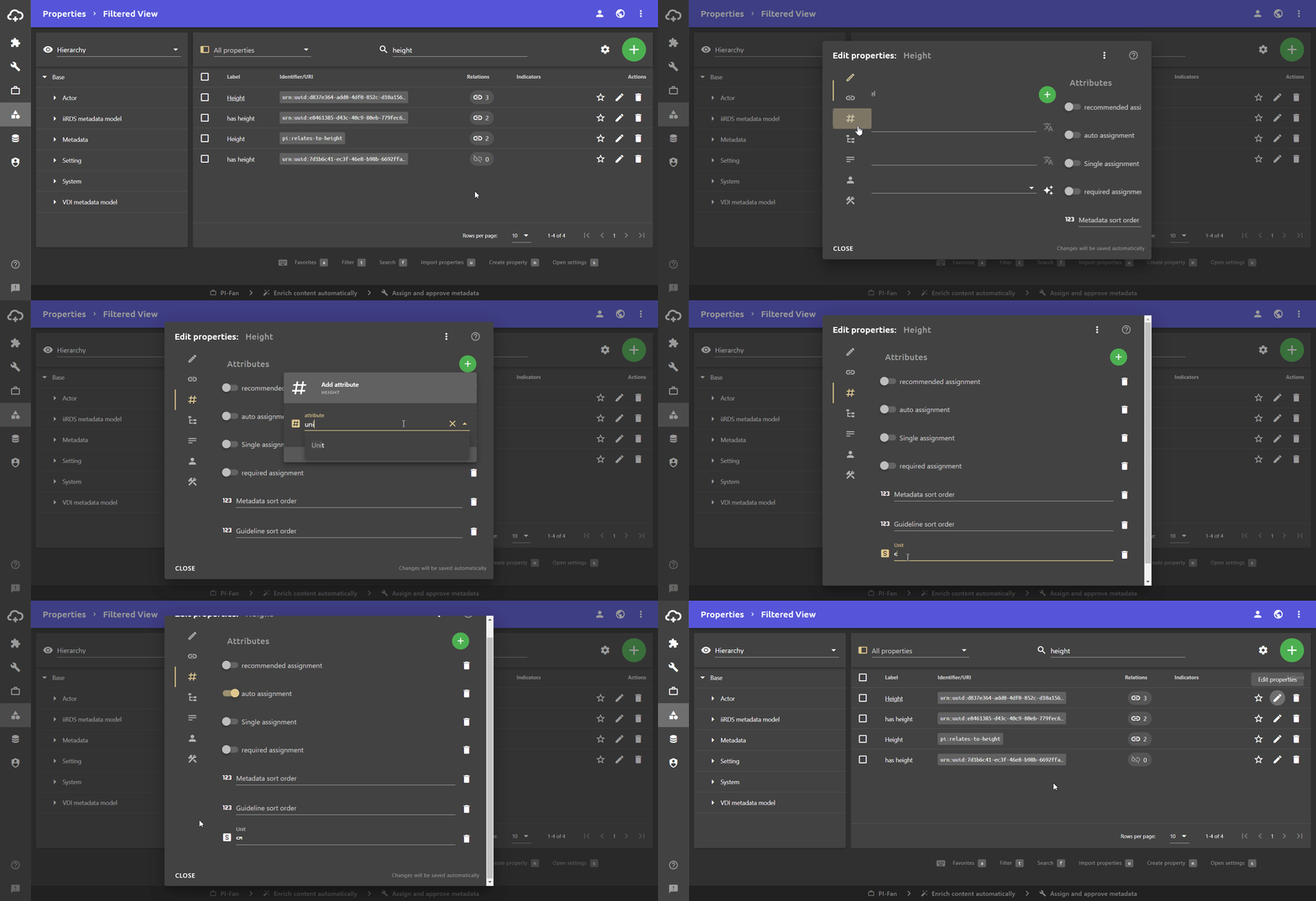
Activate Auto extractors in project
- When creating a new project, open the project settings using the button.
For existing projects, click on the settings button at the top left of the work view. - Activate the Auto extractors toggle switch.
The Auto extractors are used in the project.
