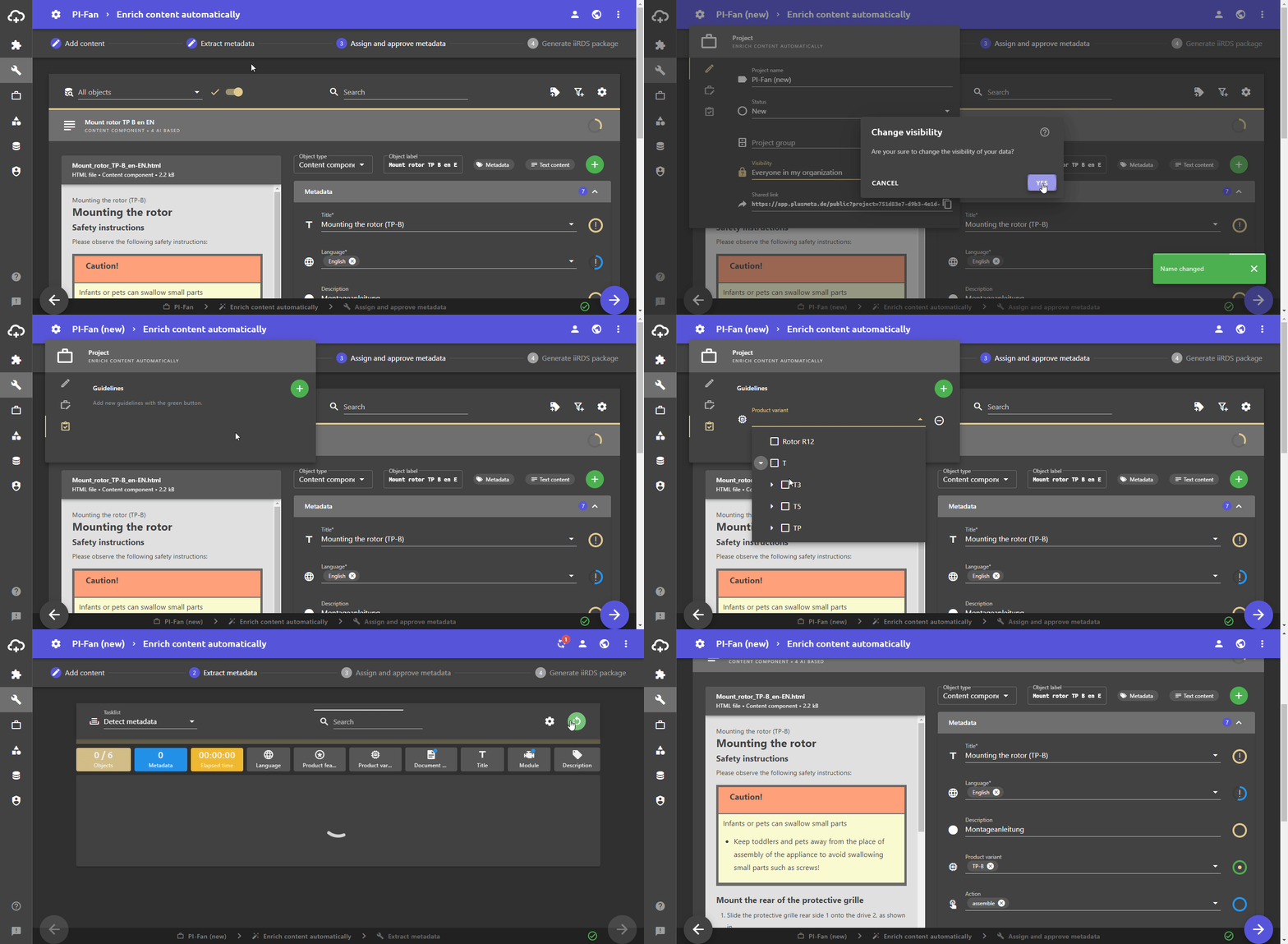
If you have already created your project, you can also subsequently adjust the project settings in the work view. You can change the project name, visibility, project settings and project requirements.
- In the [work view] (/en/Work-view), click on the settings button at the top left next to the project name.
The project settings dialogue opens. - To change project settings, activate or deactivate the desired switch.
- To customize project guidelines, click on .
- To adjust the visibility, click on the next to the text field for the project name.
Note: If the project has the visibility Everyone in my organisation (shared by another User), the visibility can only be changed by this User. In this case, the Visibility field is grayed out.
- To change the project name, click in the project name field and make changes.
- To save the changes and close the dialogue, click outside the dialogue.
Note: Some settings only take effect when you perform the Extract metadata step again.
The settings for projects can also be adjusted in the Edit project dialog in the Projects view.
