Content of this topic
- Functionality
- Indicator types
- Add indicators when creating a property
- Add indicators later
- Add indicators in the “Assign and approve metadata” workflow step
- Worth knowing
Functionality
Indicators play an important role in rule-based assignment. Words or strings can be configured as indicators, which are used for the assignment of metadata values.
Indicators can be synonyms, alternative spellings, or other clue words that typically occur in the texts. For example, the abbreviation “OM” and the alternative names “Operations manual” and “User manual” can be used as indicators for the document type “Operating manual”.
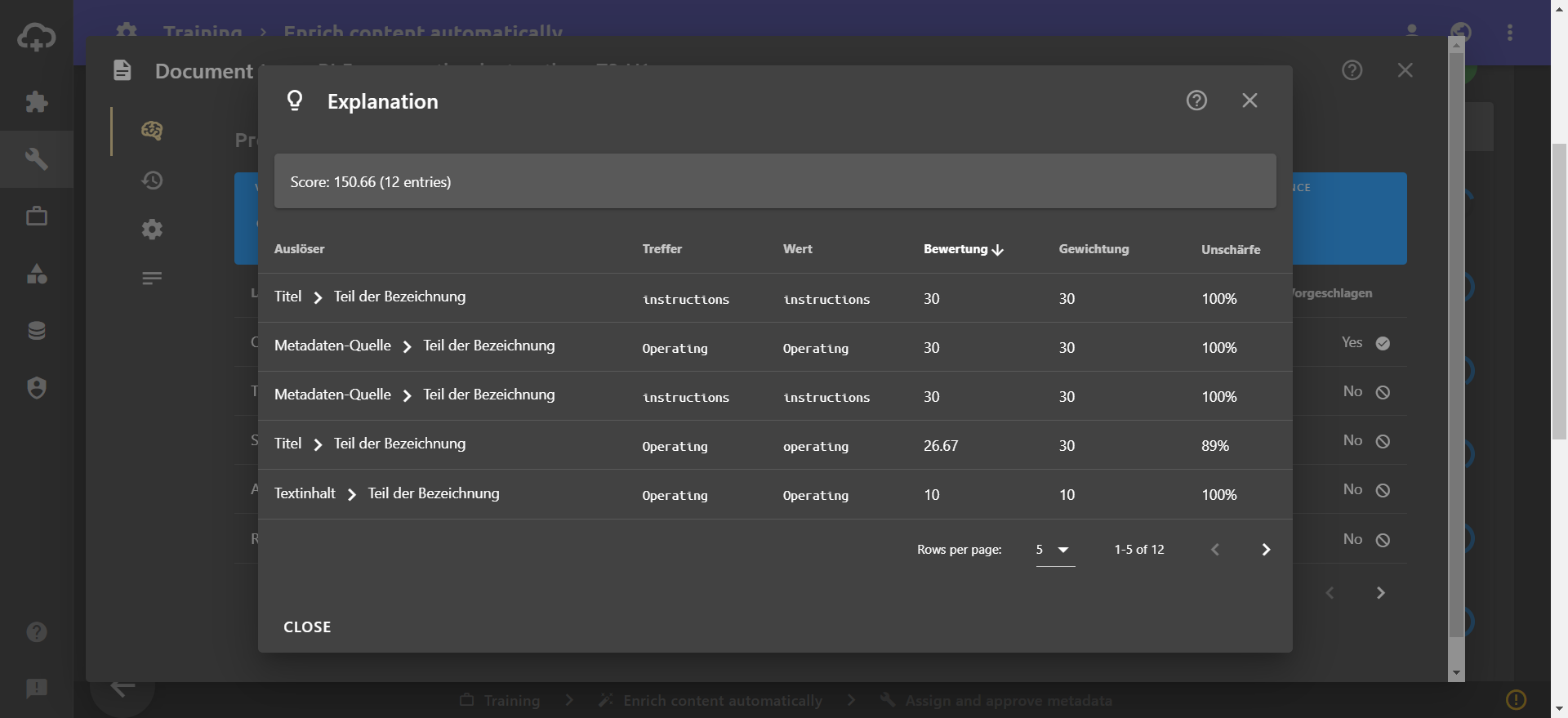
If indicators are found in texts, the matches are included in the scoring. plusmeta has default values for the scoring of indicator hits. Furthermore, the amount of points indicators and parts of indicators receive can also be configured.
Indicator types
There are three different types of indicators in plusmeta.
| Icon | Name | Description | Usage |
|---|---|---|---|
| Positive indicators | For positive indicators, each indicator hit gets points. Points are awarded only once per indicator per source (title, text content, properties with system role “Source for metadata detection”). If indicators occur more than once, they are still only counted once. | Enter values without preceding character | |
| Neutral indicators | For neutral indicators, the points for indicators are awarded only once. If individual indicators occur more than once or if several indicators are found, they are only counted once. | Enter values with a preceding hashtag # | |
| Negative indicators | If negative indicators are found in the text, the indicated points are subtracted. Here the same rule applies: No matter how often the indicator occurs, the points are only subtracted once. | Enter values with a preceding minus - |
Add indicators when creating a property
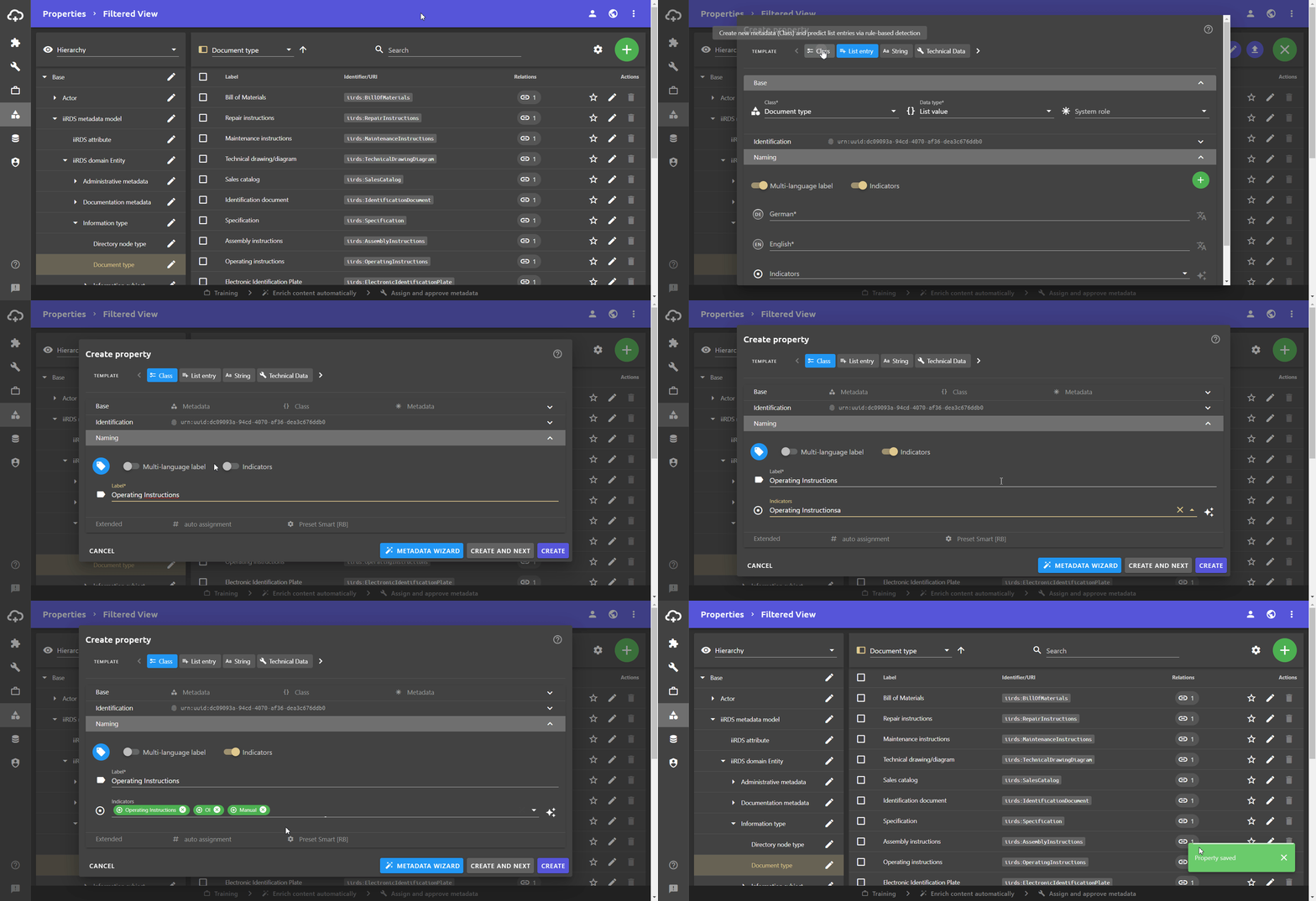
You can add indicators directly when creating a property. Please note that indicators are only relevant for the rule-based assignment of metadata with the list value data type.
- Open the Properties view.
- Click the Add button and then click the button.
The Create property dialogue opens. - Select a template at the top or fill in the fields Class, Data type and System role as well as the area IDENTIFICATION.
- Enter a label for the metadata.
- To create indicators, activate the Indicators button. The Indicators field appears under the Label field.
- Click in the Indicators field and enter your values. Use prefixes to create neutral indicators (#) or negative indicators (-). You can use the button to insert a list of indicators all at once.
- To save the entered values, click outside the field or press Enter.
- Click the CREATE button.
The new property is saved and the dialogue is closed.
Add indicators later
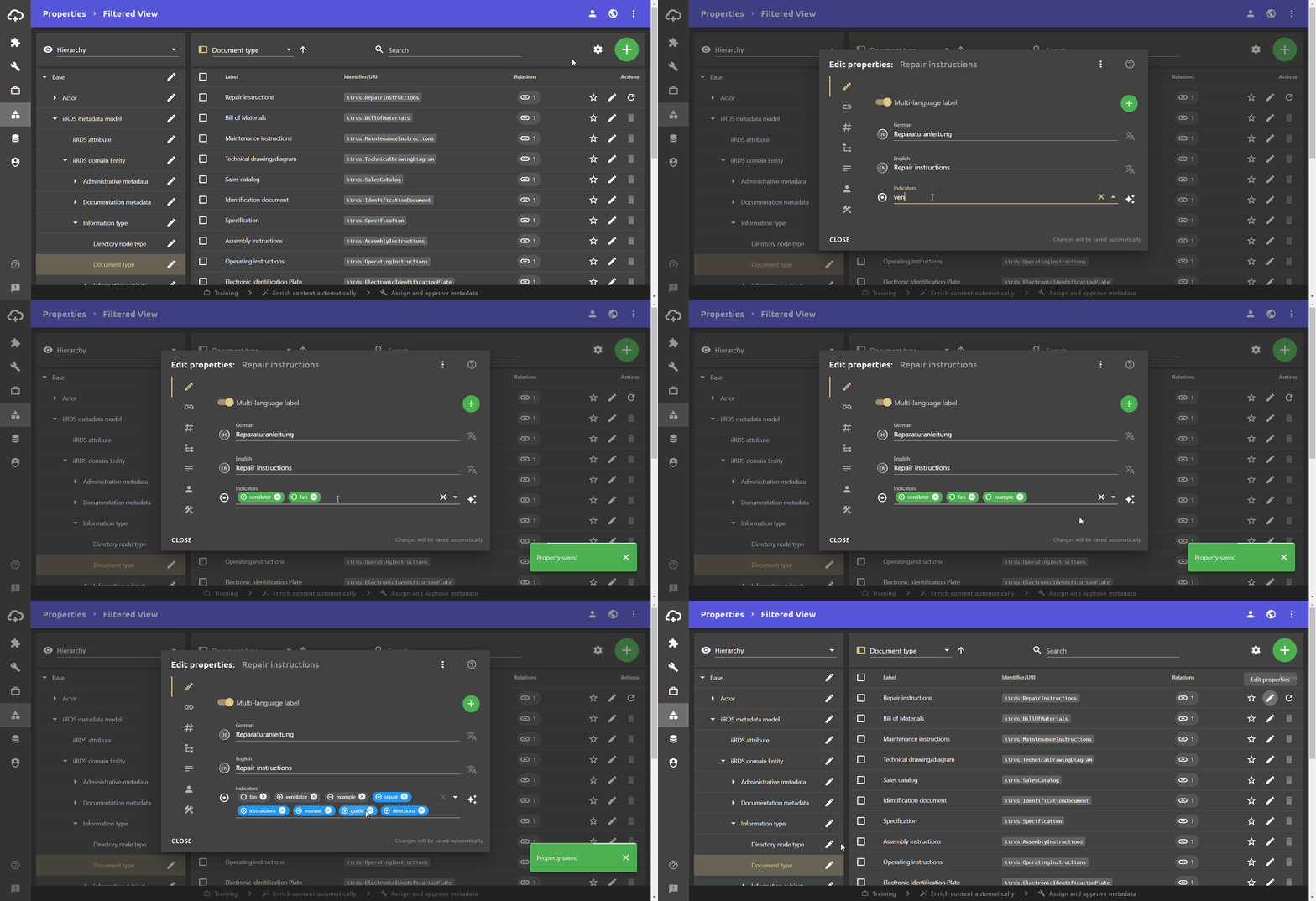
You can also add indicators to properties that have already been created.
- Open the Properties view.
- Use filtering or the search function to find the desired property.
- On the property, click the button to open the Edit properties dialogue.
The Edit properties dialogue opens. - Click in the Indicators field and enter your values. Use prefixes to create neutral indicators (#) or negative indicators (-). You can use the button to insert a list of indicators all at once.
- To save the entered values, click outside the field or press Enter.
- Close the Edit properties dialogue.
All your changes will be saved automatically.
Add indicators in the “Assign and approve metadata” workflow step
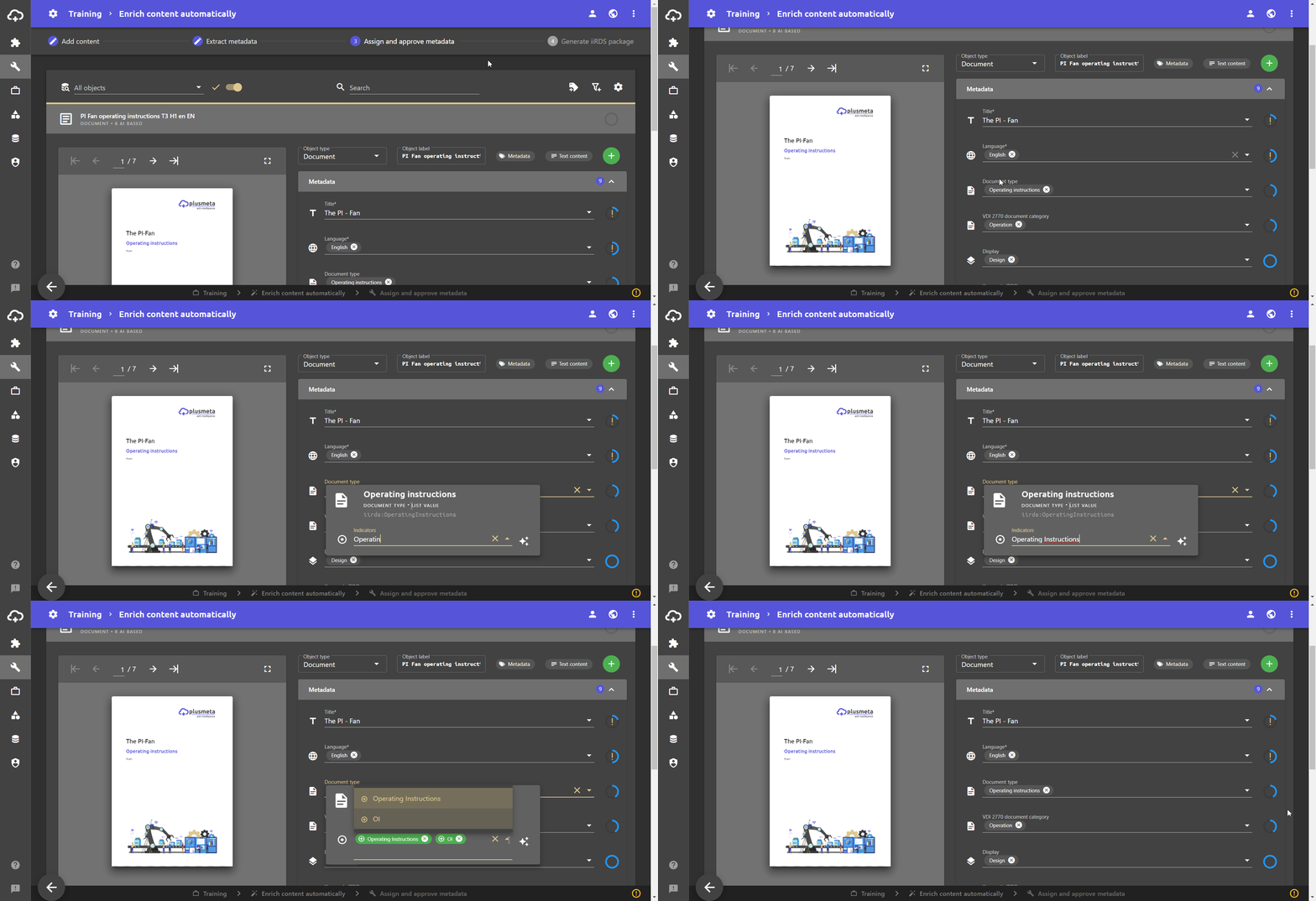
You can also add indicators to previously created properties in the workflow step Assign and approve metadata.
Prerequisite: You are in a project in the workflow step Assign and approve metadata.
- Click on a metadata value of the data type list value.
The metadata value panel opens. - Click in the Indicators field and enter your values. Use prefixes to create neutral indicators (#) or negative indicators (-). You can use the button to insert a list of indicators all at once.
- To save the entered values, click outside the field or press Enter.
- Click outside the metadata value panel.
All your changes will be saved automatically.
Worth knowing
- Indicators can consist of several words. The words are not kept together as a complete phrase during text matching. You can therefore only get partial hits.
- Indicators are not language-dependent, i.e. if texts are analyzed in different languages, the indicators should be provided in all languages.
- Indicators can be imported. The Excel properties import can be customized using a corresponding configuration object.
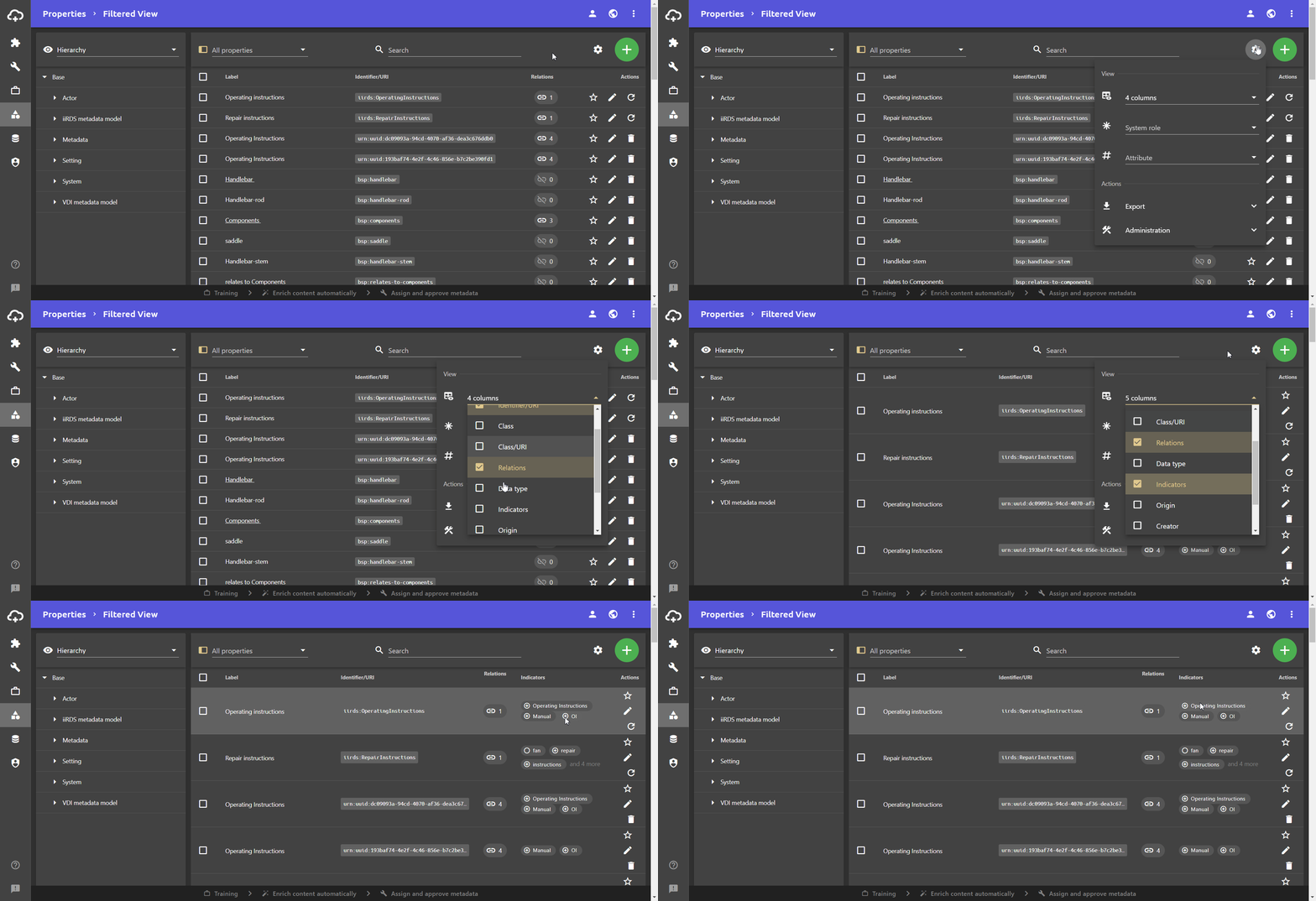
- To get a good overview of the available indicators, you can display the Indicators column in the properties view.