Content of this topic
Since plusmeta is used in the browser, system shortcuts are not available. Instead individual letters or numbers are used. You can press these letters or numbers as long as the browser window with plusmeta is active and in the foreground.
Showing and hiding the keyboard shortcuts
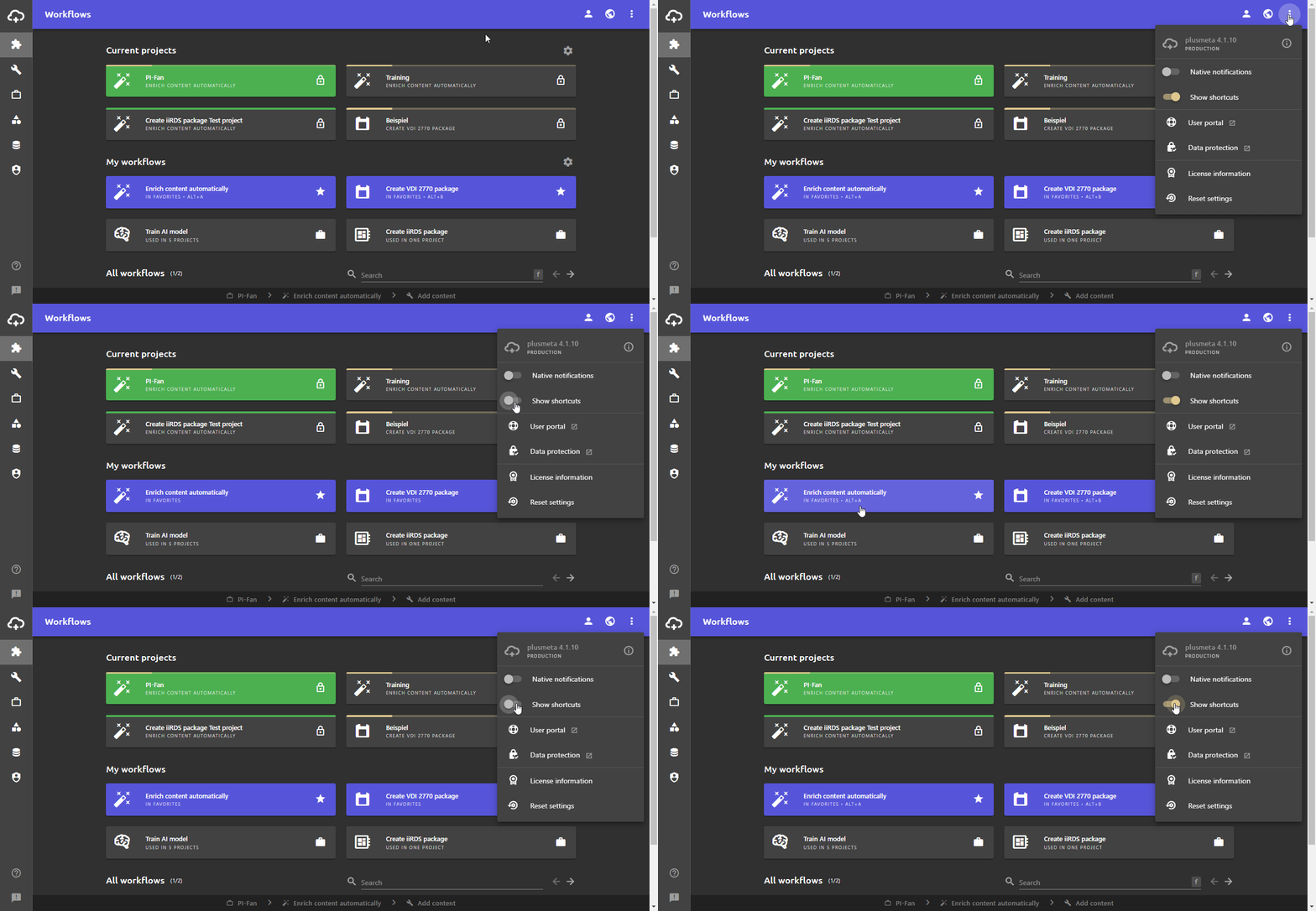
- Open the More-Menu.
- Activate Show shortcuts.In views where keyboard shortcuts are available, the keyboard shortcuts are displayed.
Tip: You can also have the keyboard shortcuts temporarily displayed: Hold
the -key on your keyboard. As long as you hold down ,
the keyboard shortcuts are displayed in available views.
Overview of keyboard shortcuts
| Keyboard shortcuts | Actions | Note |
|---|---|---|
| Temporarily show keyboard shortcuts | When keyboard shortcuts are hidden | |
| ALT+0 | Toggle side navigation | All |
| ALT+1 | Switch to Workflow view | All |
| ALT+2 | Switch to Work view | All |
| ALT+3 | Switch to Projects view | Depending on permission |
| ALT+4 | Switch to Properties view | Depending on permission |
| ALT+5 | Switch to Objects view | Depending on permission |
| F1 | Calling up context-sensitive help | All |
| F2 | Report errors / give feedback | All |
| f | Focus search field (find) |
If search field available |
| t | Focus filter (type) |
Main views |
| u | Upload file (upload) |
Main views |
| n | Create new (manually) (new) |
Main views |
| s | Open settings (settings) |
Main views |
| a | Show/hide approved (approved) |
Workflows |
| a | Show/hide favorites (all) |
Properties |
| d | Add existing objects (database) |
Add objects |
| p | Add objects from project (project) |
Add objects |
