Content of this topic
Sections
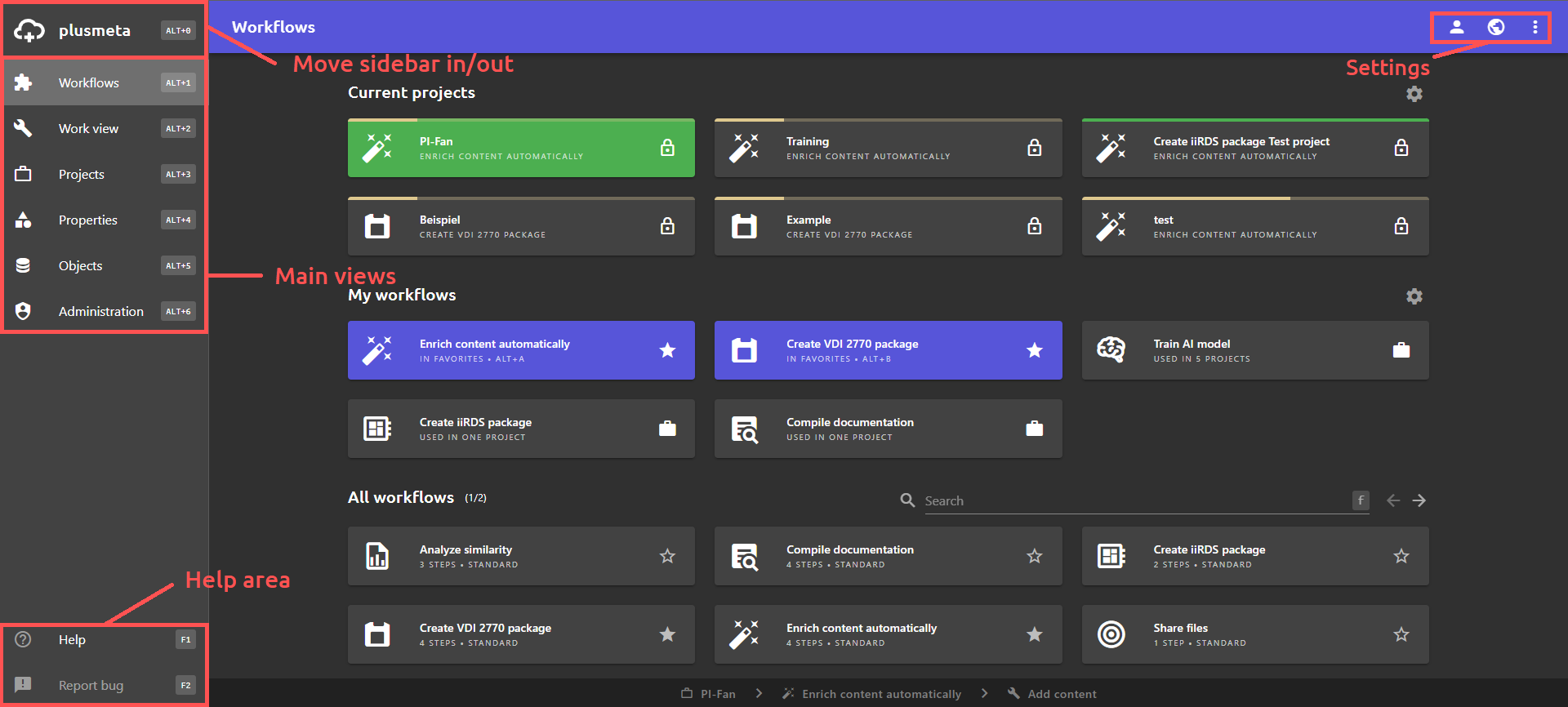
Note: The main views you see depend on your rights configuration. You will only see the main views in the sidebar that you have access to.
Sidebar
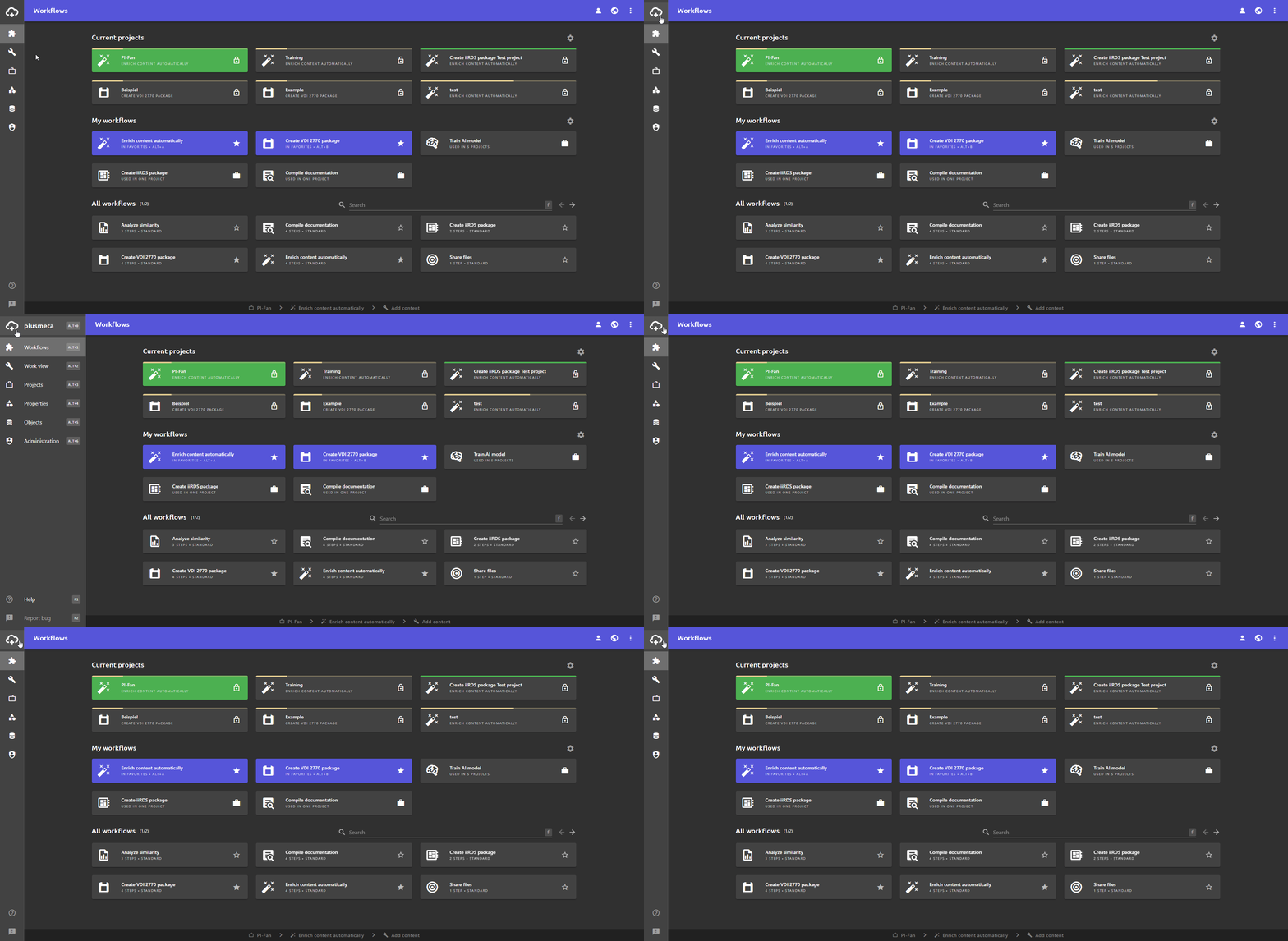
The sidebar on the left-hand side can be expanded or collapsed using the plusmeta cloud. Alternatively, the keyboard shortcut 0 can be used.
In the sidebar you will find the main views and the help area.
Main views
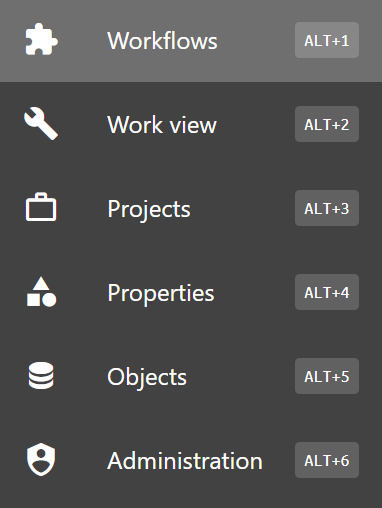
Depending on the rights assigned to your user, you will see several main views in the sidebar:
-
Workflows view: In this view, you will find your workflows and your current projects. You can also create new projects in this view.
-
Work view: In this view, you will find your currently active project. If you do not have a currently active project, this view is grayed out.
-
Projects view: All your projects can be found in this view.
-
Properties view: In this view, you can manage and create properties such as metadata and relations.
-
Objects view: You will find all your objects in this view. These can be, for example, your documents that you use in projects.
-
Administration: You can manage roles and rights in the administration. In addition, you can manage existing users and create new users.
Help area
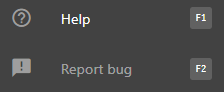
The help area is located at the bottom left of the sidebar. The user portal and context-sensitive help can be accessed and errors can be reported. Further information on context-sensitive help and the user portal can be found on the help page Show help.
Status bar

The status bar is displayed at the bottom of each view if you currently have an active project.
- The currently active project is displayed on the left. If you have several active (i.e. not yet completed) projects, you can switch to another active project by clicking on the currently active project in the status bar.
- The workflow of the currently active project is displayed in the middle. If you click on it, a list with other projects of the same workflow will be displayed and you can switch to one of these projects with one click.
- The workflow step in which the currently active project is located is displayed on the right. Click on it to open the project at this workflow step.
Settings
The settings area located in the top right-hand corner. Among other things, user-related settings can be made here, the language can be changed and the keyboard shortcuts can be shown or hidden. You can find more detailed information on the settings help page.
Responsive design
The layout is responsive so that plusmeta can be conveniently operated from different devices. For this reason, the view changes depending on the screen width.
