Content of this topic
Rights for shared links
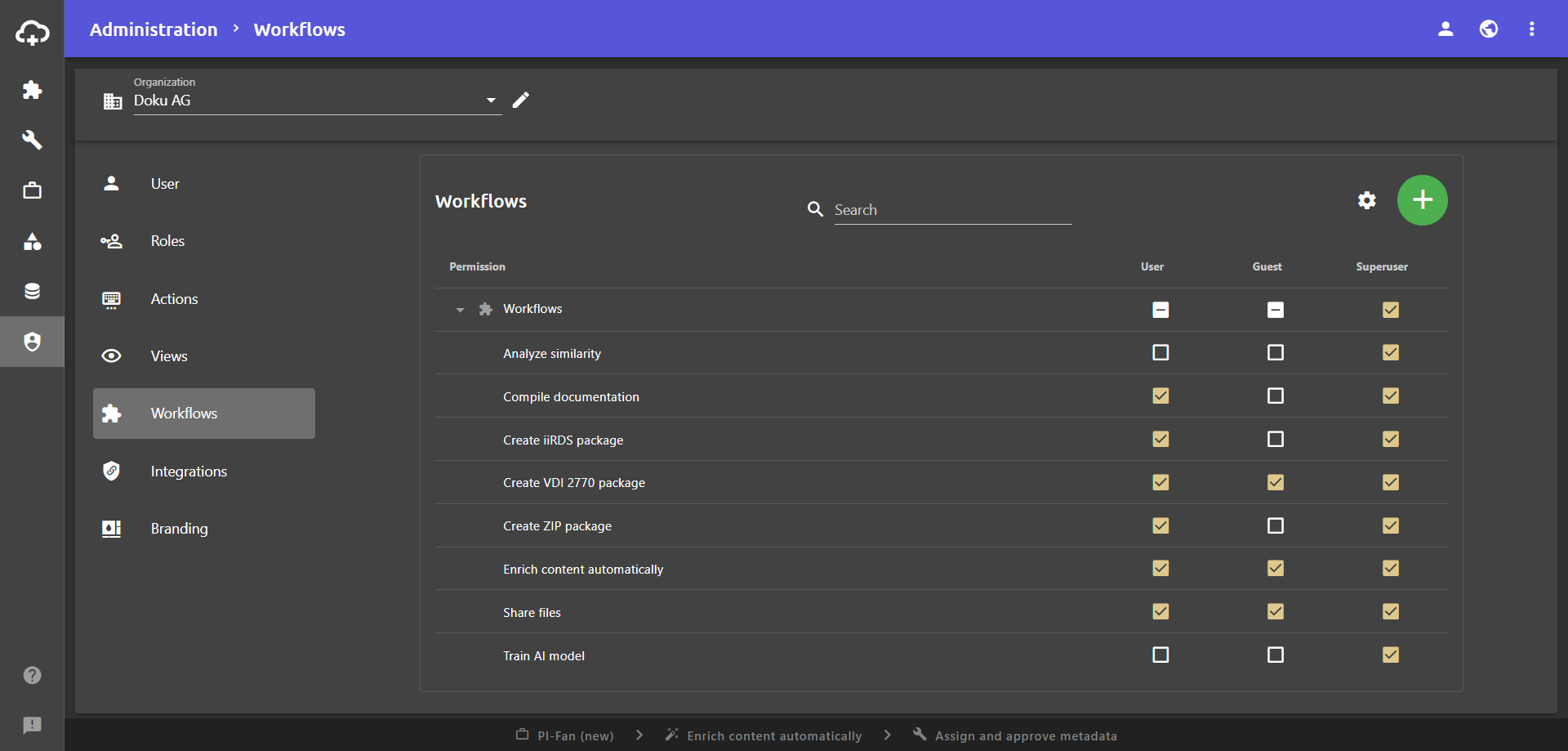
To make a project accessible to a person or company outside your client via a shared link, the Guest role requires certain permissions. You can only access the administration view and make changes if you have the corresponding permissions.
In the Administration view using the Workflows tab, you can set which workflows (or projects based on the workflows) people can access via a public link. At least one workflow must be activated for the Guest role. The option Everyone with shared link is only displayed in the visibility selection for workflows that are activated for guests.
In the Actions tab, you can set which actions guests are allowed to perform. For example, you can specify that guests are allowed to create objects when uploading files. Another example is the action Download files, which is relevant for the workflow Share files .
Copy shared link
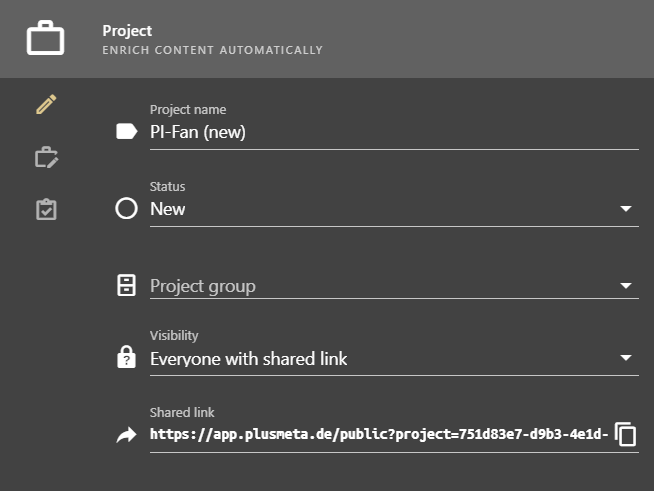
Once you have started a project, you can copy the shared link from the project settings. You can also copy the shared link from the Project view:
- Open the Projects view.
- Click on in the row of the desired project.
The Edit project dialogue opens. - To copy the link, click on the button in the Shared link field.
The link is saved to the clipboard. - Send the link to the people who should be able to access the project, e.g. by e-mail.
- Close the Edit project dialogue.
Branding of the user interface
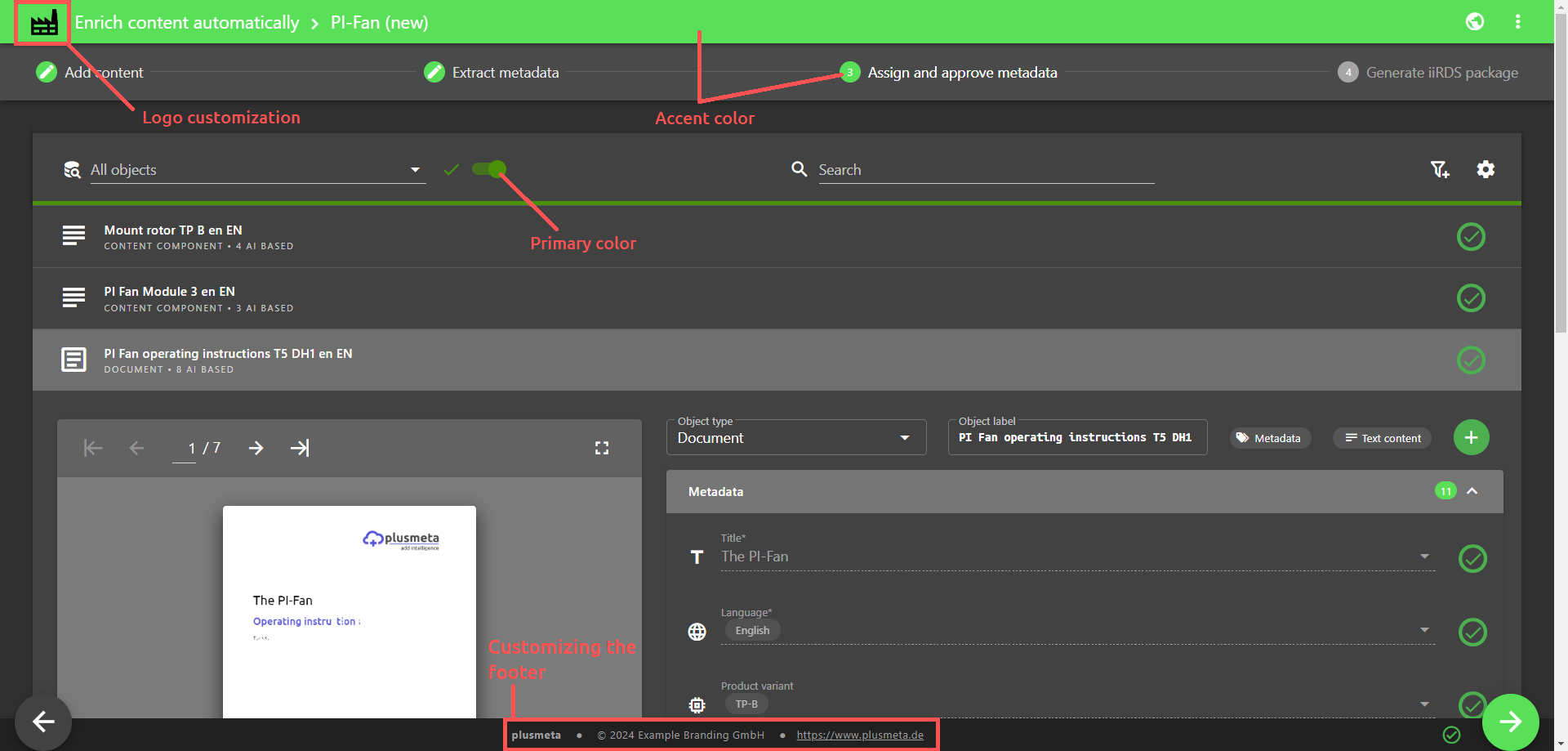
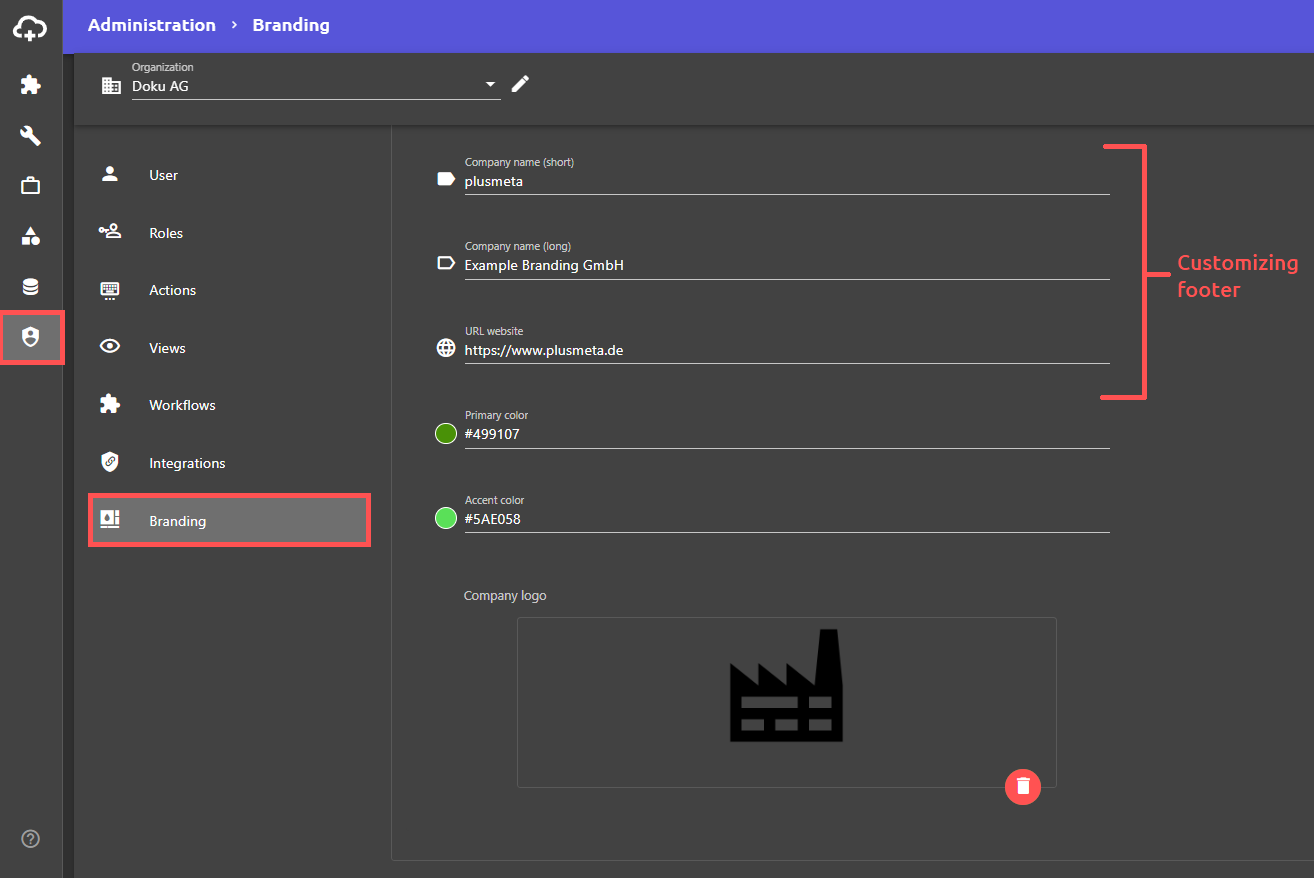
You can customize the user interface for guests using the shared link. It is possible to incorporate a logo and to select primary and accent colors. Information about the company can also be placed in the footer.
The graphic shows an example of a customized interface.