Content of this topic
Functionality
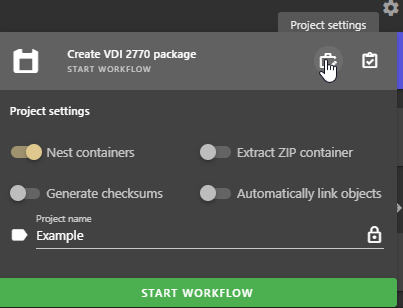
Project settings influence how plusmeta processes the objects in the project. Which project settings are available depends on the workflow the project is based on.
| Setting | Function | Workflow |
|---|---|---|
| Extract fragments | If the setting is activated, contained fragments are imported into plusmeta as independent objects. The fragments can then be analyzed by plusmeta in subsequent steps and receive metadata. | Enrich content automatically, Enrich ST4 content, Analyze similarity |
| Export Components | If the setting is activated, plusmeta inserts the complete component tree into the iiRDS package. If the setting is deactivated, the iiRDS package only contains the components for which there is content. | Workflow: Enrich content automatically |
| Automatically link objects | If this setting is activated, different objects (e.g. format variants) that are recognized as identical are automatically linked. | Create VDI 2770 package, Enrich content automatically |
| Nest containers | If the setting is deactivated, plusmeta unpacks VDI 2770 containers and imports the contained documents and their metadata. | Workflow: Create VDI 2770 package |
| Generate checksums | If the setting is activated, plusmeta calculates a checksum for each generated VDI 2770 container and outputs it in an xml file in addition to the package. | Workflow: Create VDI 2770 package |
| Size of word groups | The number specifies how large the word groups will be when compared, e.g. if you enter “2”, two words are always taken as one unit. | Analyze similarity |
| Has threshold value for similarity | The number indicates the percentage of similarity between two objects. | Analyze similarity |
| Structural diffing | If the setting is activated, the preview of HTML files is displayed in formatted form. If the setting is deactivated, the preview only shows flat text. | Analyze similarity |
| Visualization | If the setting is activated, similar objects and their relationships are visualized in a graphic. | Analyze similarity |
Edit project settings
When creating a new project, you can easily edit the project settings.
- Open the workflows view.
- In the All workflows area, select the desired workflow to create a project based on this workflow. A drop-down menu opens in which the project can be created.
- Assign a project name.
- To edit the project settings, click on . A new area opens in the menu where project settings can be edited.
- To activate or deactivate a project setting, click on the button for the desired project setting.
- If required, set the Visibility via or adjust the Project Guidelines via .
- Click on START WORKFLOW.
The project has been created and is being started.
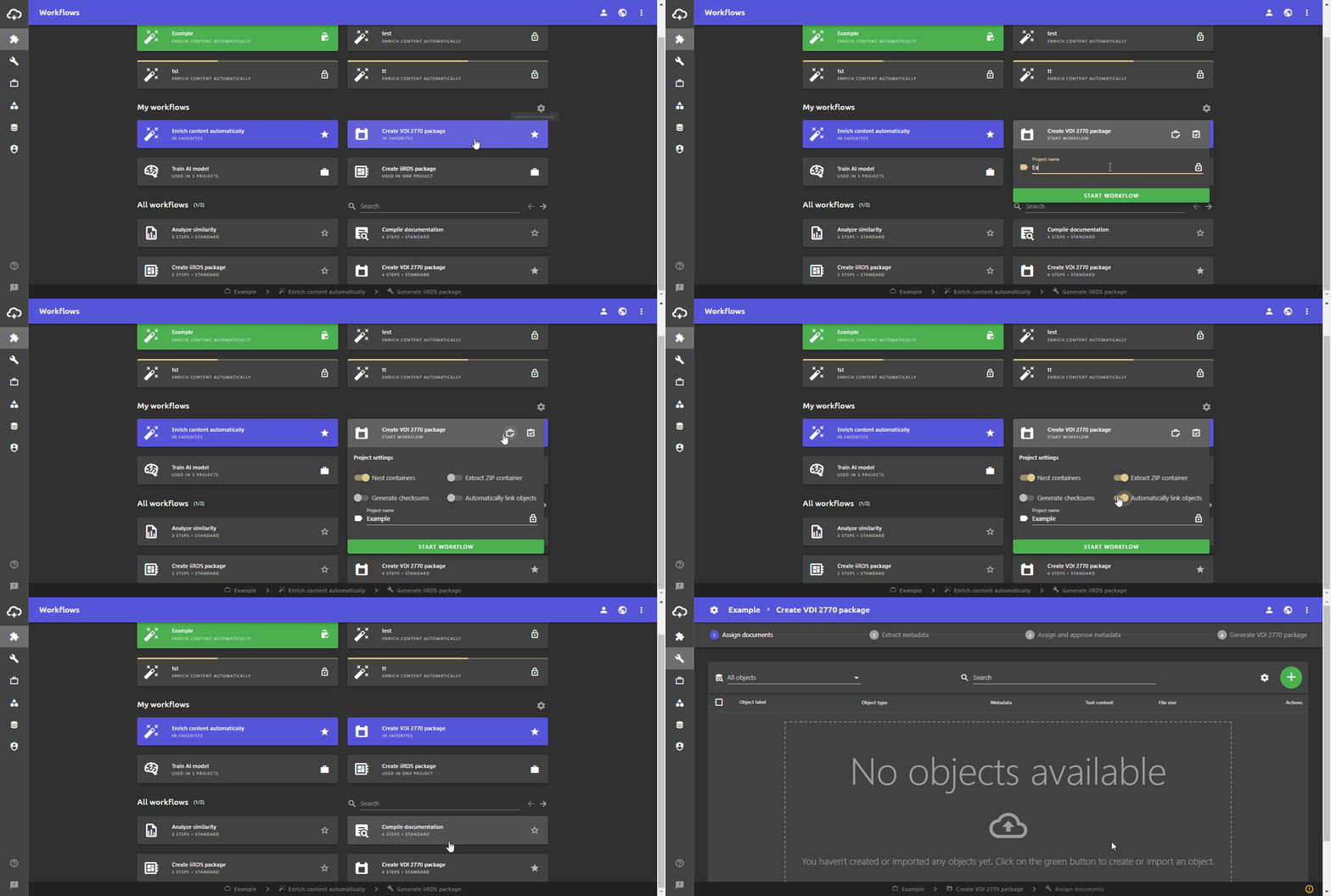
If you have already created your project, you can also edit the project settings later via the settings button at the top left of the work view.
In the Projects view, the project settings can be viewed in the Edit project dialogue. However, they cannot be changed in this context.
