Content of this topic
Extract metadata is a workflow step, which is executed automatically when you reach it. On the page Metadata sources you will find information on the sources of metadata extraction in plusmeta. In this workflow step, you can also add metadata from Excel files. You can find out more on the help page Assign metadata via Excel.
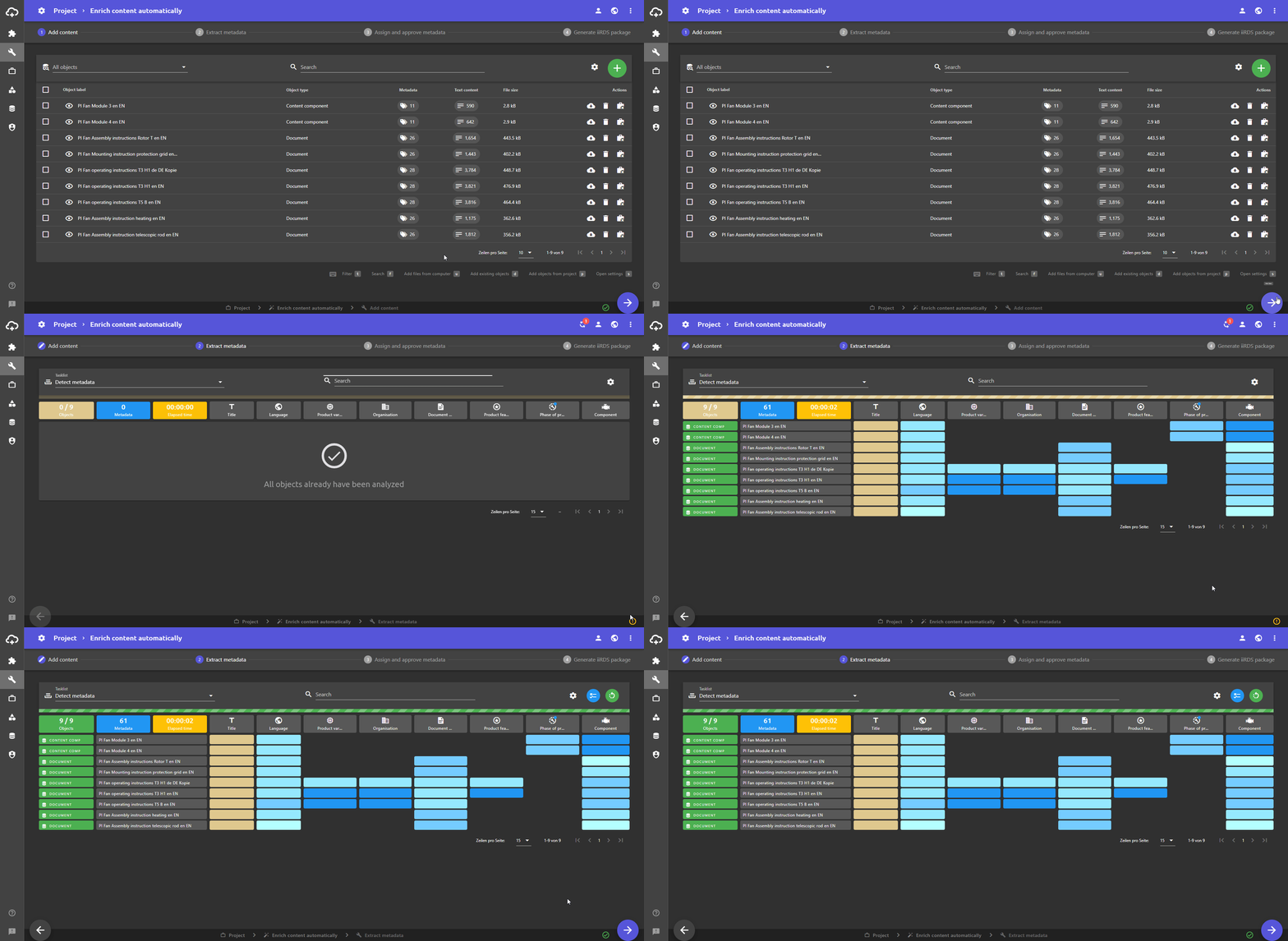
- Metadata extraction is automatic.
By the way: plusmeta uses various mechanisms for the extraction of metadata. Metadata already specified in the object is selected and the objects are searched for metadata using rule-based methods and machine learning methods. The language is determined using language statistics methods. To use machine learning methods for metadata extraction, you must first train an AI model for the corresponding metadata.
-
In the colored boxes you can see the number of processed objects and the automatically extracted metadata as well as the time required. The number of automatically extracted metadata includes only those which have also been extracted by the software.
-
Click the button to download the processing log. The processing log provides information on how the metadata was extracted. This is useful, for example, if you want to know why the software has chosen a certain value.
Note: A clearer presentation on how plusmeta has extracted certain values can be found in the AI explanation. - Use the button to run the metadata extraction again. When this is useful is explained below in the chapter Already analyzed objects.
Already analyzed objects
During metadata extraction, objects are ignored, if they have already been analyzed (in this or another project). This happens, for example, in the following cases:
- You returned to the Add Objects workflow step in the project and added more objects.
- You have added objects to the project in plusmeta that have already undergone metadata extraction.
In both cases, only the new objects are analyzed in the workflow step Extract metadata. The objects that have already passed through the metadata extraction are ignored.
For these objects, you can manually perform a new metadata extraction. To do this, click on the button. A new metadata extraction is useful, for example, if you have made changes to your metadata model.
Metadata heatmap
The metadata heatmap can be toggled via a right. It displays the results of metadata extraction in the form of a matrix for each object and metadata. You can set which metadata is displayed here.
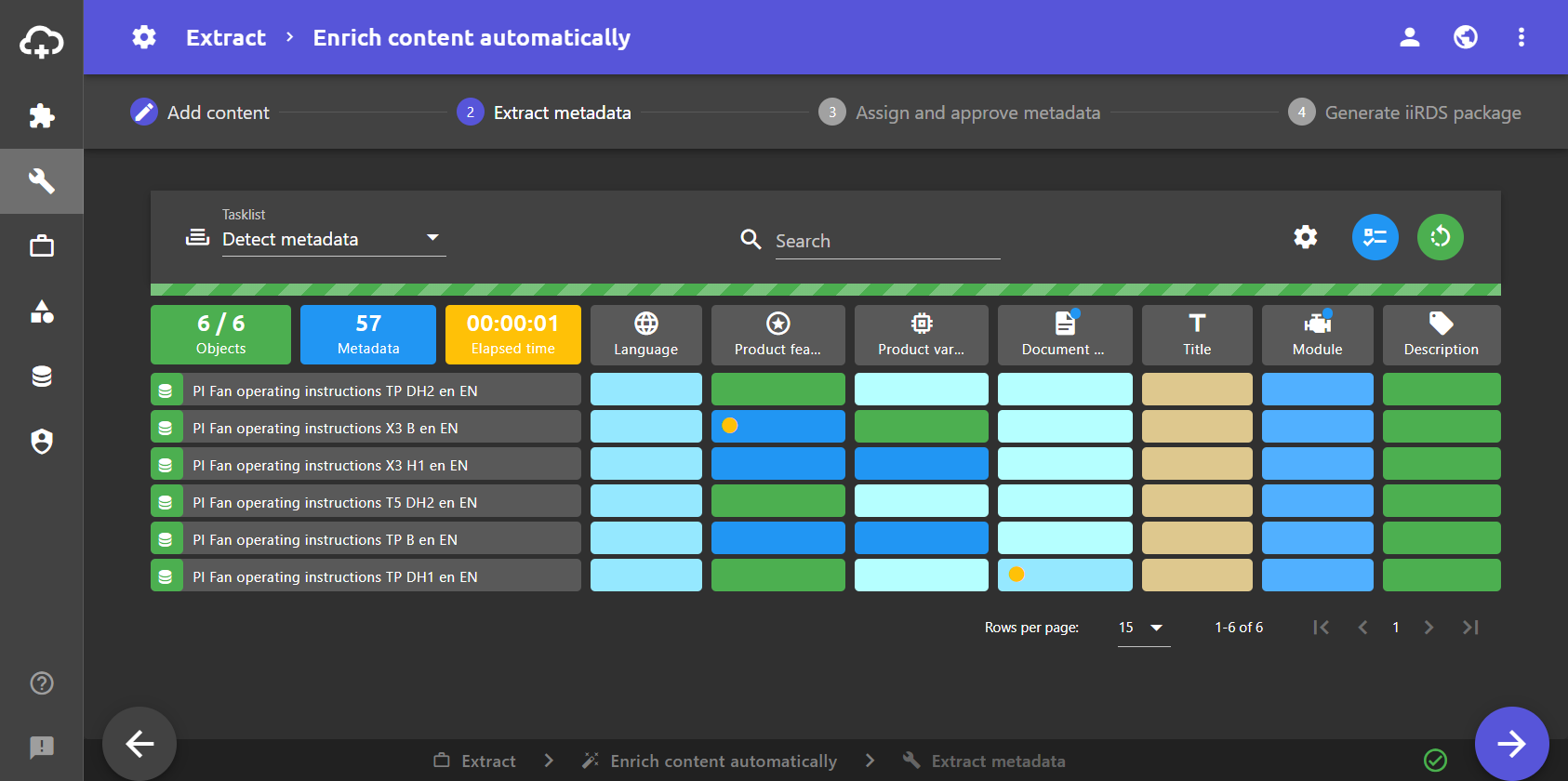
- The colored panels indicate whether metadata values were extracted by plusmeta (blue), read in from a file (beige) or assigned manually (green), e.g. via a project specification.
- The hue of the blue color indicates how confident the system is with its prediction. This is called confidence.
- The darker the color, the more confident the software is. Very light blue indicates low confidence.
- The exact confidence is displayed when you move the mouse pointer over the panel or click on the corresponding panel in the metadata heatmap. This opens the AI explanation.
Note: If extracted metadata has low confidence, it is usually because there is another value that also received a high score during metadata extraction. If metadata has a confidence of 100%, this is usually because its the only value that has received points.
- For metadata marked with a blue dot, there is a related configuration object.
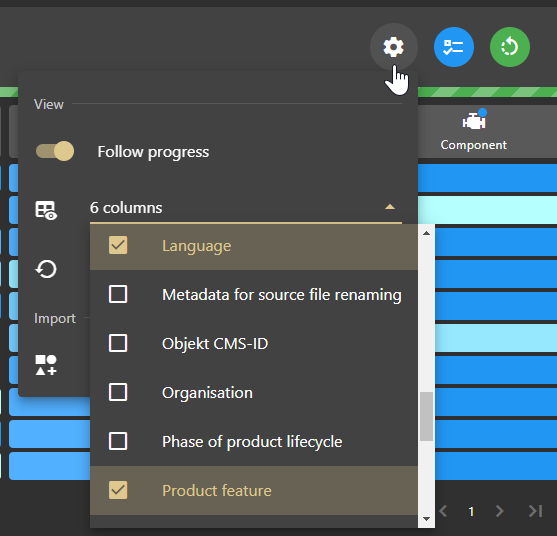
- The gear menu can be used to customize which metadata is displayed in the metadata heatmap. A maximum of 9 columns are displayed.
Further detailed information on metadata extraction can be found in the AI explanation. Click on the panel of the corresponding metadata in the metadata heatmap to open it.
AI explanation
To open the AI explanation , click on a panel in the metadata heatmap. The details of the metadata extraction are broken down and clearly presented here.
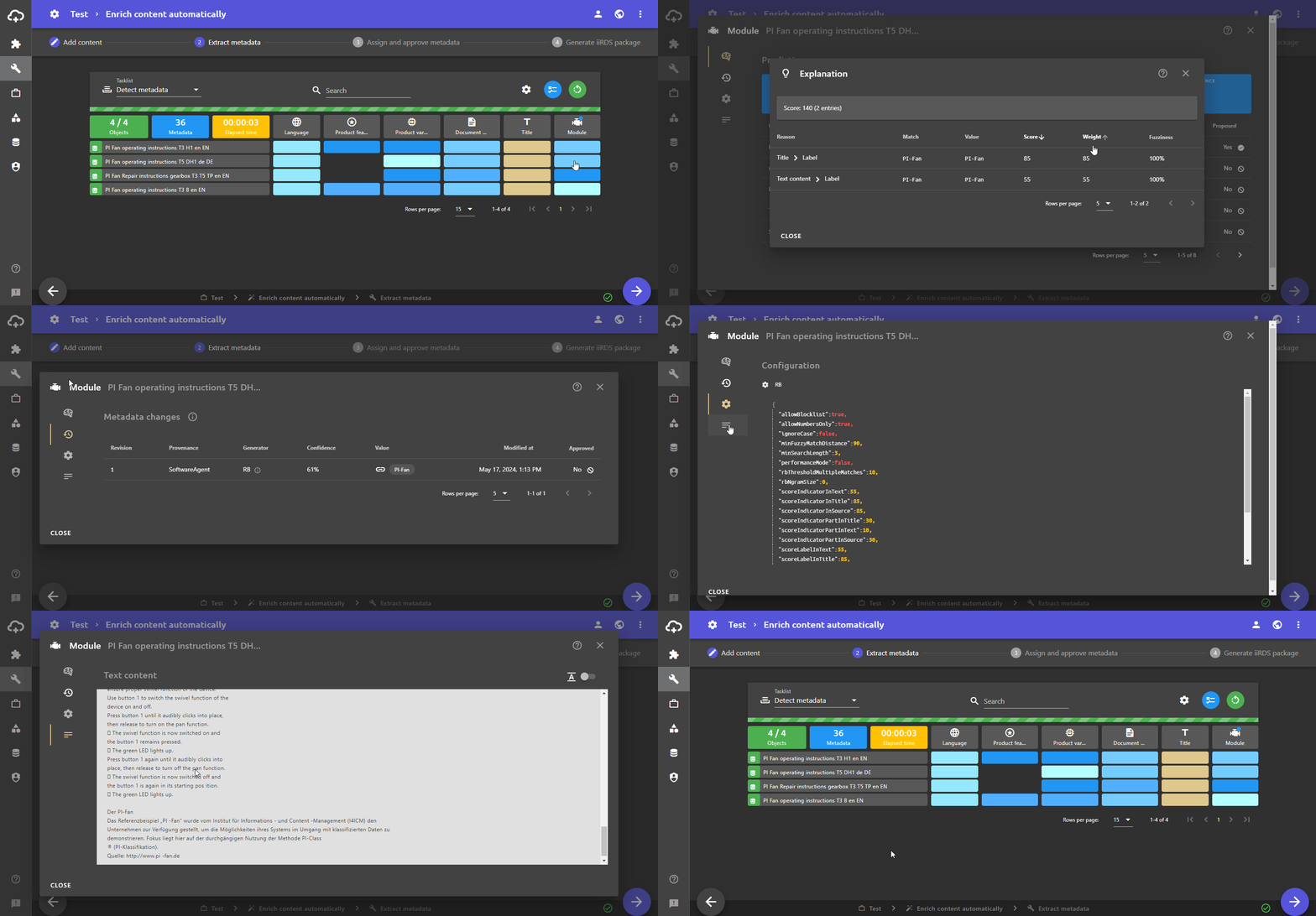
- Prediction: Here you can find more details about the metadata prediction.
- The result can be seen in the area highlighted in blue. In addition, information on the origin, the approval status, any existing configurations and the confidence is given.
- The table below lists the candidates from metadata extraction. These candidates are all matches in the text, including those with fewer points that were not selected by the software.
Note: This table is not available for all extraction methods.
- Configuration: The configuration object assigned to the metadata is displayed here.
Note: This button is only available if a configuration object is assigned to the metadata.
- Text content: The text content of the respective object is displayed here, which plusmeta has extracted from the object and which was used for metadata extraction.
Dialogue: Explanation
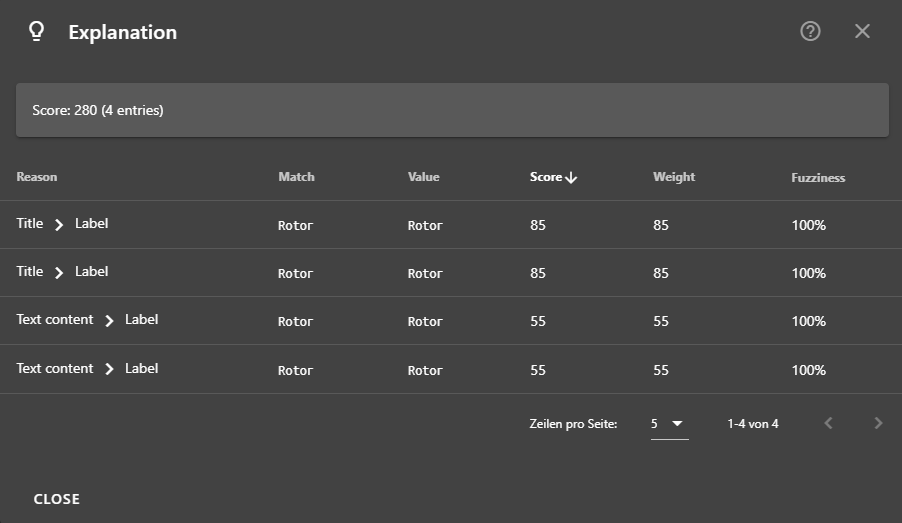
To open the Explanation dialogue, click on the button in the Explanation column. The exact matches with scores are displayed here.
-
The Reason column indicates whether the match was found in the title, in the text content or in a metadata source (e.g. folder path, PDF keywords, etc.) and what was found (label, part of the lable or positive/negative/neutral indicator, see indicator types ).
-
In the Value column, the exact string of the match is displayed. This can be insightful, for example, for fuzzy matches or incorrect results.
-
In the Score column, the score is given, if applicable minus the fuzziness. For example, a fuzzy match with a fuzziness of 90% gets only 90% of the score indicated in the Weight column. If the hit is a neutral or negative indicator, the score may also be reduced.
