Content of this topic
The Administration view allows you to manage roles and permissions. In addition, you can manage existing users and create new users.
Administration view
If you have the appropriate permissions, you can access the Administration view from the sidebar.
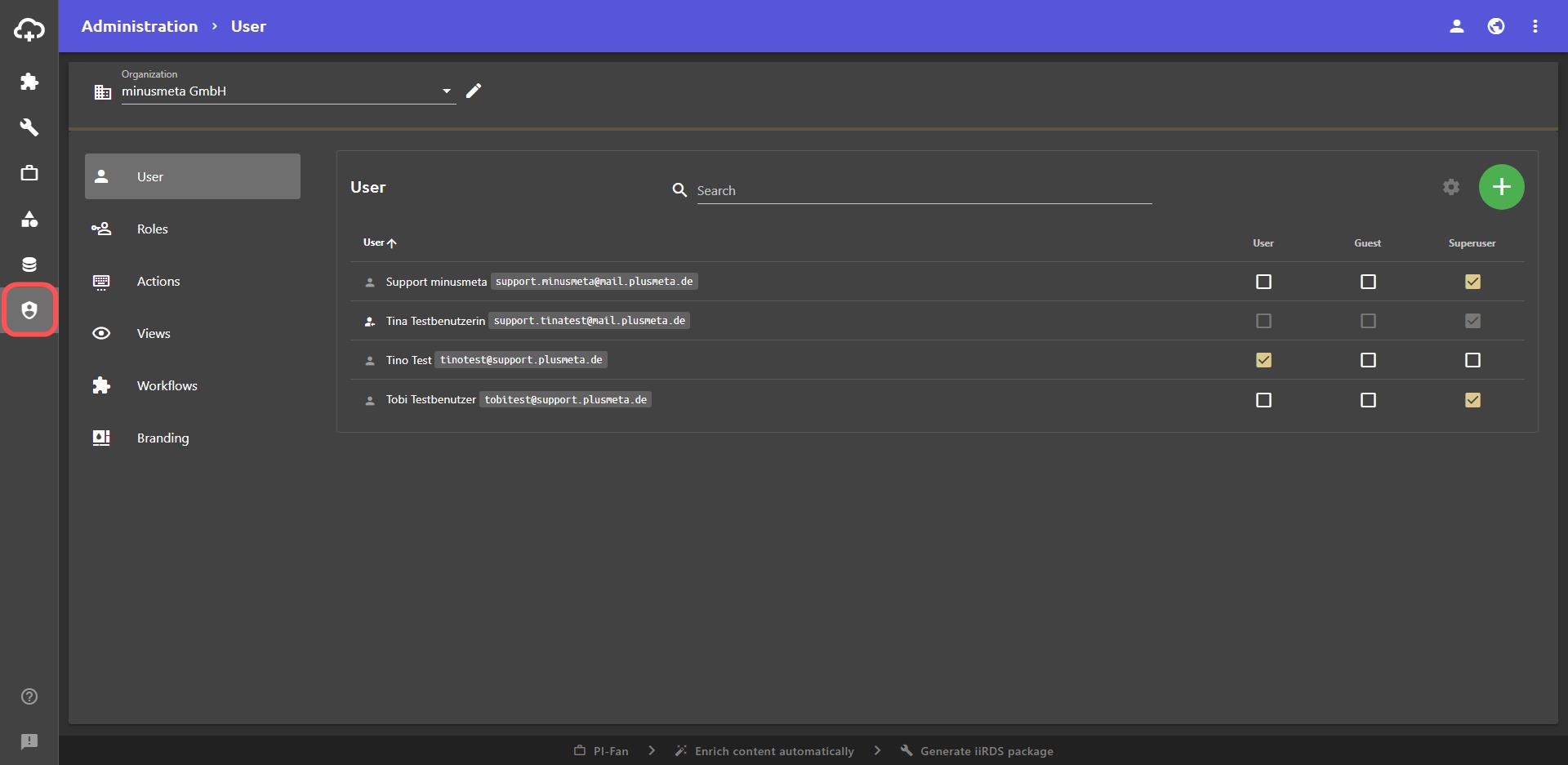
Sections
On the following help pages you will find information about the individual sections of the Administration view:
Edit organization
You can edit your organization, for example the company name, display name and URL.
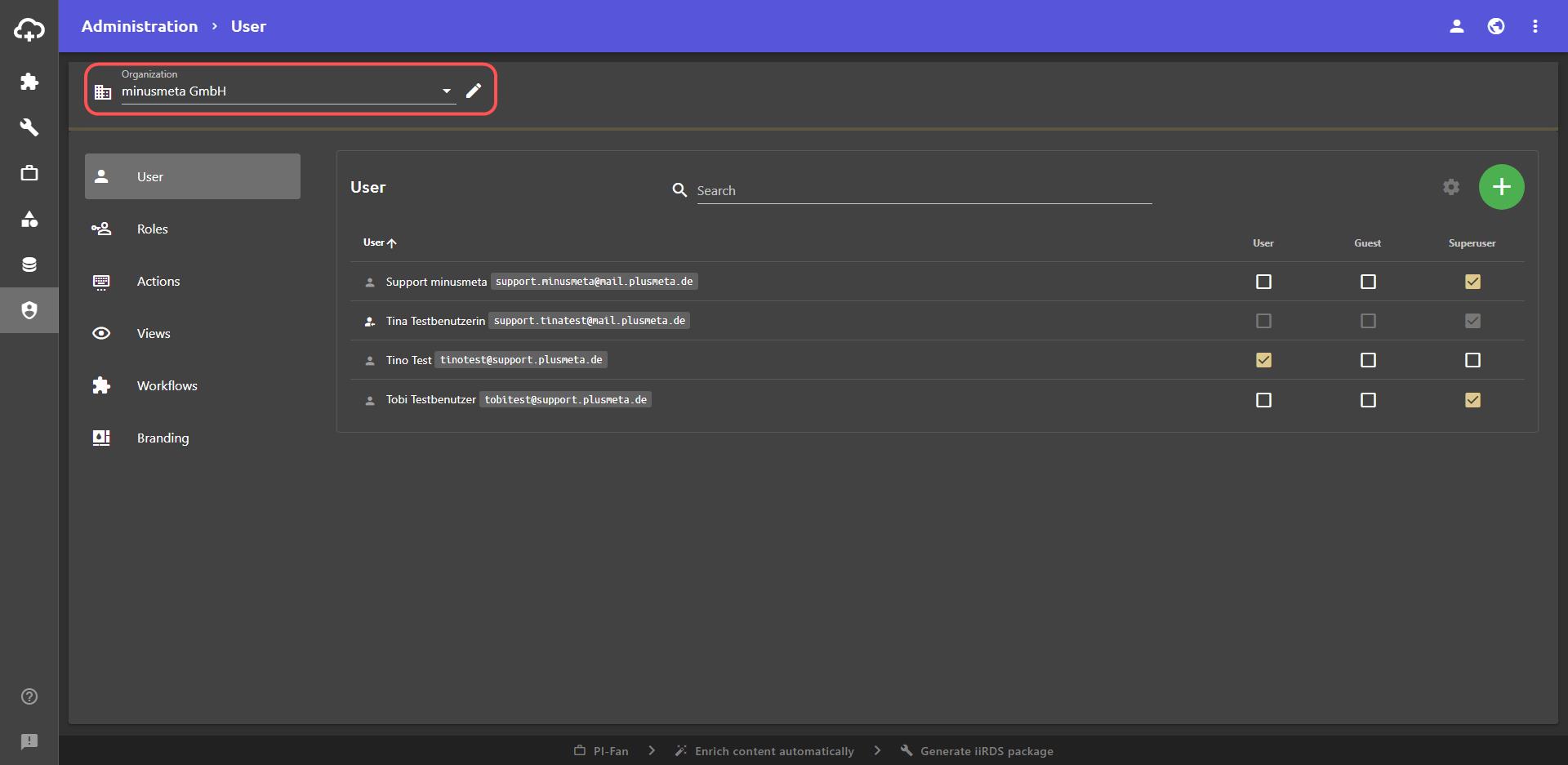
- Click the button next to the organization field.
The Edit organization dialogue appears. - Make the desired changes.
- Click on SAVE to save the changes.
In the Edit organization dialogue, you also have the option to import and export your settings using the button.
Switch organizations
With the multi-client function, plusmeta users can switch back and forth between different organizations.
The button at the top right takes you to the user settings. Here you can switch between different organizations if the multi-client function is configured.
Configure multi-client
- Open the Administration view.
- Click on the User tab.
- Hover over a user and click the Edit button.
The Edit User dialogue opens. - In the Available organizations field, select another organization to which the user can switch.
- Click SAVE.
