Content of this topic
- Basics
- Workflow steps
- Step 1: Add content
- Step 2: Extract metadata
- Step 3: Assign and approve metadata
- Step 4: Generate VDI 2770 package
Basics
The workflow Create VDI 2770 package is used to automatically enrich content with metadata and then export it as a VDI 2770 package.

Generating VDI-2770 packages using Digital Twins offers the following advantages:
- Automatic package nesting: VDI-2770 packages are automatically nested hierarchically as soon as they are generated.
- Unique instance reference for the documents: Each digital twin is treated as a separate object with its own metadata. Documents are linked to one or more digital twins. This ensures a clear connection to the specific product instance.
- Complete metadata in the main document: All instance-specific metadata is automatically transferred to the main document of the respective VDI-2770 package during export.
By separating the metadata, it is always clear which information has a relation to the product instance (digital twin) and which has a relation to the document itself:
| Metadata type | Description |
|---|---|
| Digital Twin | Instance information such as serial number, manufacturer, etc. |
| Documents | Content-related information such as title, language, etc. |
Workflow steps
Step 1: Add content
In this workflow step, PDF documents and an Excel file are uploaded, which describes both digital twins and the documents.
- Add PDF documents to your project via drag & drop or via the add button. It is also possible to add objects from an existing project to the project.
- Click the Add button .
- Click the Import Objects from Excel button and add the Excel file.
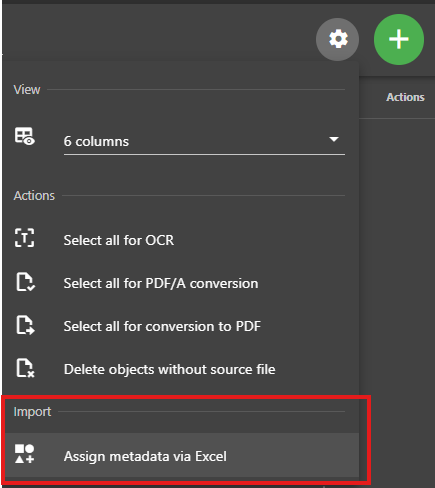
If product and document metadata are created in two separate Excel files, the product metadata Excel file is first uploaded along with the other objects. The document metadata Excel file is assigned using the Assign metadata via Excel function in the gear menu .
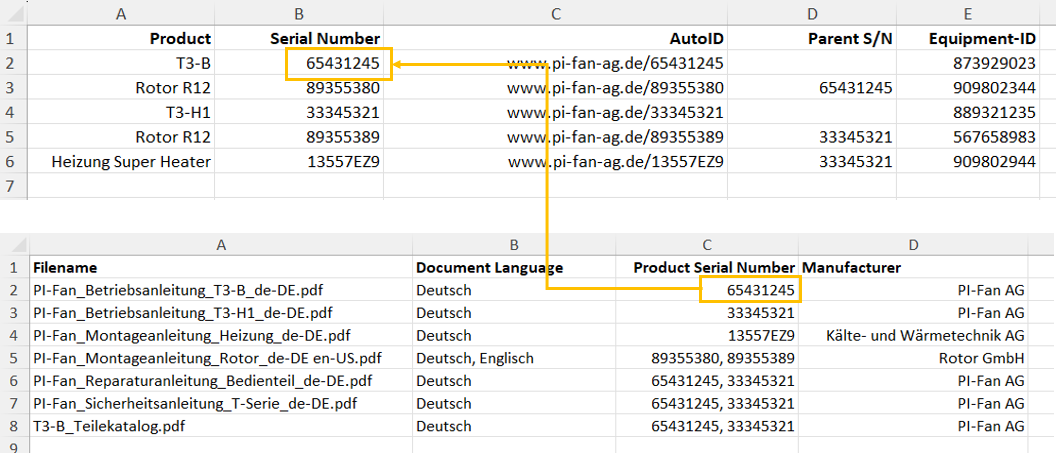
Layout of the Digital Twin Excel File
The digital twins are created in an Excel file and linked to the documents there. You can create the product metadata and the document metadata in a single Excel file using two worksheets, or maintain them in two separate Excel files.
Product metadata
This section describes the digital twins.
The hierarchy of the digital twins is represented in the product metadata via the serial number: To do this, the Parent Serial Number column is created in the Excel file, and the serial number of the hierarchically superior digital twin is entered in the corresponding row of the digital twin.

Document metadata
This section describes the documents and their associated metadata.
Document metadata, such as language or author, can be added to the document metadata. The most important column is Product Serial Number. Enter one or more serial numbers of the digital twins that are to be assigned to the respective document.
Step 2: Extract metadata
In this workflow step, the existing document metadata is processed using various extraction methods. Since digital twins contain no text, product metadata can only be supplemented using methods such as project guidelines or fallback procedures.
Click on the blue arrow to continue to the next workflow step.
Step 3: Assign and approve metadata
In this workflow step, you can view and approve the results of the metadata extraction. You can also modify extracted metadata and add additional metadata.
View: Assign and approve metadata
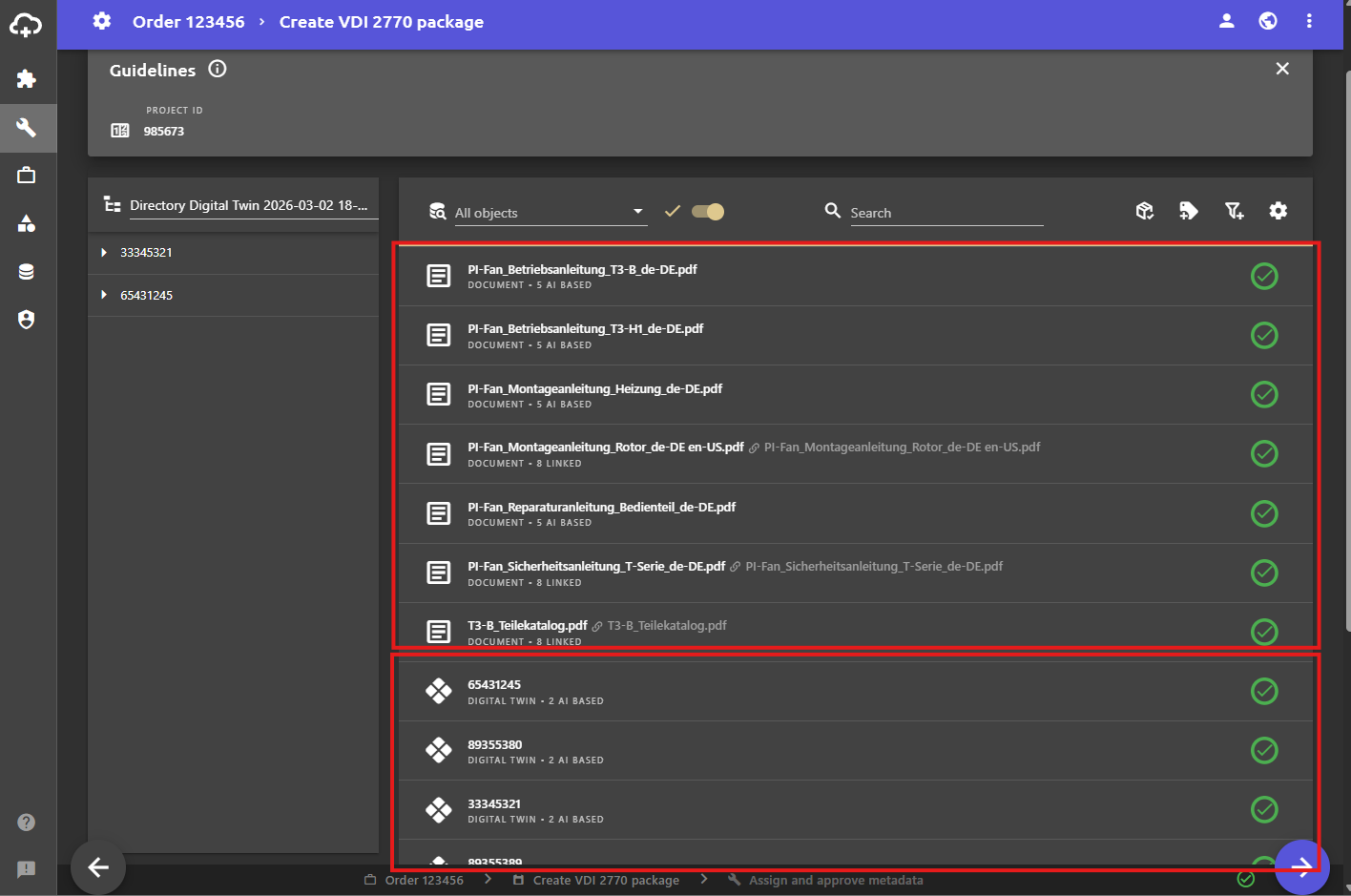
In the Assign and approve metadata view, the documents are displayed in the upper section and the digital twins in the lower section. The metadata is clearly separated:
- Only document-specific metadata (e.g., language) is displayed for the documents.
- Only instance-specific metadata is visible in the digital twins (e.g., serial number, manufacturer).
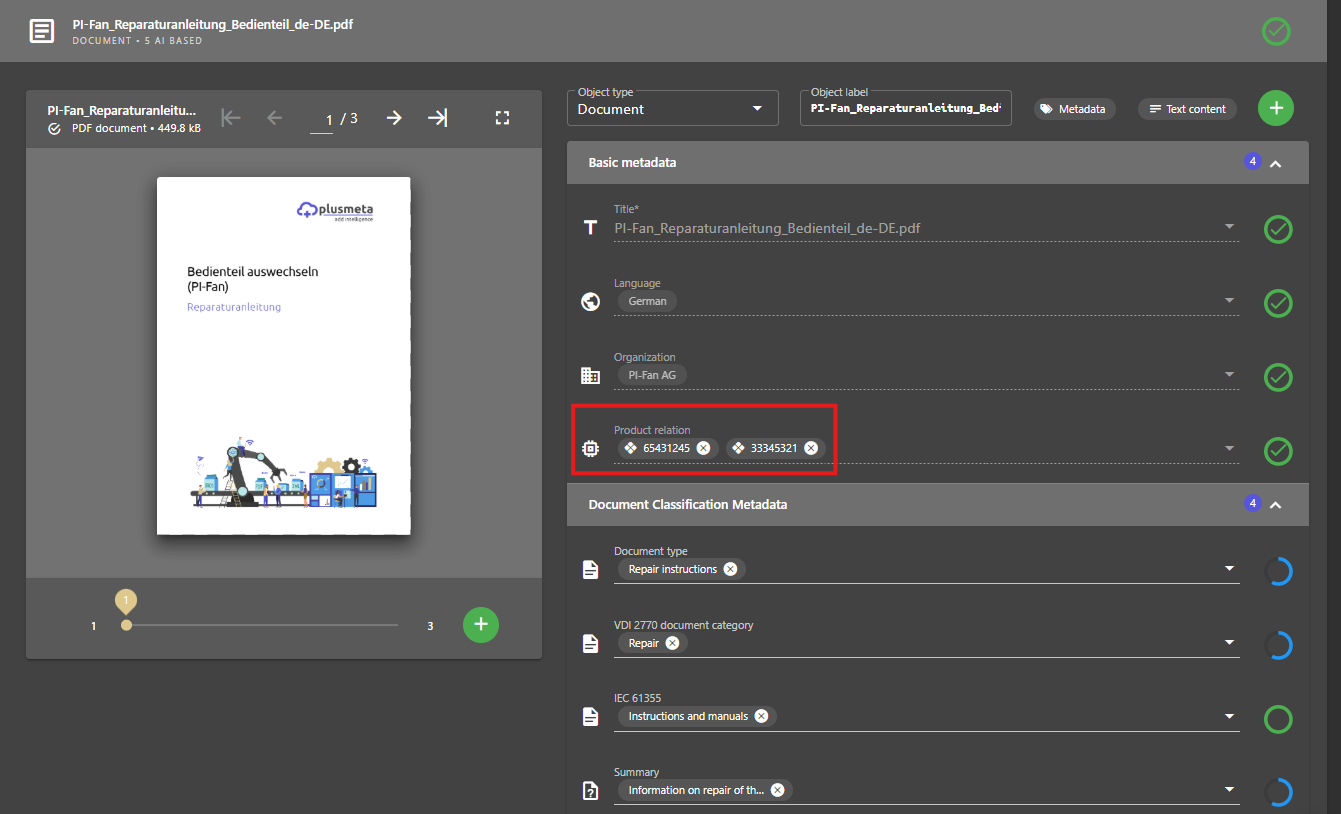
The link between documents and digital twins is established via the “Product relation” metadata field in each document.
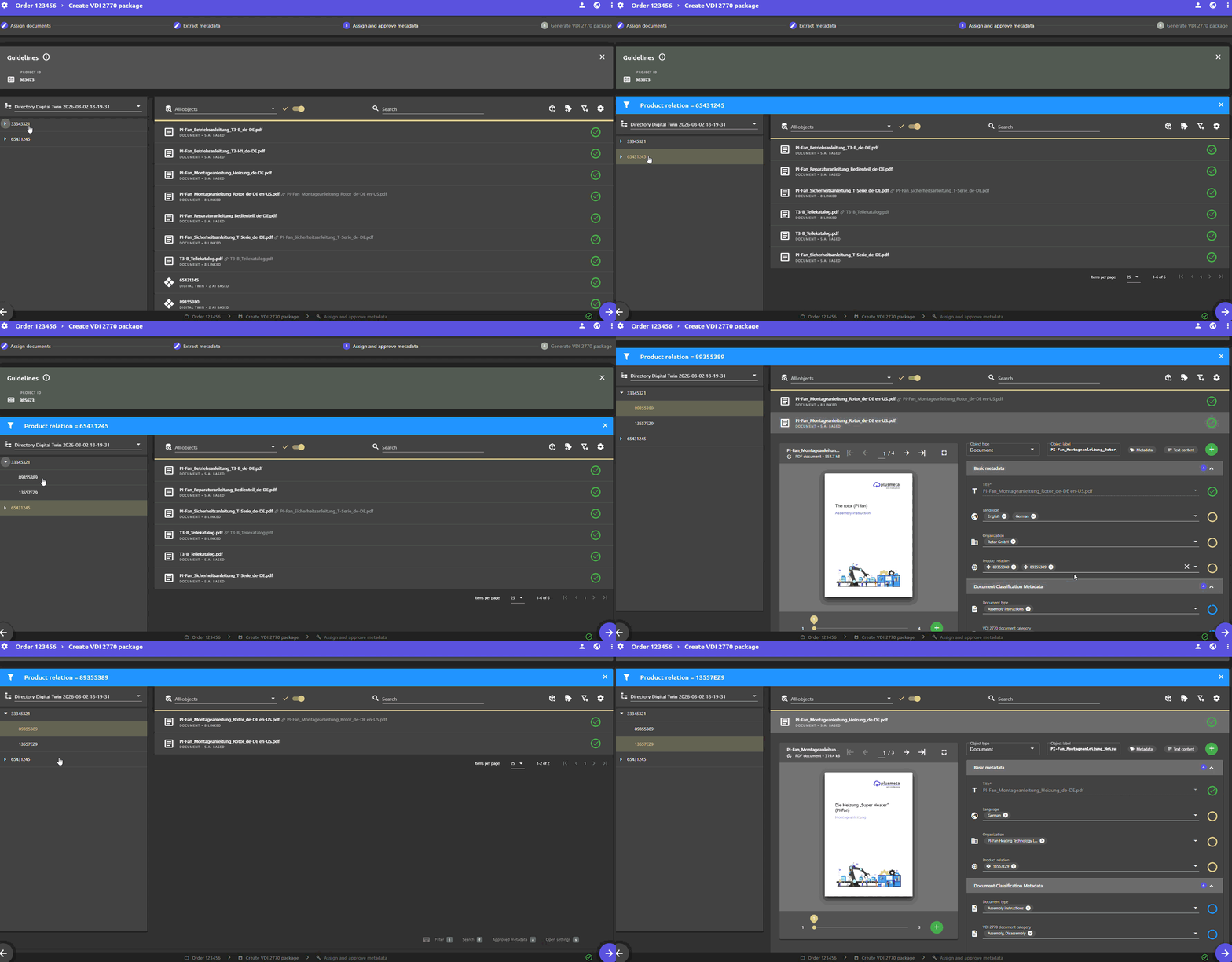
Directory view
The directory view on the left displays a hierarchical structure of the digital twins. This view offers quick navigation and advanced filtering options for the associated documents.
-
View hierarchy: The directory shows the relations between the digital twins. This allows the checking and verification of the structure.
-
Filter documents: Clicking on a digital twin in the directory automatically displays only the documents associated with that twin.
-
Multiple assignments: If a document is assigned to multiple digital twins, it will be displayed multiple times, depending on which twin is selected in the directory.
Note: These are not duplicates, but the same document with multiple links.
Step 4: Generate VDI 2770 package
The VDI 2770 package is generated automatically and is ready for you to download. The hierarchical nesting of the packages is based on the imported nesting of the digital twins.
Click on the button to download the VDI 2770 package.
